This screen is the answer to "what has this guest paid us, and can we give some of it back". It is also the only place in Prostay Pay where a refund can be started.
Where customer records come from
You do not create a customer here. A record appears the first time somebody pays one of your links, built from what they typed on the payment page. That makes this list a payments history rather than a guest list: a guest who has stayed four times and never paid a link is not on it, and someone who paid a link and never stayed is.
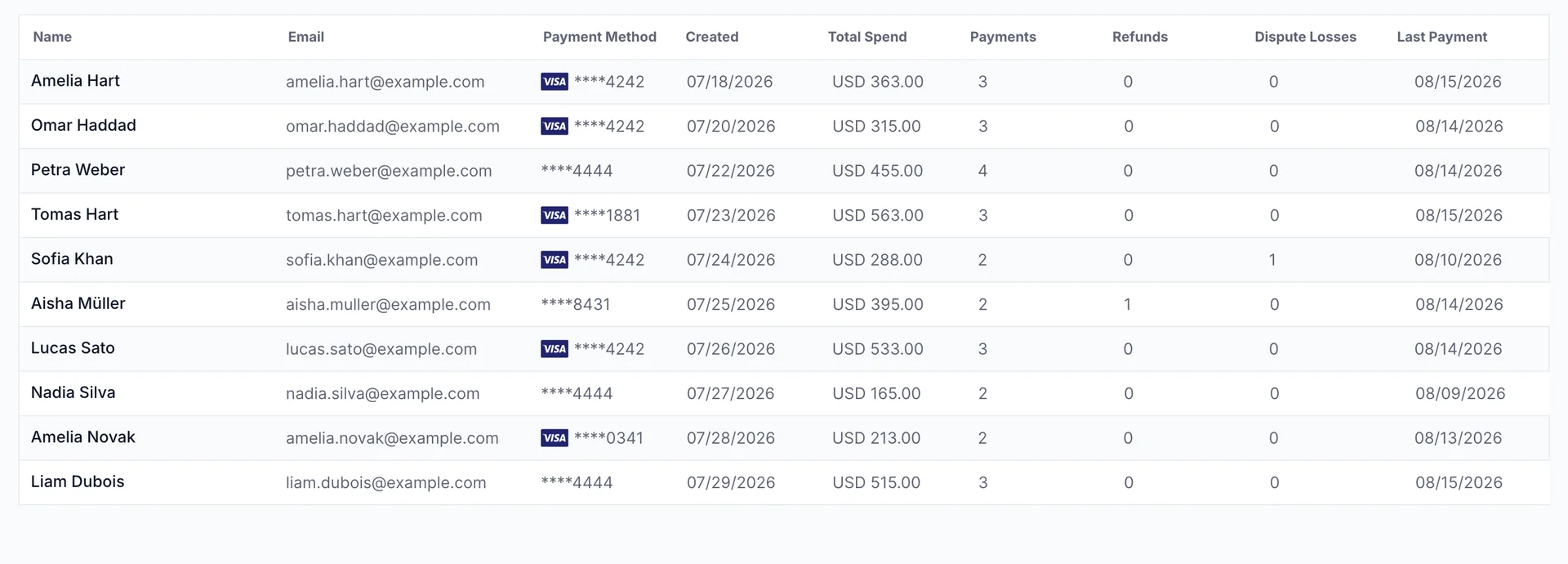
The nine columns
| Column | What it holds |
|---|---|
| Name | What the guest typed on the payment page, not what is on their booking. |
| Where a receipt goes by default. | |
| Payment Method | The card brand and last four digits. |
| Created | When the record appeared, which is the date of their first payment. |
| Total Spend | The sum of what they have paid you. |
| Payments | How many payments they have made. |
| Refunds | How many of those you have given back. |
| Dispute Losses | How many disputes this guest raised that you lost. |
| Last Payment | The date of the most recent one. |
Search matches names and email addresses, and the page-size box at the top right sets how many rows you see at a time.
One guest
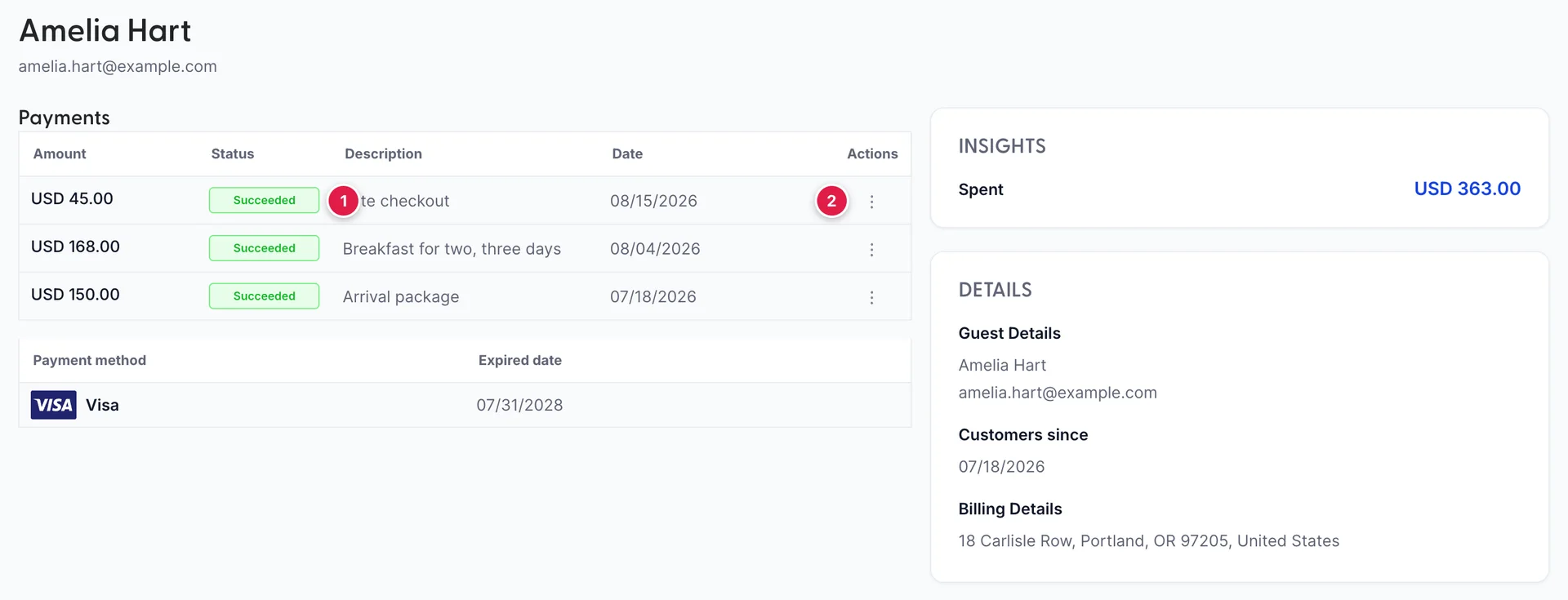
Clicking a row opens the guest's own page. It has four parts.
The Payments table at the top lists Amount, Status, Description, Date and Actions, one row per payment. Below it, a Payment method table lists the cards on file with their Expired date. On the right, INSIGHTS carries a single Spent figure, and DETAILS carries Guest Details, Customers since and Billing Details.
What you can do to a payment
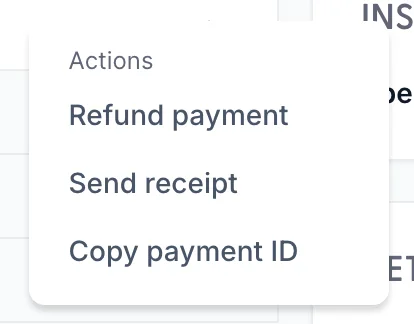
The menu at the end of a payment row is where the work happens. Under Actions: Refund payment, Send receipt and Copy payment ID. Refund payment is only offered on payments that have not already been refunded, so if it is missing from a row, that payment has been refunded already.
There is a second reason it can be missing, and it is worth ruling out before you conclude a payment was refunded: your role may not include the permission for it. If no row anywhere offers Refund payment, that is the cause, and an administrator can add it from Users in System Settings, under Prostay Pay › Payments.
For the full record of a single payment, including exactly what it cost you in fees, use the Payments screen in the sidebar, described in Payments, payouts and account records. Copy payment ID here gives you the reference to search for when you get there.
The Payment method table lower down the page works differently: clicking one of its rows opens a panel with the card's name, masked number, fingerprint, expiry and type.
Sending a receipt
Send receipt opens a small dialog with a Deliver to list, prefilled with the address the guest paid under. + Add another email adds a second, a third and so on, which is the way to copy a receipt to a company booker or to your own accounts address at the same time.
This is per payment, not per guest. A guest with three payments who wants "a receipt for everything" needs three receipts.
Refunding a payment
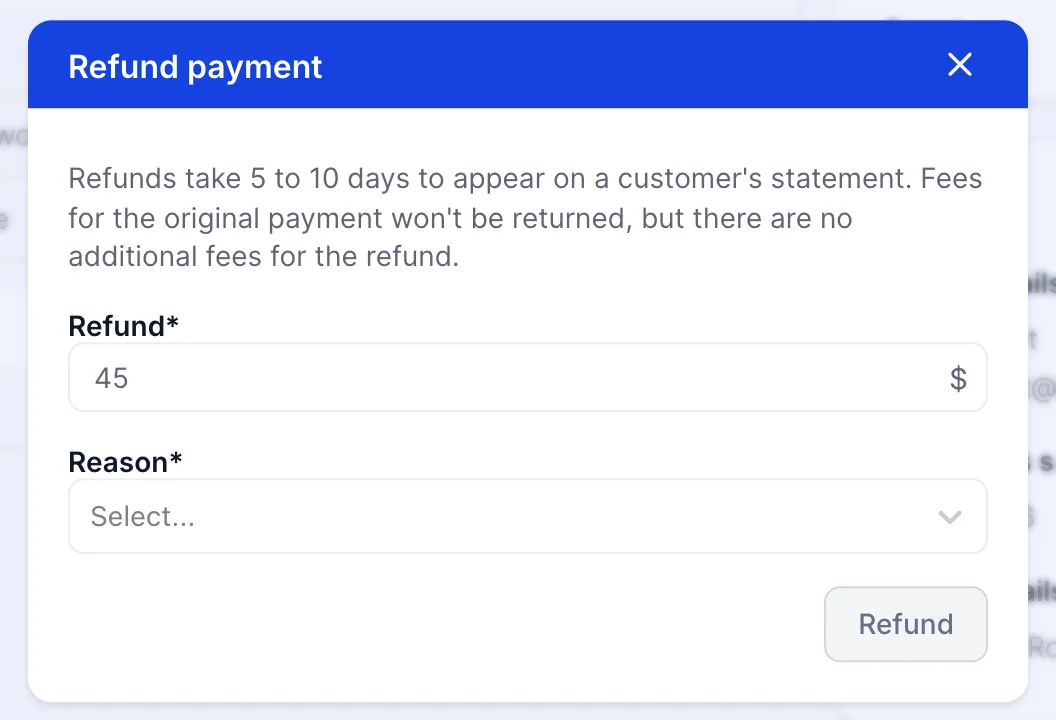
- Open the guest from Customers.
- Find the payment in the Payments table and open its row menu.
- Choose Refund payment.
- Leave Refund at the full amount, or type a smaller one.
- Choose a Reason: Duplicate, Fraudulent, Requested by customer or Other.
- Click Refund.
Both fields are required and the button stays grey until they are filled. The reason is not cosmetic: it is sent with the refund and is part of the record if the payment is ever queried, so Duplicate and Requested by customer should mean what they say.
Partial refunds
The Refund field opens prefilled with the whole payment and can be typed down. That is how you refund one night of a three-night deposit, or the spa treatment but not the transfer.
You cannot refund more than was paid. Type a larger figure and the field turns red with Refund cannot be more than and the original amount, and the Refund button greys out until you bring it back down. A zero or a negative is refused the same way.
What a refund costs
The practical consequence: a refunded payment is not a payment that never happened. You are out the amount you gave back plus whatever the original payment cost you to process, and refunding two hundred dollars leaves you further behind than never having taken it.
Your own fee rates, and what any individual payment actually cost, are on the Payments and Balances screens in the sidebar. Those carry the figures for your account, and this help centre does not restate them, because a number written here would go stale. Payments, payouts and account records explains what is on each of them.
After the refund
Refund payment disappears from that payment's row menu, the guest's Refunds count in the list goes up, and the amount comes off what you are owed rather than being taken from your bank account separately.
The five to ten days in the dialog is the guest's side of it. Until then they will not see the money and will not believe you, so it is worth saying the number to them when you tell them it is done.
A payment the guest disputed with their own bank is not this. Do not refund it: refunding a disputed payment can cost you both amounts. See Handling a disputed payment.