The dashboard answers two questions and keeps them apart. The top of the screen is today, hour by hour, alongside where your money currently sits. Everything below it is a period you choose, and it does not move when a payment comes in.
The screen is two halves
Confusing the two is the most common way to misread this screen. The top half has no date control apart from the day itself: it always shows today, it resets at midnight, and the chart's horizontal axis is the twenty-four hours of today. The bottom half, headed Overview, has its own date range and granularity and ignores what the top half is showing.
Today
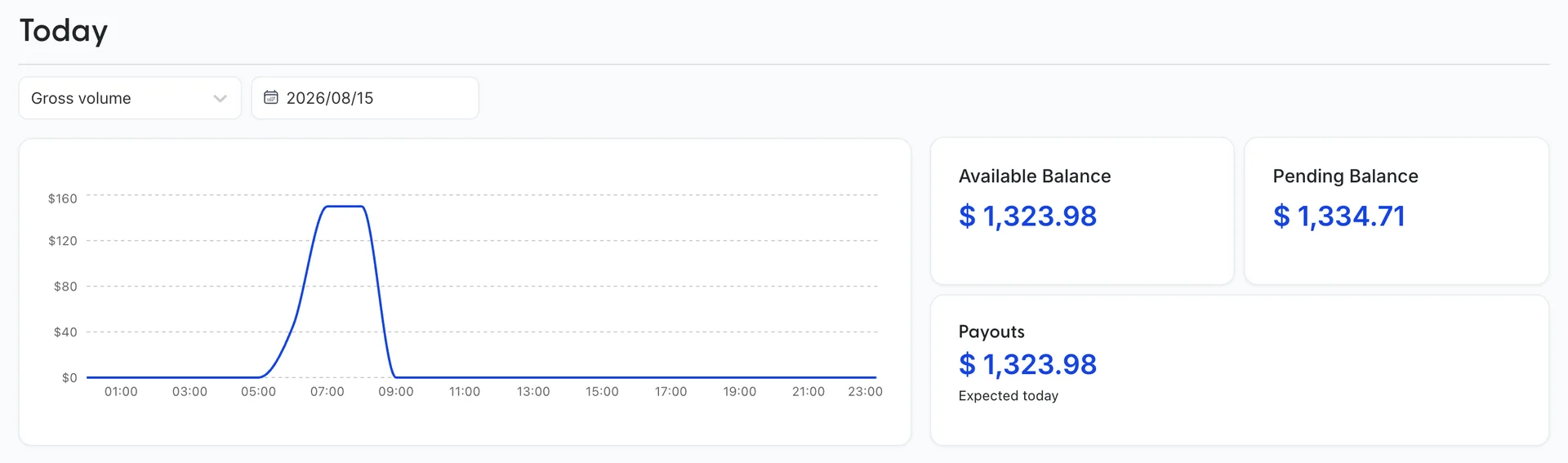
The picker above the chart chooses what the line plots. It offers four metrics, and the chart redraws for whichever is selected:
| Metric | What the line is counting |
|---|---|
| Gross volume | Money taken, before anything is subtracted. A refund issued today does not pull this line down. |
| Net volume | Gross less refunds and less payments lost to disputes. This is the figure that becomes revenue. |
| Successful payments | A count of charges that went through, not an amount. Ten payments of five dollars outrank one of four hundred. |
| New customers | A count of guests who paid you for the first time. A returning guest is not counted again. |
A quiet morning looks like a flat line with one or two bumps in it, because each bump is a single payment landing in a single hour rather than a trend. The axis runs the whole day, so at nine in the morning three quarters of the chart is empty by definition.
Available, pending and expected
Three cards sit to the right of the chart, and they are the part of this screen people most often read as one number.
| Card | What it means |
|---|---|
| Available Balance | Money that has finished settling and can be paid out. This is the amount a payout can actually move. |
| Pending Balance | Money taken but still settling. It is yours, it is just not movable yet. How long a payment stays here depends on your account’s country and settlement terms rather than on anything set in Prostay. |
| Payouts, marked Expected today | What is scheduled to leave for your bank today. It comes from your payout schedule, so it is zero on a day no payout is due, and it can differ from the available balance. |
So the money you have taken is the two balances added together, the money you can spend is the available one, and the money arriving at the bank is the payout. A guest who paid an hour ago is in pending, not available, which is why the available balance can sit still through a busy morning.
The Overview date range

The left picker is granularity: Daily, Monthly, Quarterly or Yearly. It sets how the range is chopped up, which is one point per day, per month, per quarter or per year across the charts. The button beside it opens a calendar for the range itself, and the default is the last month.
Granularity finer than the range is the usual mistake in both directions. A year at daily granularity is 365 points squeezed into a card 415 pixels wide, which is a smear. A fortnight at monthly granularity is one point, which is a dot.
The three charts

Gross volume and Net volume from sales are the same money measured before and after subtractions. The gap between the two lines is refunds plus disputes you lost. When the gap widens suddenly, that is a refund or a lost dispute, not a bad trading day, and it is worth finding out which.
New customers counts first-time payers, so it flatlines once your regulars are established even while volume climbs. It is a reasonable proxy for how many of your charges are going to guests you have not billed before.
The two tables

Payments lists individual charges inside the range, newest first, by amount, guest email and date. It is a sample rather than a complete record: for everything, use the Payments entry under Money In, which holds every charge you have taken.
Top customers by spend ranks guests by what they have paid inside the range. Change the range and the ranking changes with it, so a guest at the top of a monthly view can be absent from a weekly one. Clicking a name is the fastest route to that guest's record.
Reconciling against your bank
When the dashboard and your bank statement disagree, the reason is almost always one of three things, and they are worth checking in this order:
- Timing. The available balance is what has settled, and the payout that moves it lands in your bank a day or more later. Today's takings are not in today's payout.
- Fees. What leaves for your bank is net of processing fees, and the gross volume chart is before them. Payments and fees are itemised on Transactions under Money Out, which is the screen that reconciles to the penny.
- Refunds and disputes. A refund reduces the balance without appearing as a negative payment, and a lost dispute takes the payment and a fee with it. Both show in net volume and neither shows in gross.
For the payout-by-payout view, Payouts under Money Out lists each transfer and its status. That screen and Transactions are described in Payments, payouts and account records.