Seven screens in Prostay Pay exist so you can charge somebody: the dashboard, products, payment links, customers, disputes, the payment methods a guest is offered, and your account details. The nine described here are the other half of the module. They report on the account itself, and they are where you go once the money has already moved.
Most weeks you will not open any of them. You will open them on the day a payout is late, when a figure in your books does not match a figure on the dashboard, when your accountant asks for a statement, and at the end of the tax year.
The nine screens
| In the sidebar | Under | What it is for |
|---|---|---|
| Payments | Money In | Every individual payment, with its full record. |
| Balances | Money Out | What you are holding and what has settled. |
| Payouts | Money Out | The transfers into your bank account. |
| Financial Account | Money Out | An account that can sit between your takings and your bank, where one is offered. |
| Transactions | Money Out | Movements in and out of that account. |
| Documents | Risk & Compliance | Statements and tax documents issued for the account. |
| Tax Registrations | Settings | Where you are registered to collect tax. |
| Tax Settings | Settings | How tax is calculated on your charges. |
| Account Management | Settings | The details held about your business, and anything still outstanding. |
Payments
Payments is the complete record: every charge you have taken, with the fee it cost you, the card it came from, the outcome and the timeline. Everywhere else in the module shows you a slice of it. The dashboard shows a recent sample, a customer record shows one guest, and a payment link's page shows the people who paid that link.
It has no article of its own because there is nothing to do on it. Reading is the whole task, and most of the questions people open it for are answered faster somewhere else:
- For one guest's payments, and for refunds and receipts, open Customers.
- For everyone who has paid one link, use the Payments table on that link's own page, described in Taking payment with a payment link.
- For totals over a period, use the dashboard.
- For what one specific charge actually cost you, and what was left after the fee, open it here. This is the only screen that breaks a single payment down that far.
Balances and Payouts
Balances is the fuller version of the two balance cards on the dashboard. It separates what has settled from what has not, and it is the figure to trust when the two disagree.
Payouts lists the transfers to your bank: when each one went, how much, and whether it arrived. This is the screen that answers "why is the amount in our bank not the amount on the dashboard", because a payout covers a period rather than a moment. Open it before you conclude that a payment has gone missing.
Financial Account and Transactions
A Financial Account is an account that can sit between your takings and your bank, and Transactions lists the movements in and out of it. Not every property has one. It depends on your country and on how your account was set up.
If nobody has told you that you have one, expect both screens to have nothing in them, and carry on. Nothing else in Prostay Pay depends on them: payments still arrive and payouts still run without one.
Documents, Tax Registrations and Tax Settings
Documents sits under Risk & Compliance, beside Disputes, and holds the statements and tax documents issued for your account. This is where you go when an accountant asks for the year end paperwork.
Tax Registrations records where you are registered to collect tax. Tax Settings controls how tax is calculated on a charge. Both are consequential, and both are easy to get wrong in a way that surfaces months later in a filing rather than today on a screen. Set them with your accountant. This help centre can tell you what the screens do; it cannot tell you what your jurisdiction expects of you.
Account Management
Account Management shows the details held about your business and, more usefully, anything still outstanding on the account. If payouts have stopped, or a payment was refused, open this before anything else. An outstanding requirement is the most common cause, and it is usually a document that needs uploading rather than something broken.
What all eight show before your account exists
Every one of these screens reports on your payments account, so none of them has anything to report until the account exists. When that is the case they all say so, and offer the button that starts setup.
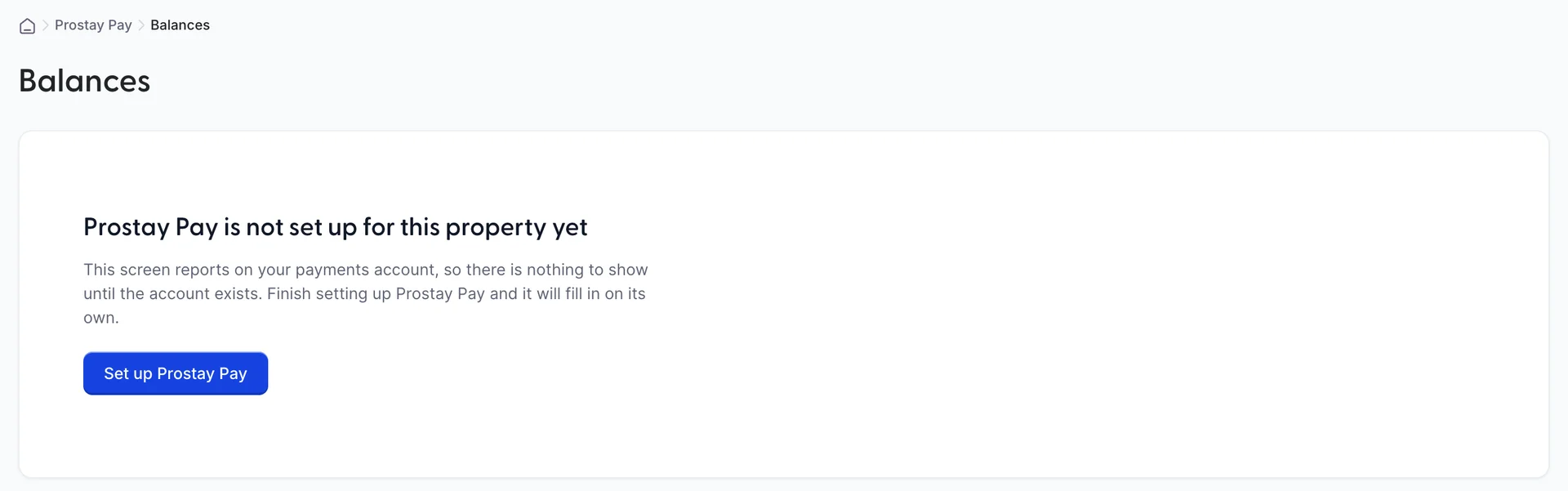
You are most likely to see this on your first day, before anybody has been through Setting up Prostay Pay. There are two other ways to arrive here, and both are worth knowing because neither is obvious:
- Setup was started and not finished. The six steps can be left part way through, and the menu entries appear before the account is complete. Reopen the wizard and finish it.
- The account existed and no longer does. Rare, and not something you can fix from these screens. Contact Prostay support.
What this message is not is a fault. Nothing is broken, no data has been lost, and no payment has gone missing. The screens are reporting accurately that there is no account for them to report on.
Why there is only one screenshot
Every other article in this module shows you what you will see. This one mostly cannot, honestly, and the picture above is the exception rather than the rule.
These eight screens draw live money out of a real account. A picture of them is either somebody's genuine balances and payouts, which we are not publishing, or a demonstration account, which is a photograph of a test rig rather than of a hotel. Neither one shows you your figures, and your figures are the entire content of these screens.
The screen above is the one state that has no figures in it, which is exactly why it can be shown. Everywhere else, what each screen is for does not change, which is what the descriptions above are. Open the screen and the numbers on it are yours.
When something looks wrong
| If | Do this |
|---|---|
| A payout has not arrived | Open Payouts for its status, then Account Management for an outstanding requirement. Between them those two answer most cases. |
| A figure differs between the dashboard and Balances | Use Balances. The dashboard is a summary of the day rather than a ledger. |
| A figure on one of these screens looks wrong | Contact Prostay support with the payment reference. Copy payment ID on the customer's record gives you it. |
| One of these screens will not load at all | Contact Prostay support. |
| A tax question | Your accountant. Prostay cannot advise you on tax. |
For what the rest of the module does, and where these nine sit in it, see How Prostay Pay is put together.