Prostay Pay is the part of Prostay that takes money from a guest. It processes cards and wallets, holds the balance until it is paid out to your bank, keeps a record of who paid what, and handles the two things that happen afterwards: refunds you choose to give, and disputes a cardholder raises with their bank.
The module is larger than the part of it you will use. Sixteen destinations sit in the sidebar, and in a normal week you will open perhaps four of them. The rest are there for the day something needs checking, and knowing which is which saves you reading all sixteen to find the one you want.
What the module is responsible for
Everything in Prostay Pay is one of five things:
- Connecting your business to a payments account, once, so that money has somewhere to go.
- Describing the things you sell, as products, and bundling them into payment links a guest can pay.
- Taking the payment and showing you the money: what came in today, what is available, what is on its way to your bank.
- Keeping a record per guest, and giving them a receipt or a refund.
- Answering a dispute when a cardholder tells their bank they should not have been charged.
What is not in the list matters too. Prostay Pay does not price your rooms, does not take reservations and does not post to a folio. A payment link can be pointed at a reservation, so that the charge is filed against a booking and its lead guest, but the amount on it is one you type rather than a balance the Property Management System calculated. Room rates, deposits taken by the booking engine and folio postings all stay where they are.
The sixteen destinations
The sidebar holds one standalone entry and four expandable groups. Only the first is visible until the account is set up.
| Group | Entry | What it is for |
|---|---|---|
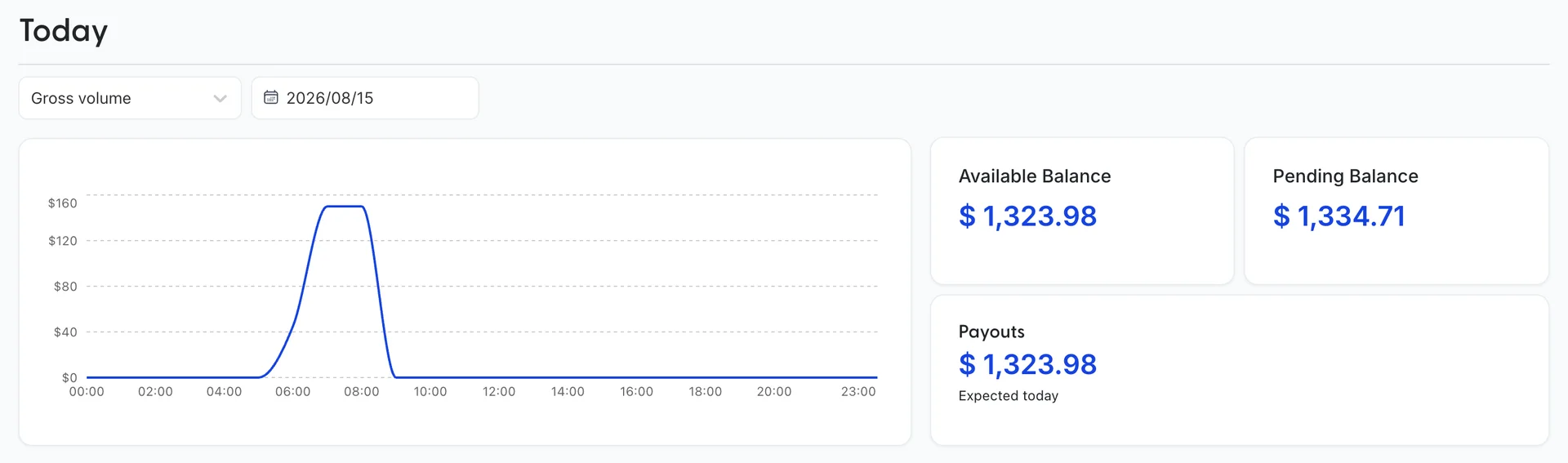
| Dashboard | Today's takings, your balances, and a month of history. The screen the module opens on. | |
| Money In | Payments | Every charge you have taken, and the fee each one cost. |
| Payment Links | Payable links you send a guest. The main way to charge someone in this module. | |
| Products | The named, priced things a link is built from. | |
| Customers | One record per guest who has paid you, with their payments and their card. | |
| Money Out | Balances | What is available and what is still settling. |
| Payouts | Transfers to your bank account and their status. | |
| Financial Account | An account that can sit between your takings and your bank, where one is offered. | |
| Transactions | The ledger under the balance, fee by fee. | |
| Risk & Compliance | Disputes | Payments a cardholder has challenged, and the deadline to answer each one. |
| Documents | Statements and tax documents issued for the account. | |
| Settings | Account Management | The details held about your business, and anything still outstanding. |
| Payment Methods | Which cards and wallets a guest is offered at checkout. | |
| Tax Registrations | Where you are registered to collect tax. | |
| Tax Settings | How tax is calculated on a charge. | |
| Account Details | The setup wizard again, after setup. Your business details, your representative, your owners and your bank account. |
Which ones you will actually use
Seven of the sixteen are the working end of the module: the dashboard, Payment Links, Products, Customers, Disputes, Payment Methods and Account Details. Every task in this module starts on one of those, and all of them are covered by the articles below.
The other nine report on the account rather than help you charge anybody: Payments, Balances, Payouts, Financial Account, Transactions, Documents, Tax Registrations, Tax Settings and Account Management. You will open them when a payout is late, when a figure needs reconciling, or when an accountant asks for paperwork. They are described together in Payments, payouts and account records.
The path a payment takes
Money moves through the module in one direction, and every screen sits at one point on that line:
- You create a product: a name and a price. An airport transfer at 85 dollars, a late checkout at 45.
- You put one or more products on a payment link. The link's price is the sum of what is on it, which is why a link has no price field of its own.
- You send the guest the link's address. They see the same products and the same total, fill in their details, and pay by card.
- The charge appears on the Dashboard, in Payments, and against a record in Customers. If the guest is a first-time payer, the customer record is created by that payment.
- The money sits in the Pending Balance while it settles, moves to the Available Balance, and leaves in a payout to your bank.
- Afterwards, you can refund the payment from the customer's record, or, if the cardholder goes to their bank instead of to you, answer the dispute.
Where the Payments screen went
Payments is the screen most people go looking for first, and it is the one screen in this module without an article of its own. There is nothing to do on it: it is the complete list of every charge, and reading it is the whole task. It is described alongside the other eight reporting screens in Payments, payouts and account records.
Two shorter routes usually get you there faster. The Payments table on a customer's record answers "what has this guest paid us", and the Payments table on a payment link's page answers "who has paid this link". Both are documented, and between them they cover most of what people open the full list for. Go to the full list when you need the fee on one specific charge.
What you see before the account exists
Until the payments account is connected and payouts have been enabled on it, the sidebar holds one entry, Dashboard, and it shows a description of the product with a Start Now button rather than any figures. Every other destination in the table above is hidden, not disabled, so there is nothing to click and nothing to explore.
That gate is a single flag on the property, set when the payments account finishes onboarding. If your colleague can see fifteen entries and you can see one, you are looking at different properties.
Where to go next
The eight remaining articles are written to be read in this order. Each assumes the ones before it.
- Setting up Prostay Pay. The six-step wizard, and the bank account your money will land in.
- Reading the Prostay Pay dashboard. What today's figures mean and why available and pending are different numbers.
- Building your product catalogue. Products, and the difference between archiving one and deleting it.
- Taking payment with a payment link. Building a link, sending it, and what the guest sees.
- Customers, refunds and receipts. The customer record, sending a receipt, and refunding a payment.
- Choosing which payment methods guests can use. The switches that decide what appears at checkout.
- Handling a disputed payment. The deadline, the fee, and the two ways a dispute can end.
- Payments, payouts and account records. The nine reporting screens, and which one answers which question.