A dispute, or chargeback, is a guest telling their card issuer that a charge should not stand. It is not a refund request and it does not come to you first. By the time it appears on this screen, the money has already been taken back.
What a dispute is
Someone paid one of your links, then contacted their bank rather than you. The bank pulls the money back out of your account, says why, and gives you a window to respond. Prostay shows you that window and collects your response. The decision is the card issuer's, and nothing in Prostay can overrule it.
The list, and the clock
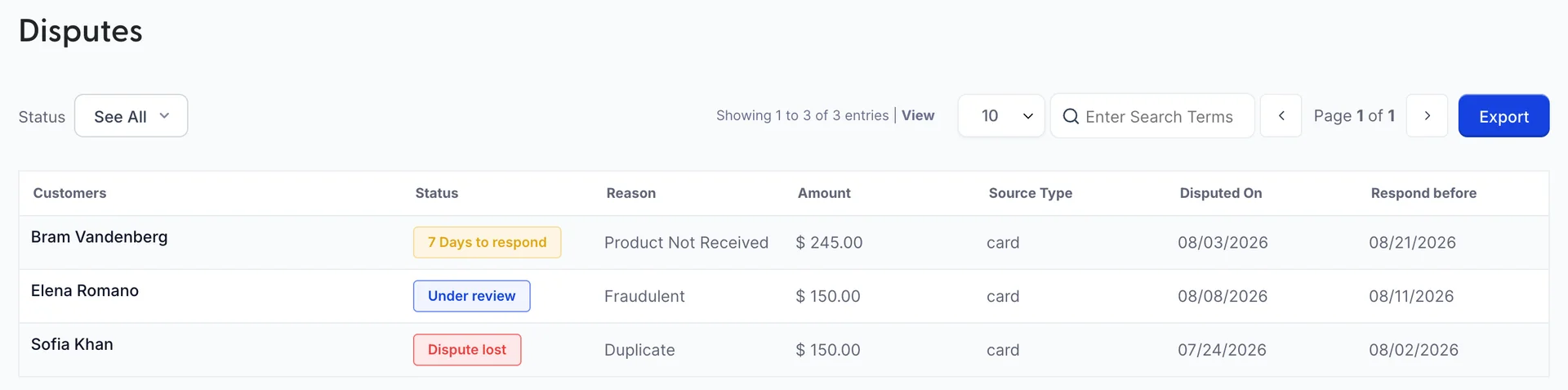
Seven columns: Customers, Status, Reason, Amount, Source Type, Disputed On and Respond before.
Status is the one to read first, because on an open dispute it is a countdown rather than a state. A row reading 7 Days to respond means exactly that. Once you have responded it changes to Under review, and after the issuer decides it settles on won or lost.
The dispute page
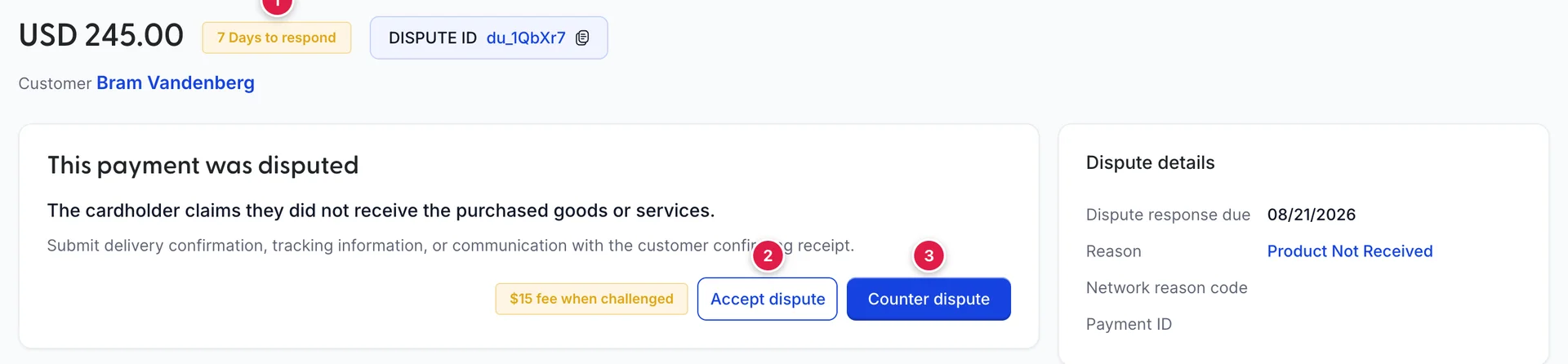
Clicking a row opens the dispute. The heading carries the amount, the countdown and the dispute ID. Below it, a card headed This payment was disputed explains the reason in plain language, then suggests what evidence would answer it. Both come from a built-in map covering the fourteen dispute reasons, so a product_not_received dispute gets advice about proof of delivery and a fraudulent one gets advice about proving the cardholder made the purchase.
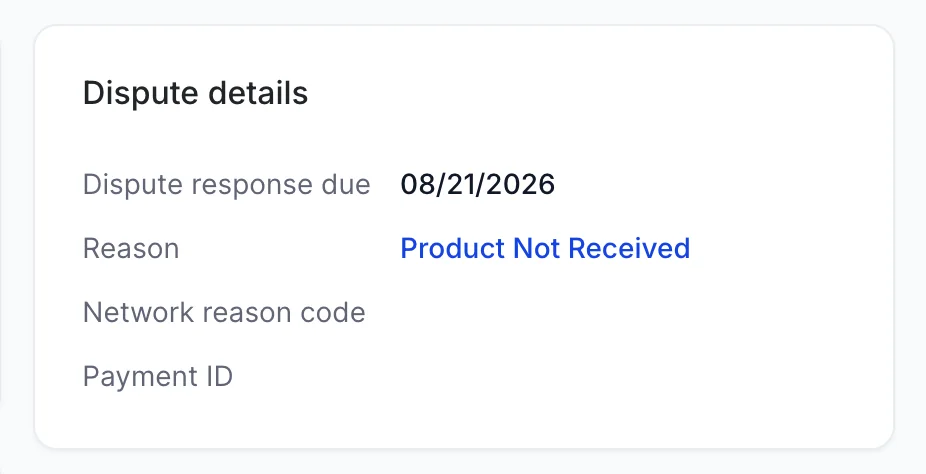
Down the right is a Dispute details rail with the response date, the amount, the reason and the card. Further down the page are the order breakdown, the payment breakdown, the payment method and a timeline.
Where the money is
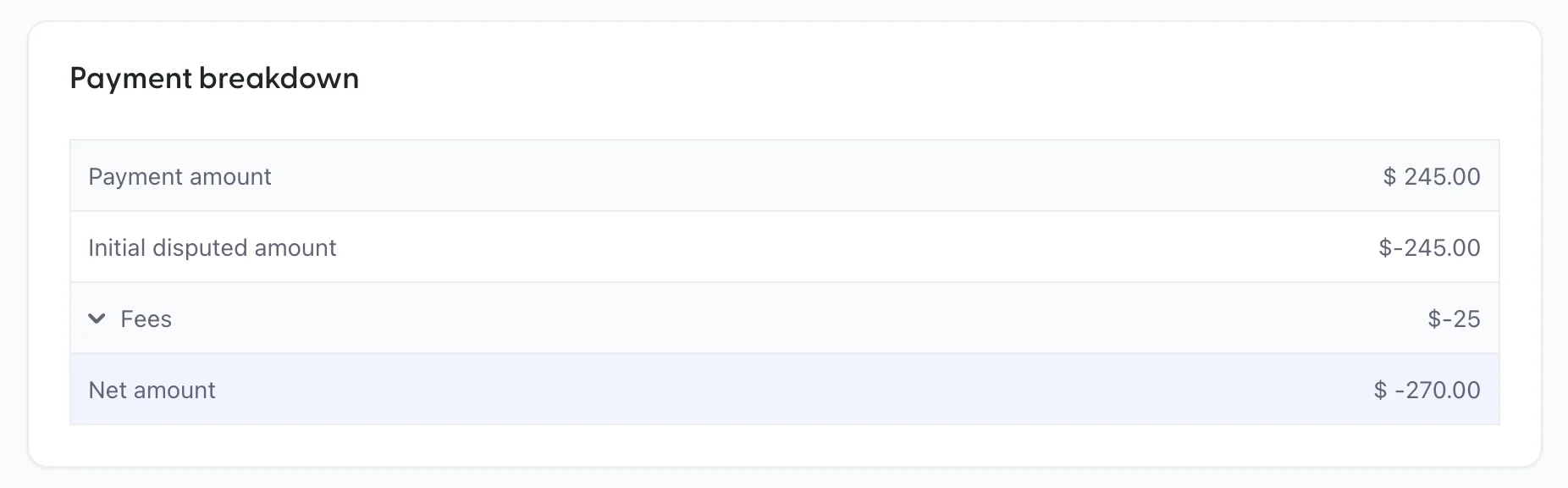
Payment breakdown is the honest picture. The payment amount is positive, the Initial disputed amount is the same figure as a negative, and Net amount at the bottom is where that leaves you. Clicking Fees expands it into its parts.
Read the negative literally. The funds have gone, along with the fees, at the moment the dispute was raised. If you win, they come back. Nothing you do on this screen holds the money in place while you argue.
What the fee figures mean
This screen shows fee figures in two places, and they do not come from the same source. We checked both rather than assuming.
| Where | What it actually is |
|---|---|
| The yellow fee when challenged tag beside the buttons | A standard rate for your currency, built into the page. It is not read from your account and will not reflect a rate negotiated for you. |
| Dispute fee, inside the expanded Fees row | The real fee charged on this transaction, read back from the payment record. |
| Prostay processing fees, beside it | A fixed placeholder rather than a figure calculated for this payment. We have reported it. |
Accept or counter
Two buttons, and the choice is commercial rather than technical.
| Choose | When |
|---|---|
| Accept dispute | The guest is right, or the amount is small enough that the time and the challenge fee are not worth it. Closes the dispute immediately in the guest's favour. |
| Counter dispute | You can show the charge was legitimate. Opens the evidence form, and incurs the challenge fee whether you win or lose. |
The asymmetry worth internalising: accepting costs you the disputed amount and the fees already taken. Countering costs you those too if you lose, plus the challenge fee, and costs you time either way. On a small charge with thin evidence, accepting is often the cheaper answer, and there is no shame in it.
Accepting
Accept dispute opens a confirmation reading: "By accepting the dispute, you will lose this dispute and refund the customer. This closes the dispute and you will no longer be able to submit evidence to counter." Clicking Accept dispute again in that dialog does it.
One permission covers responding at all. If Accept dispute and Counter dispute are not on your screen, or Submit evidence is greyed out, your role does not include it and you can read the dispute without answering it. An administrator can add it from Users in System Settings, under Prostay Pay › Disputes. Deadlines do not pause while that is arranged, so ask early rather than on the last day.
Countering
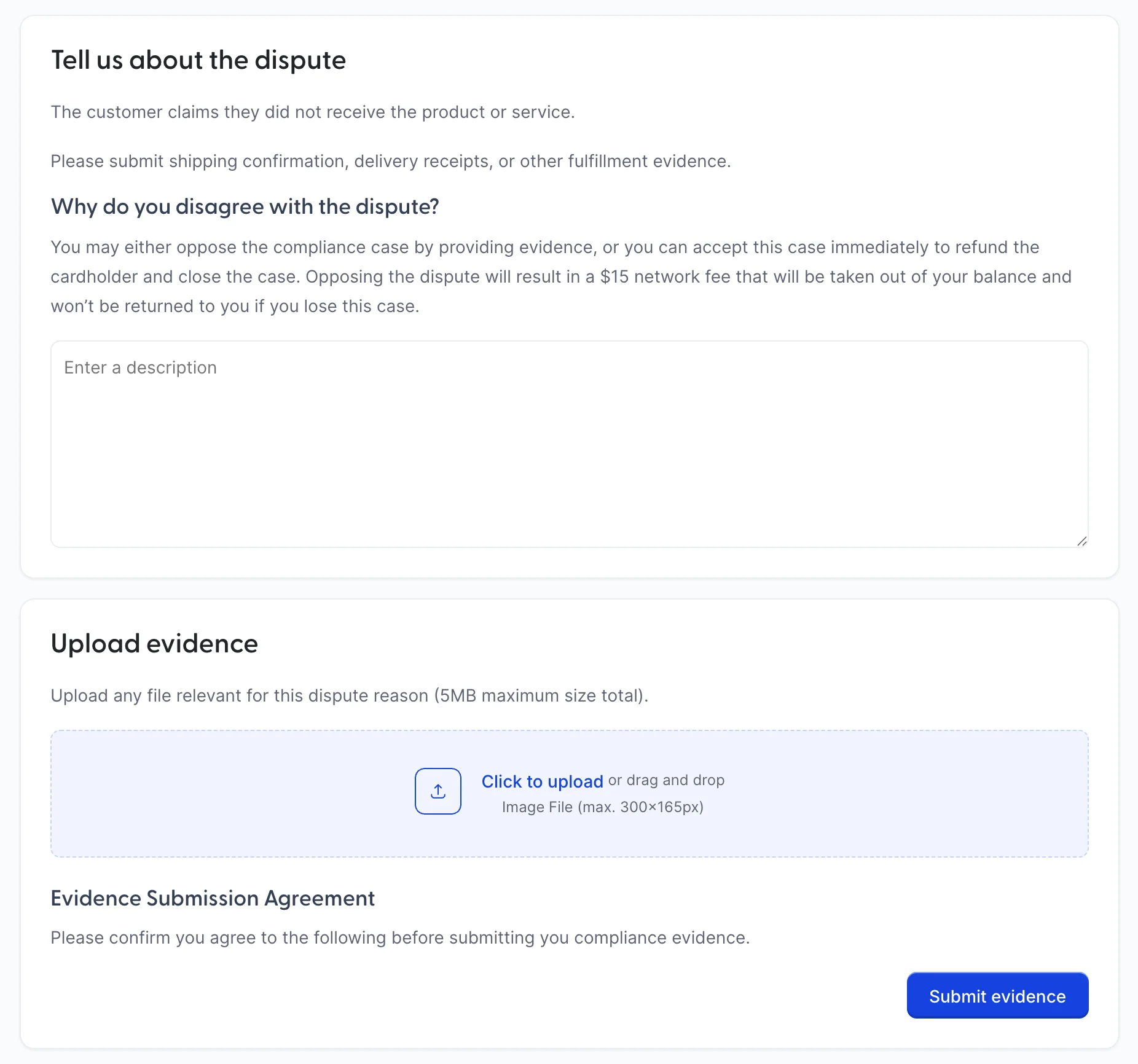
Counter dispute confirms, then opens the evidence form. It has three parts: Tell us about the dispute, which restates what the guest claims; Why do you disagree with the dispute?, a free text box; and Upload evidence for documents. An Evidence Submission Agreement at the bottom must be ticked before Submit evidence becomes active.
What to write
Your response is read by someone at the card issuer who knows nothing about your property and will spend very little time on it. Write for them.
- Answer the specific claim. The card at the top of the dispute page tells you what it is. A guest claiming they never received the service is not answered by proving they authorised the payment.
- Attach documents rather than describing them. A signed registration card, the booking confirmation email, a key-card log, a signed room service docket, correspondence where the guest acknowledges the charge.
- Include the address and details you collected at the payment page. This is why leaving Collect Customer's Address on when you build a link is worth it; see Taking payment with a payment link.
- Be short and factual. Dates, amounts, what was booked, what was delivered. Frustration reads as weakness to a stranger with a stack of these.
After you respond
The status moves to Under review and the buttons disappear. You cannot add to a submission, so send everything the first time. What you sent stays readable on the dispute.
The issuer decides, and it commonly takes weeks rather than days. If you win, the disputed amount returns to your balance. If you lose, it stays gone, the guest's Dispute Losses count goes up on the Customers screen, and there is no further appeal here.