A product in Prostay Pay is a name and a price. That is the whole of it: an airport transfer at 85 dollars, a late checkout at 45. Products exist so that a payment link can be assembled out of things you have already described, rather than typed out fresh each time with a different figure.
What a product is here
These products have nothing to do with the accommodation types you sell in the Property Management System, and nothing to do with the point of sale catalogue. They are used in one place: on payment links. If you never send a payment link, this screen will stay empty and nothing will break.
A product's price is fixed at the price you gave it. There is no quantity price break, no tax field and no cost field. Quantity is chosen on the link, not here.
The list
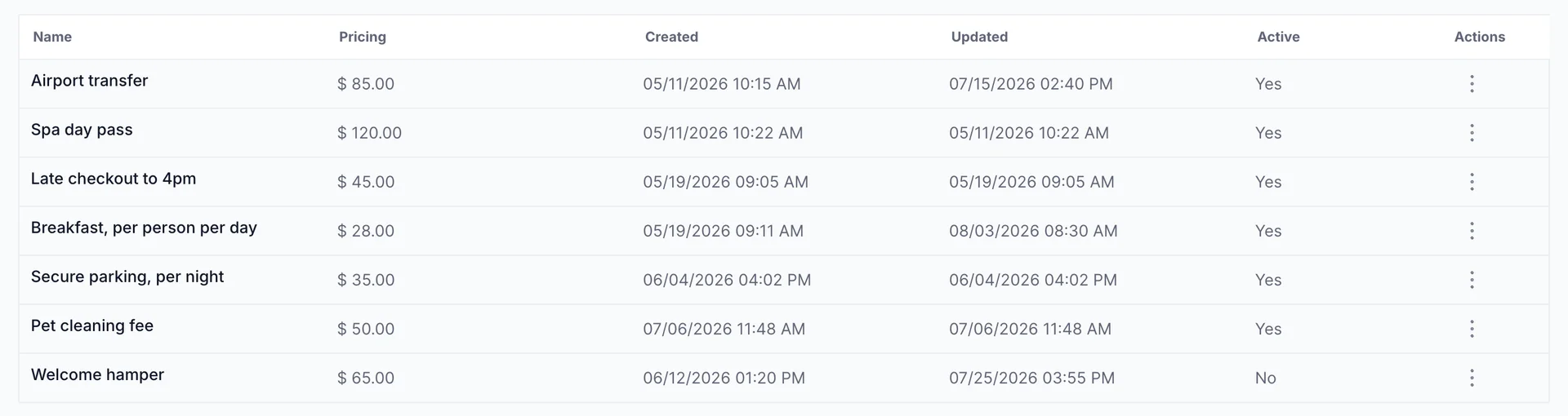
| Column | What it tells you |
|---|---|
| Name | What the guest sees on the payment page. Not an internal code. |
| Pricing | The price per unit, in your property currency. |
| Created | When the product was added, to the minute. |
| Updated | When it was last edited. Equal to Created on a product nobody has touched since. |
| Active | Yes or No. Only active products are offered when you build a link. |
| Actions | The row menu, covered below. |
Adding a product
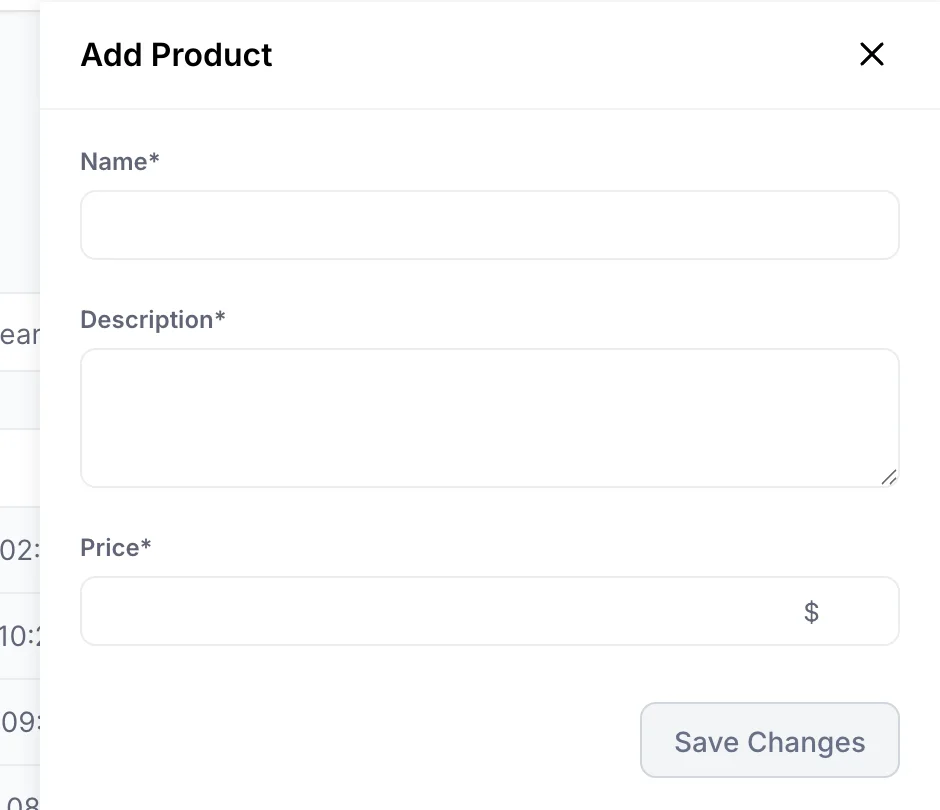
- Click Create a product at the top right of the list.
- Type the Name. This is guest-facing, so write it as you would want it to appear on their receipt.
- Type the Description. It is marked required, so the panel will not save without one.
- Type the Price. The currency symbol sits inside the field and is fixed to your property currency.
- Click Save Changes. The product appears in the list as active.
The same panel is available while you are building a payment link, so you do not have to leave a half-finished link to add a product you have just realised you need.
Naming products the guest will read
The name and the quantity are all the guest gets. There is no per-line note and no place to explain a charge on the payment page, so anything the name does not say is not said.
That makes unit names worth the effort. Breakfast, per person per day priced at 28 and set to a quantity of six reads correctly to a guest paying for two people over three days. Breakfast at 28, quantity six, looks like a mistake and generates the phone call you were trying to avoid. The same goes for Secure parking, per night and Late checkout to 4pm: put the unit and the limit in the name.
Editing, archiving and deleting
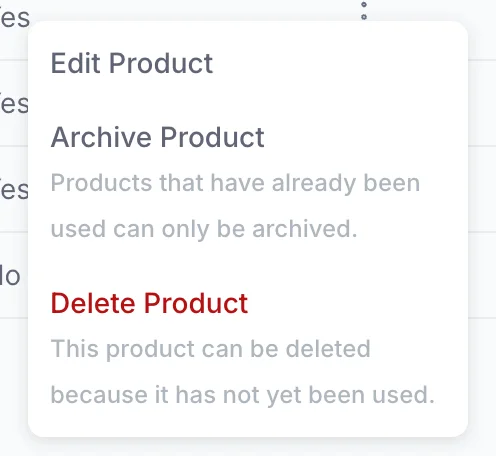
The row menu carries up to three options, and which of them appear is decided for you:
| Option | When it appears, and what it does |
|---|---|
| Edit Product | Always. Reopens the same three-field panel. |
| Archive Product | While the product is active. Sets Active to No, which keeps the product and everything ever sold under it and takes it out of the picker used to build new links. |
| Delete Product | Only while the product has never been used. The menu says so itself: “This product can be deleted because it has not yet been used.” Deleting removes it outright. |
So a product a guest has paid for cannot be deleted, only archived, and that is the right outcome. Deleting it would leave paid charges pointing at something that no longer exists.
Permissions thin the same menu, and the two are easy to confuse. If Edit Product is missing from every row, rather than Delete Product being missing from some, your role does not include the permission rather than the product having been sold. An administrator can add either from Users in System Settings, under Prostay Pay › Products.
What happens to a price you change
Editing a price changes the product. The safe assumption is that it changes what a link built from that product will charge from now on, which is usually what you want for a seasonal increase and never what you want for a link a guest is holding.
When a price is going to change and a link is already out with a guest, the reliable move is not to edit the product. Create a new one at the new price, build a new link from it, and archive the old product once the outstanding link has been paid. That way the guest pays what you quoted and your catalogue still reflects the new rate.
How a link's total is assembled from its products, and where you see what each one has taken, is covered in Taking payment with a payment link.