Prostay Integration is the screen where you decide how far into your property the assistant may reach. It is nine controls on one panel, and it is the screen in this module where being careless is most expensive, so it is worth going through one control at a time rather than switching everything on and seeing what happens.
The screen is two halves

The layout is not decorative. The left column and the top of the right are switches, and each one allows an action. The checkbox row underneath is a read list, and each box allows the assistant to look at a kind of information and use it in an answer.
The distinction matters because the two halves fail differently. A switch left on when it should be off means the assistant does something you did not want. A box left ticked when it should not be means the assistant knows something you did not want it to know, which is quieter and harder to notice.
What it may do
| Switch | What it allows |
|---|---|
| Allow to check room availability | Look up whether you have space for the dates a guest is asking about. The mildest permission on the screen, and the one that makes most enquiries answerable at all. |
| Allow to check room pricing | Look up what a stay would cost, from your rate plans. Worth pairing with availability, since a date with no price attached rarely answers the question that was asked. |
| Allow to provide alternative availability | Offer something else when the room asked for is not free. What it may offer is set behind the Edit link beside it, and is worth setting before you turn this on. |
| Allow to add reservations notes | Write a note onto a reservation. This is the only permission on the screen that writes anything at all, and notes appear in the reservation's notes and activity log where your team will see them. |
Alternatives when the room is gone
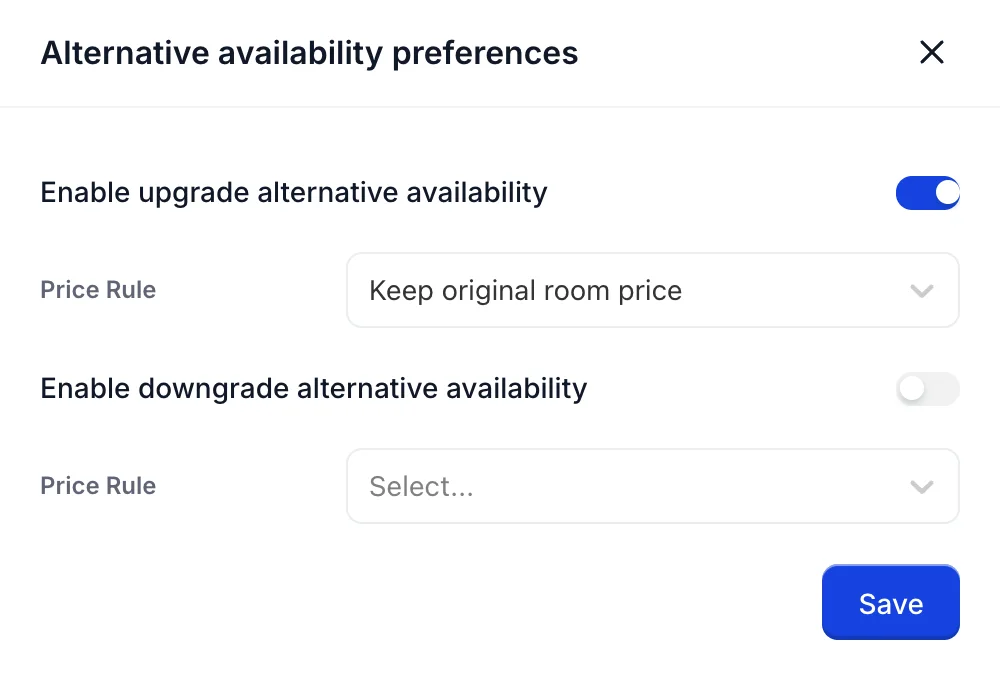
The Edit link opens a panel with two independent halves, and each half has a price rule of its own:
- Enable upgrade alternative availability lets it offer a better room than the one asked for. Its Price Rule decides what that costs, and Keep original room price means the guest is upgraded without paying more.
- Enable downgrade alternative availability lets it offer a lesser room. Its price rule decides whether the guest pays the lower room's price or the one they originally asked about.
Both halves are off by default and neither is required. Turning on upgrades with Keep original room price is the friendliest configuration and also the one that costs you the most, so choose it because you mean to rather than because it was the first option in the list.
What it may read
Under Allow to read, learn and reply from reservations are five boxes. Ticking one lets the assistant look at that part of a reservation and use what it finds when it answers.
| Box | What it opens up |
|---|---|
| Availability | The dates on the booking: when the guest arrives, when they leave, which room they are in. |
| Pricing | What the booking was sold at, including the rate plan behind it. |
| Addons | The items and services attached to the stay: breakfast, parking, a cot. |
| Folio | The guest's bill. Covered in its own section below, because it is not like the other four. |
| Notes | The notes your team has written on the reservation. Worth a thought: internal notes are written in internal language. |
Folio, and what ticking it grants
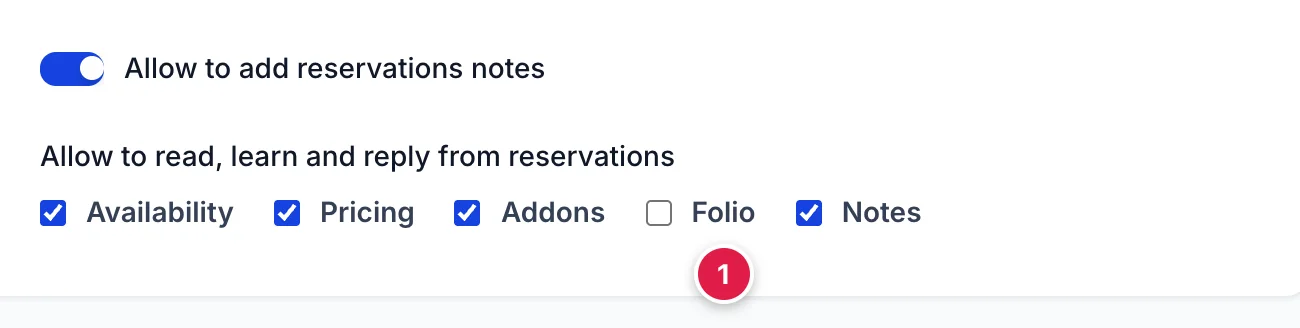
Ticking Folio lets the assistant read the guest's folio: every charge posted to the room, every payment taken against it, and the balance still outstanding. That is the financial record of the stay, and it is the most sensitive information this module can be pointed at.
It is unticked until somebody ticks it, and nothing on the screen warns you at the moment you do. There is a real case for it: a guest asking what they owe before check-out is a common question and an annoying one to answer by hand. But be clear about what you are agreeing to, which is that an assistant may discuss money with whoever is on the other end of the conversation.
These permissions are account-wide
What it cannot be granted here
Worth knowing for the reassurance: there is no control on this screen, or on any of the six, that lets the assistant create a booking, change one or cancel one. The strongest write permission available anywhere in the module is Allow to add reservations notes.
So the worst a misconfigured assistant can do to your reservations is leave a note on one. Everything else on this screen is a reading permission, and the risk it carries is disclosure rather than damage.
Where to go next
Permissions decide what the assistant may look at. What it actually knows about your property is a different screen, and the one that makes the biggest difference to the answers a guest gets.
- Teaching it about your property, for documents, questions and answers, and the Nexus crawl.
- How it writes, for tone, length and the phrases you would rather it avoided.
- What Prostay AI is, and what it is not, if you have not read the orientation yet.