Prostay AI is one entry in the module switcher and two different assistants behind it. They do not talk to the same people, they are not turned on in the same place, and only one of them ever writes to a guest unprompted.
This article is the tour. It is worth ten minutes before you touch anything, because two of the controls in this module read as the opposite of what they do, and one of the tick boxes hands an assistant your guests' bills.
Two assistants, one menu entry
- The Booking Assistant is the email side. It works from one mailbox you nominate, the same mailbox your team already reads in the unified inbox.
- The Front Desk Agent is the chat side. It is a page on the open web that a guest opens from a link, signs into with a room number and a name, and asks questions in.
Six settings screens sit behind the two of them, and the screens are shared rather than split. One screen is only about chat, one is only about email, and the other four apply to both. That is why it is worth knowing which assistant you are configuring before you start changing dials.
The two enable switches
There are two switches with the word enable on them, on two different screens, and neither does what its position suggests.

The first is at the top of General AI System Settings, and it is the closest thing the module has to a master switch. Its own subtitle tells you which half it governs: reading and replying to Nexus email. It says nothing about chat, and it does not govern chat.

The second is at the top of Chat Settings. Unlike almost everything else in this module it saves the moment you touch it, with no Save Changes needed, which is a reasonable design for a switch people expect to act immediately.
The email side, and whether it replies
This is the question everybody asks first, and it deserves a plain answer rather than a reassuring one.
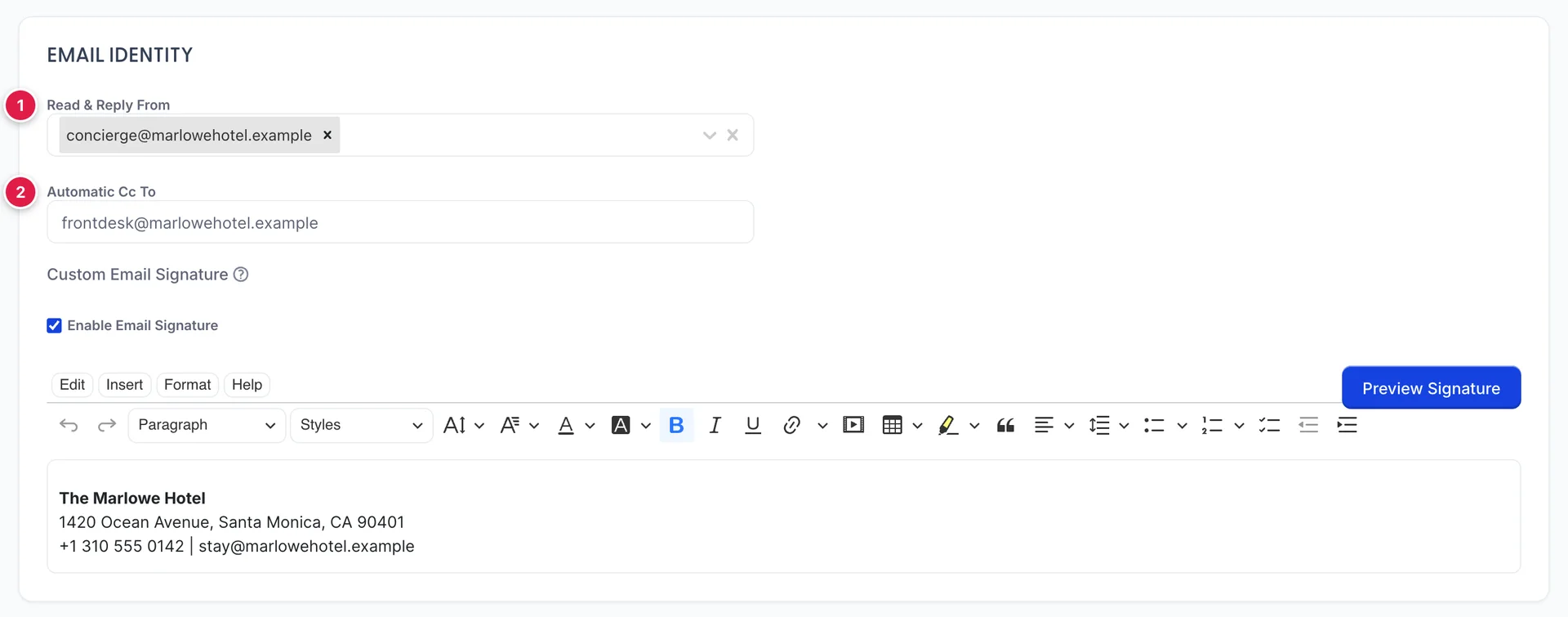
Email Account Settings is the entire email side of Prostay AI, and it holds three things:
- Read & Reply From nominates the mailbox. It takes more than one, and the accounts it offers are the ones already connected in Email Accounts.
- Automatic Cc To is a standing copy address. If you want a human to see everything that happens on this mailbox, this is the field for it.
- Custom Email Signature is the sign-off, with Preview Signature to see it as it will appear.
The practical consequence is that the email side is a filing arrangement rather than an autoresponder, and the work still lands with a person. That is worth knowing before you promise anyone a faster reply.
What it can be given access to
The assistant does not automatically know anything about your property. What it may look at is a set of permissions you grant on one screen, Prostay Integration, and they range from harmless to worth thinking hard about.
What it cannot be given, from this interface, is the ability to change anything. There is no control on any of the six screens that lets the assistant create, amend or cancel a reservation. The strongest thing you can grant it is Allow to add reservations notes, which writes a note and touches nothing else.
The six screens, and what each records
The rail on the left lists all six. In the order they are worth learning:
| Screen | What it records |
|---|---|
| General AI System Settings | The master switch, the assistant's name, and the formats it writes dates, times and money in. Also the hours it answers in and the languages it may answer in. |
| Prostay Integration | What the assistant may look at and do: availability, pricing, alternatives when a room is gone, reservation notes, and the read list that includes the folio. |
| Learning Material | What it knows about your property: uploaded documents, questions and answers you write out, and an optional read back through your Nexus mail history. |
| Behavior | How it writes: tone, length, formality, phrases it may not use, words you prefer, a compulsory closing line, and a free text box of house instructions. |
| Chat Settings | The guest chat: the logo, the example questions, and the address you hand to a guest. |
| Email Account Settings | The mailbox, the standing Cc and the signature, as above. |
The order worth doing them in
Setting this up in the wrong order wastes an afternoon, because the tone you choose is worth nothing if the assistant has nothing to say. A sensible sequence:
- Decide what it may see, on Prostay Integration. Do the folio decision consciously and leave it off if you are unsure.
- Give it something to know, on Learning Material. A dozen good answers to real questions is worth more than every other screen combined.
- Tell it how to write, on Behavior and General AI System Settings.
- Set up the guest chat, on Chat Settings, and open the address yourself as a guest before you give it to one.
Where to go next
The permissions screen is the one where being wrong is most expensive, so it is the one to read next. After that, teaching it about the property is the work that actually changes the answers a guest gets.
- What the assistant may see, one permission at a time, including the folio.
- Teaching it about your property, for documents, questions and answers, and the Nexus crawl.
- How it writes, for tone, length and the phrases you would rather it did not use.
- The guest chat, for the address, the branding, and what a guest actually sees.