Every automatic email your property sends is the result of four things agreeing with each other. A mailbox does the sending. A template says what the guest reads. A schedule says when it goes. The delivery log records what happened. Each of those is a separate screen, and if one of them is missing or switched off, nothing arrives and no screen says so on its own.
This article is the map. It explains what each screen is for and which one to open for the question you actually have. The three articles it links to at the end do the work.
The chain, in order
| Screen | What it decides | Where it is |
|---|---|---|
| Email Accounts | Which mailbox the email leaves from, and the address a guest sees in their inbox. | Settings, then Email Settings |
| Email Notifications | The subject line and the body. One template per kind of email. | Settings, then Notifications |
| Email Scheduling | What has to happen for a template to be sent, and how many days before or after it goes. | Settings, then Notifications |
| Email Delivery Log | Nothing. It records what already happened, one row per email. | Settings, then Notifications |
The mailbox does the sending
A property can connect more than one mailbox, and each one has a job. The Module column on the list is that job, and it is the field that matters most on the whole screen.
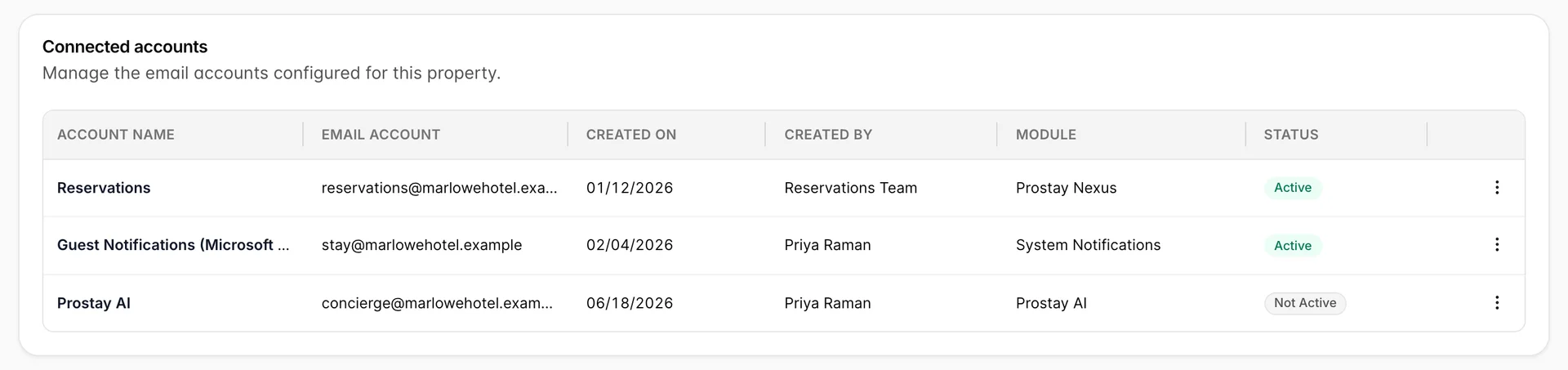
There are three jobs a mailbox can have. Prostay Nexus is the shared inbox your team reads and replies from. System Notifications is the one this article is about: the automatic emails to guests. The third is the mailbox the AI assistant answers from, and it is the one option whose label may not say what you expect: on many properties it still carries the AI product's former name. Pick it by its position at the foot of the list rather than by its wording.
The template says what goes out
Templates live in four sections, and the section a template is in describes what it is about rather than when it sends. A booking confirmation is a Reservation notification whether it goes out on booking or three days later.
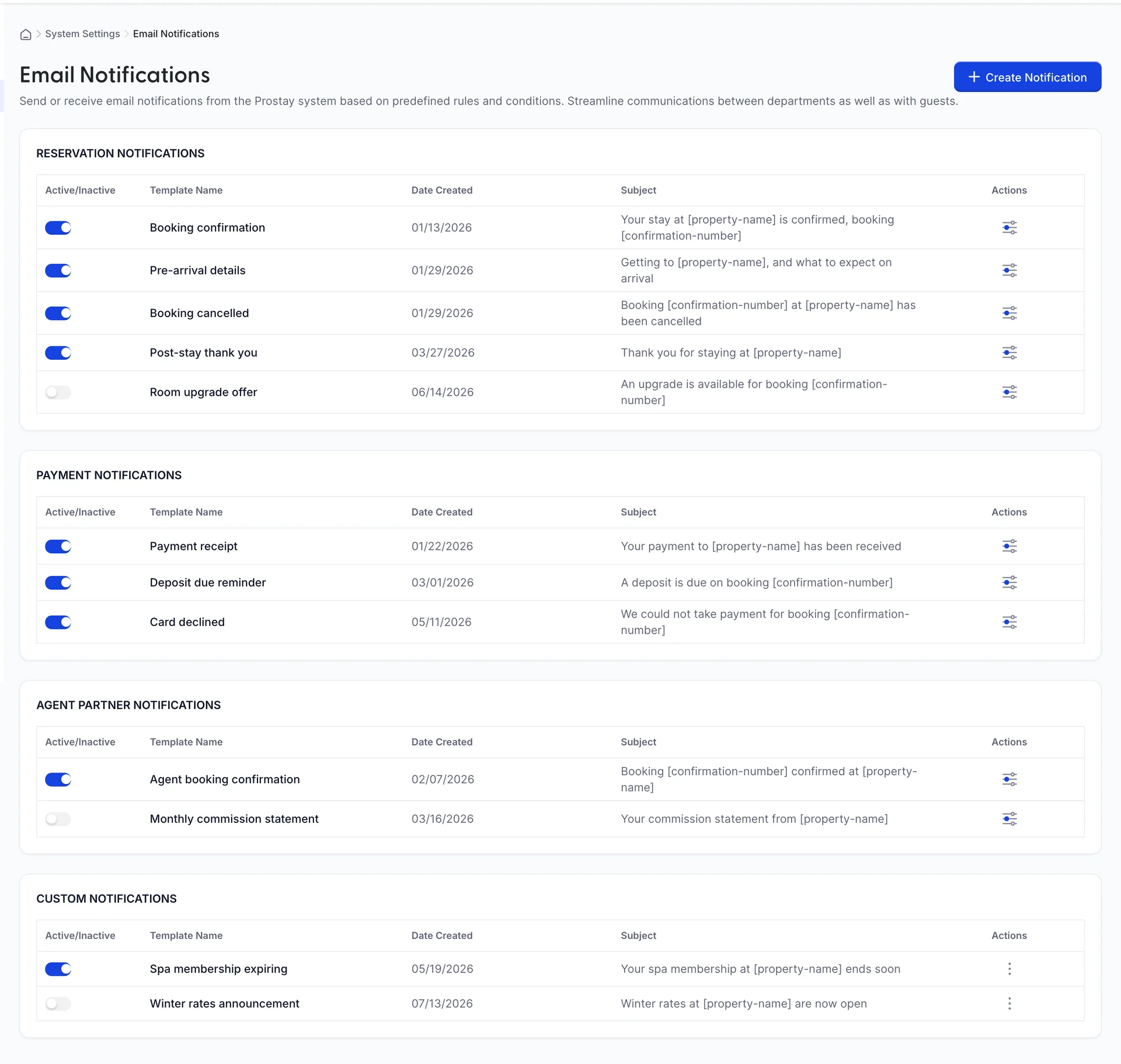
Reservation Notifications are about a stay: confirmed, cancelled, arriving, departed. Payment Notifications are about money: a receipt, a deposit due, a card that was declined. Agent Partner Notifications go to travel agents and partners rather than to guests. Custom Notifications is everything else you write yourself.
The switch on the left of each row is the whole of what active means. A template switched off is never sent, and it also disappears from the template list a schedule can choose from.
When it goes, and whether it arrived
A template on its own sends nothing. Email Scheduling is where you say what has to happen first: a booking is confirmed, a guest checks out, or a date is a set number of days away from arrival. One schedule points at one template.
Email Delivery Log is the other end of the same question. Every email the property sent has a row: when it went, to whom, which subject line, which booking, and whether it was delivered, sent or failed. It is the only screen that can tell you an email actually left.
When a guest did not get an email
The complaint is always the same and the cause is almost always one of four things. Check them in this order, because each one makes the next impossible.
- Is there a system mailbox, and is it active? Open Email Accounts and look for a row whose Module reads System Notifications with an Active status. Without one, nothing sends at all.
- Is the template switched on? An inactive template is skipped silently, and it is also invisible to the scheduling screen.
- Is there a schedule pointing at that template, and is it switched on? A template with no schedule is only ever sent by hand.
- Does the delivery log have a row? If it does and the row reads Failed, the email left Prostay and the mail server refused it, which is a different problem from the three above. If there is no row at all, the send never happened.
Who can change any of this
Two permissions cover the five screens, and both are in the System Settings group of the role editor.
| Permission | What it covers |
|---|---|
| Email server settings. | The Email Accounts list and the account form. View lets someone read the connected mailboxes; edit lets them add, change and test one. |
| System email notification settings and customizations. | Templates, schedules and the delivery log. View lets someone read them; edit lets them write a template, switch one on or off, and create a schedule. |
A role without the view half of a permission does not get an empty screen. It gets a message saying which permission is missing, so the person can ask for the right thing by name.
Settings that are not part of this
Settings holds a great deal more than email, and several of its screens are documented elsewhere.
- Where the settings live explains the two settings trees and which one holds what.
- General system settings covers the property currency, date format and time zone, which every money screen and every date on this one depends on.
- Property details, address and photos is the property record itself.
- Users, roles and permissions is where the two permissions above are granted.
- Reservation settings and billing features covers the booking defaults.
Email Signature, which sits next to Email Accounts in the menu, belongs to the shared inbox rather than to guest notifications. A signature is appended to replies your team writes, not to the templates described here.
Where to go next
- Connect an email account, for adding the mailbox that does the sending and testing that it works.
- Write an email notification template, for the subject line, the parameters and the body.
- Schedule guest emails and check they arrived, for the rules that send them and the log that proves it.