A template says what a guest reads. A schedule says what has to happen before they read it. The two screens in this article are the sending end and the checking end of that: Email Scheduling makes an email go out, and Email Delivery Log tells you whether it did.
What a schedule is
One schedule joins one template to one rule. Several schedules can use the same template, which is how the same wording goes out both when a booking is confirmed and again three days before arrival.
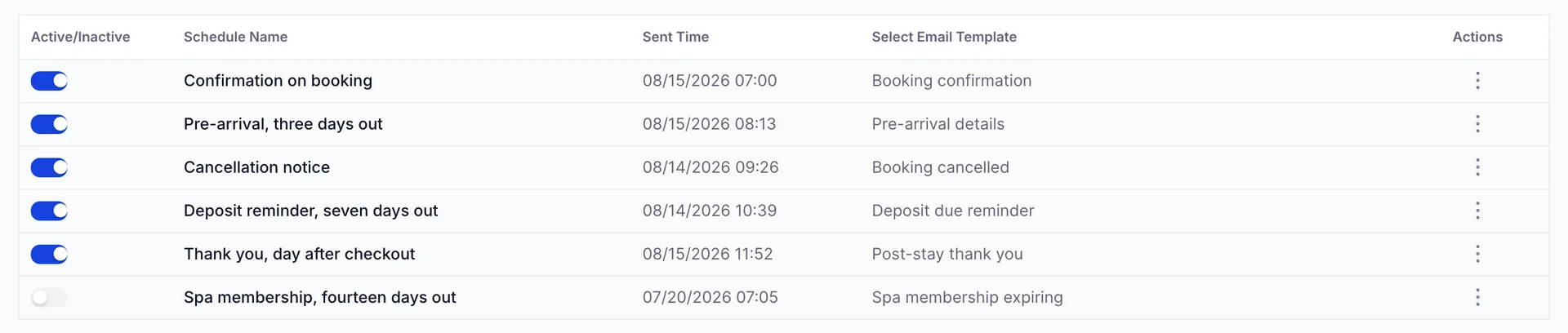
Sent Time is the most misread column on the screen. It is the last time this schedule sent something, which makes it useful as a sign of life: a schedule that is switched on and has never sent is a schedule whose rule has not been met yet, or one pointing at something nobody books.
Creating one
Press Create Email Schedule. There are three fields and nothing else.
If Create Email Schedule is not on your screen, your role does not include the permission for it. An administrator can add it from Users in System Settings, under System Settings › Notification schedule.
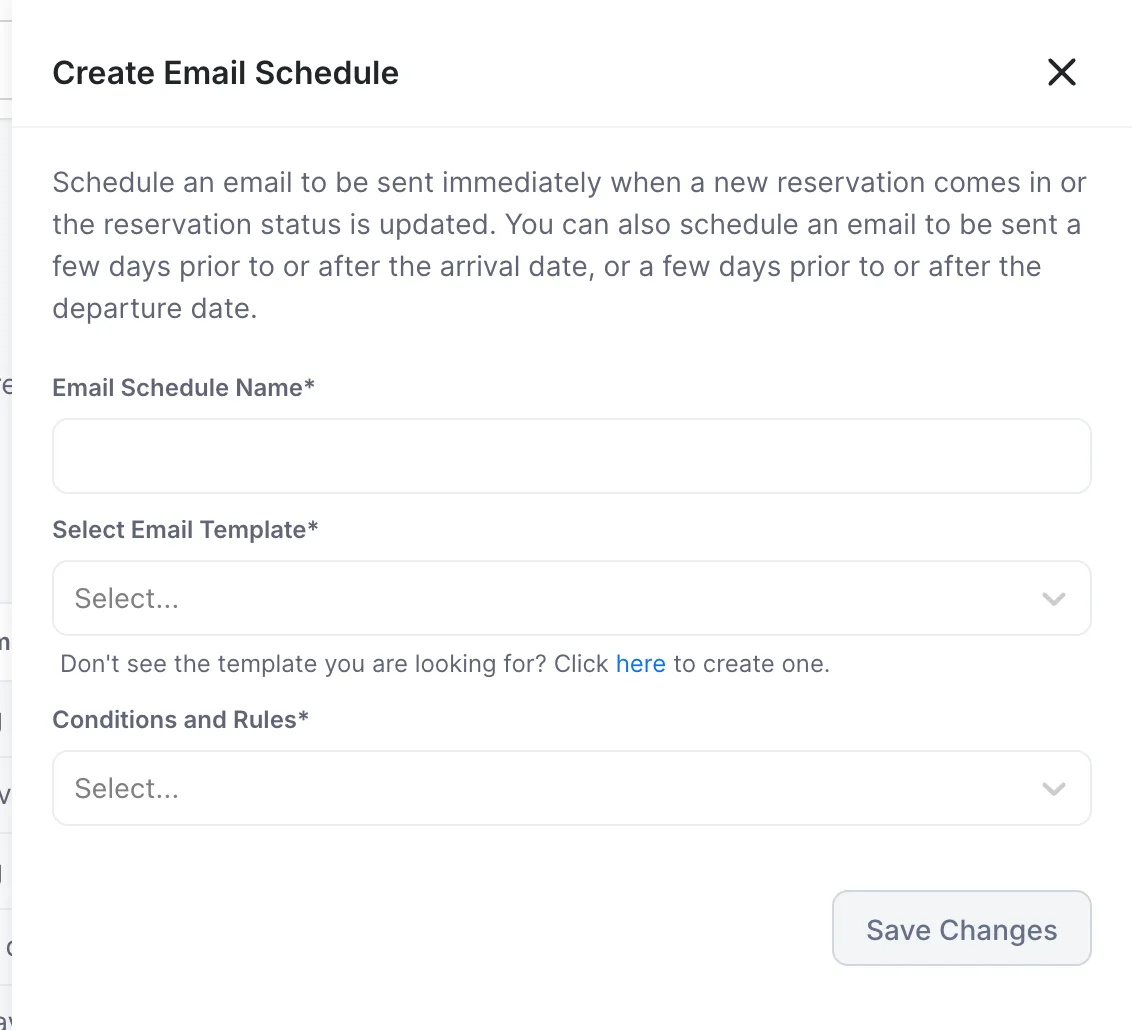
- Email Schedule Name. Name it after the moment, not the template, because a template used twice needs two schedules you can tell apart. Pre-arrival, three days out is a good name; Pre-arrival is not.
- Select Email Template. The dropdown lists active templates only. A template you cannot find is almost always one that is switched off on the Email Notifications screen. The here link under the field takes you there to create one.
- Conditions and Rules. What has to happen. Choosing one of the day-based rules adds a Number of days field underneath.
Save Changes stays greyed out until all three are filled in. The new schedule arrives switched on.
The fourteen rules
Eight rules fire on something changing. Six fire on a date being a certain distance away.
| Rule | Fires when |
|---|---|
| Booking status change to Confirmed | A booking becomes confirmed, however it was made. |
| Booking status change to Cancelled | A booking is cancelled. |
| Booking status change to Pending Confirmation | A booking is taken but not yet confirmed. |
| Courtesy Hold status change to Confirmed | A held room becomes a real booking. |
| Courtesy Hold Expired | A hold runs out without being confirmed. |
| Room status change to Checked-in | A guest is checked in. |
| Room status change to Checked-out | A guest is checked out. |
| Room status change to No Show | A booking is marked as a no show. |
| Send email X days before check-in date | The arrival date is that many days away. |
| Send email X days after check-in date | That many days into the stay. |
| Send email X days before check-out date | Departure is that many days away. |
| Send email X days after check-out date | That many days after the guest has gone. |
| Send email X days after booking status change to Confirmed | That many days after the booking was confirmed, whenever the stay itself is. |
| Send email X days before a spa membership ends | A spa membership is that many days from expiring. |
Rules that ask for a number of days
The six day-based rules count in whole days from the date in question. Two things are worth knowing before you set one.
A rule counting days before arrival cannot fire for a booking made inside that window. A guest who books tomorrow for tonight will never receive a three days before arrival email, because there were never three days. If that email carries something the guest needs, such as directions or a door code, pair it with a rule on booking confirmation so late bookers get it too.
Counting backwards from checkout has the same trap in reverse: a one night stay is inside almost every window you might set.
The delivery log
Email Delivery Log records every email the property sent, one row each. It is the only screen that can answer whether an email actually left, and it is the first place to look when a guest says they did not get one.
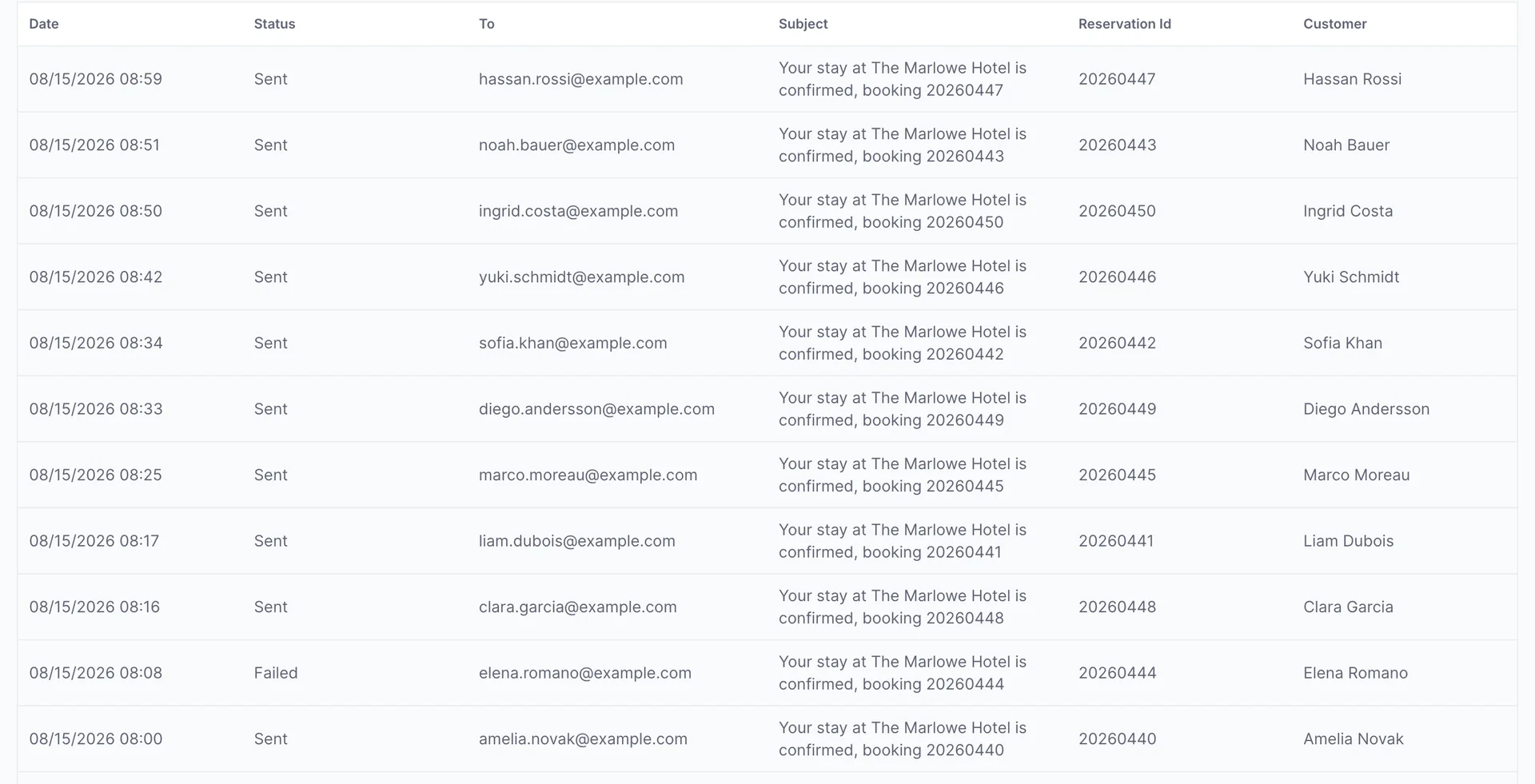
The subject column holds the finished subject line, with the parameters already filled in, which makes it a record of what the guest saw rather than of which template was used. The reservation id is the booking the email was about.
| Status | What it means |
|---|---|
| Delivered | The receiving mail server accepted it. This is as far as Prostay can see: it does not mean anyone opened it or that it escaped a spam folder. |
| Sent | Prostay handed it to your mail server and has not heard back either way. |
| Failed | It was refused. The email did not reach the guest. |
Finding one email in the log
The filter row above the grid narrows it. Nothing is applied until you press Apply Filters.

- The search box matches what is on the row: the address, the finished subject line, the guest name and the booking reference. Pasting a booking reference in is the quickest way to answer a complaint about one guest.
- The status dropdown is three checkboxes and all three start ticked. Leaving only Failed ticked turns the screen into a list of what went wrong.
- The From and To boxes are a date and a time each. The range opens on the last seven days, so an email from last month is not missing, it is outside the window.
What a failed row means
A failure means Prostay tried and the mail server refused. The email did not arrive, and nothing retries it. The log gives you the fact of the failure rather than the reason, so the next step depends on the pattern.
- One row failed and the rest are fine. Almost always the address: a typo in a guest record, or a mailbox that no longer exists. Correct the address on the booking and send again by whatever means suits.
- Everything after a certain time failed. That is the mailbox, not the guests. Open Email Accounts, press Test Connection on the system mailbox and read the banner. An expired password is the usual cause.
- There is no row at all. Nothing was ever sent, so the problem is earlier in the chain: the template is switched off, no schedule points at it, or the schedule's rule was never met. Work back through the chain.
Who can do this
Both screens are gated on System email notification settings and customizations., in the System Settings group of the role editor. It is the same permission that covers templates, so a role that can read templates can read schedules and the log. Edit rights add Create Email Schedule and make the switches usable. The delivery log is read only for everybody; nothing on it can be changed.
Where to go next
- Write an email notification template, for the wording a schedule sends.
- Connect an email account, for testing the mailbox when a run of rows has failed.
- How Prostay sends email to your guests, for the order to check things in.