A template is one kind of email: a booking confirmation, a deposit reminder, a thank you after checkout. It holds the subject line, the body and the addresses it comes from and replies to. It does not hold anything about when it goes out, which is a schedule and a separate screen.
What a template is, and where it lives
Templates are grouped into four sections by what they are about.
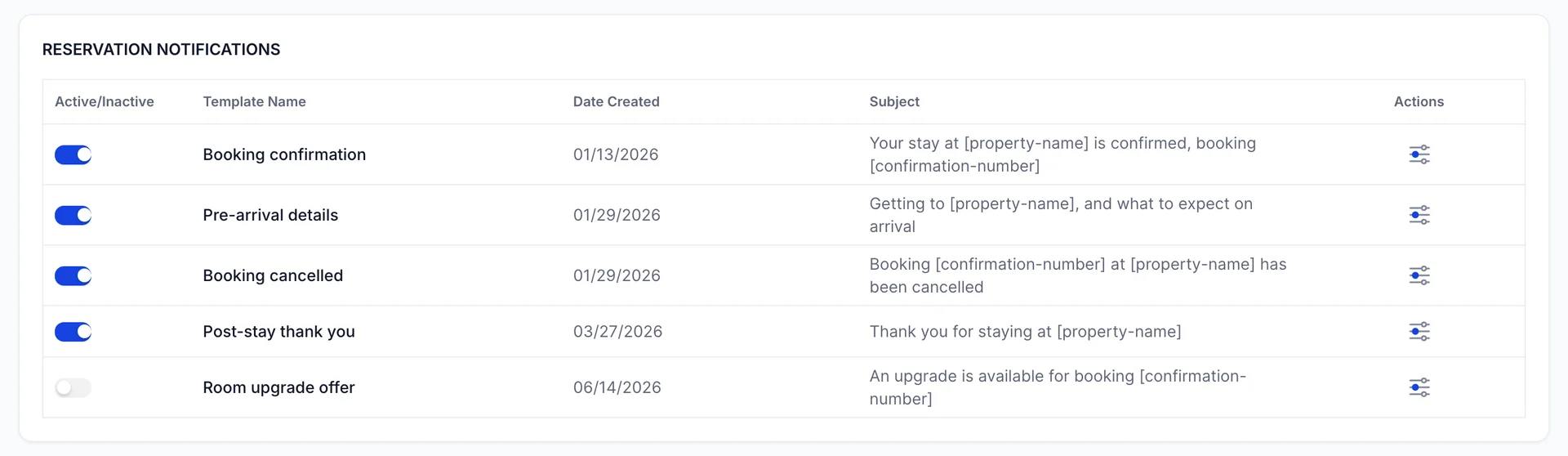
Each row shows the switch, the template name, the date it was created and its subject line. The subject is worth reading in the list, because it is the fastest way to tell two similar templates apart when a schedule asks you to choose one by name.
Creating one
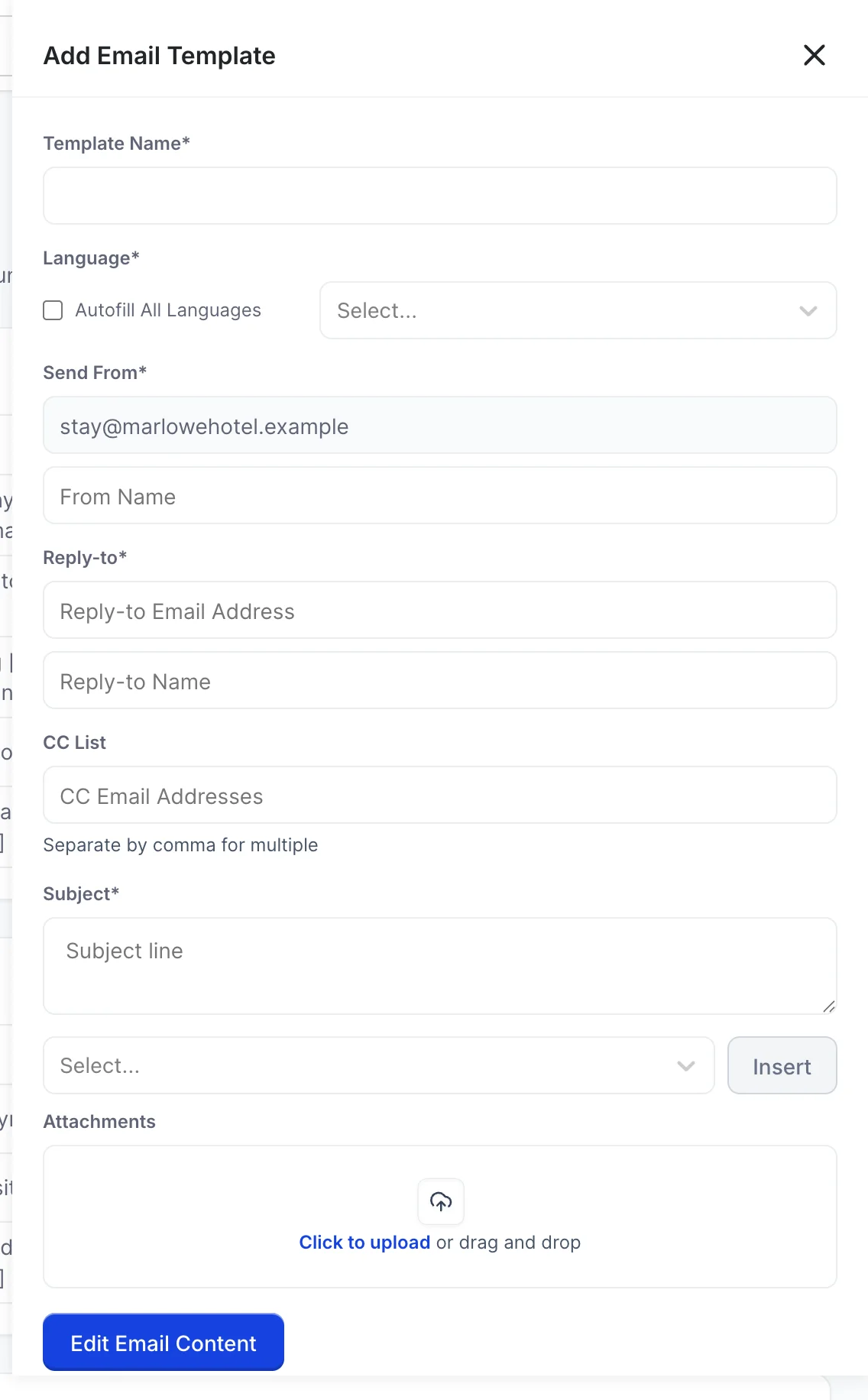
Press Create Notification. A panel opens from the right with the whole template in it.
| Field | What it is for |
|---|---|
| Template Name | How you will recognise it. This is the name a schedule picks from, so name it after the moment rather than the wording, for instance Pre-arrival details. |
| Language | Which language this version of the template is written in. |
| Send From | Filled in from the system mailbox and not editable. The name beside it is yours to set. |
| Reply-to | Where a guest's reply lands. This is the field to change if replies should reach a person rather than the sending mailbox. |
| CC List | Addresses copied on every send of this template, separated by commas. Useful for a reservations desk that wants a copy of every cancellation. |
| Subject | The subject line, which can include three parameters. See below. |
| Attachments | Files sent with every email from this template. A terms sheet or a map, not a per-guest document. |
The three addresses
Three addresses are involved and they do different jobs, which is worth being clear about before a guest replies into a void.
- Send From is the mailbox marked System Notifications. Every template uses it and none can override it.
- From Name is the name shown beside that address in an inbox. Set it to your property, not to Prostay.
- Reply-to is where a reply goes. If you leave it as the sending mailbox, someone has to be reading that mailbox.
The subject line and its three parameters
Parameters are placeholders that are replaced with real values when the email is sent. In the subject field, the dropdown under the box offers three of them, and Insert puts the selected one at the end of what you have typed.
| Parameter | Becomes |
|---|---|
| [property-name] | The name of your property. |
| [confirmation-number] | The booking reference. |
| [booking-date] | The date the booking was made. |
So a subject typed as
Your stay at [property-name] is confirmed, booking [confirmation-number]
arrives as Your stay at The Marlowe Hotel is confirmed, booking
20260447. The delivery log stores the finished line rather than the
template, which is why the log is a reliable record of what a guest actually
received.
The body: layout, parameters and images
Edit Email Content at the bottom of the panel opens the body in its own panel.
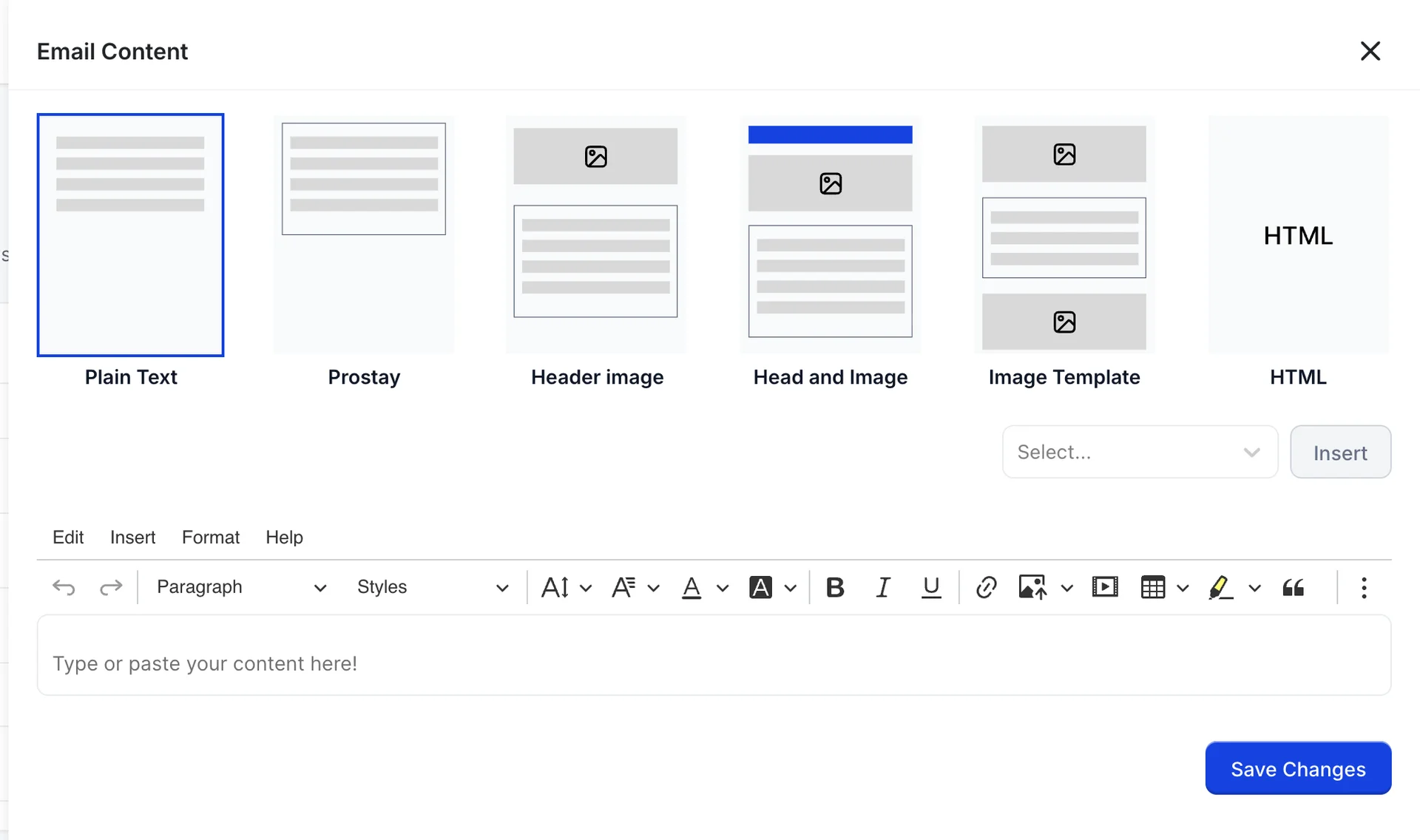
The six layouts along the top decide the shape of the email around your words.
| Layout | What it gives you |
|---|---|
| Plain Text | Words only. The most likely to reach an inbox untouched and the least likely to look broken on a phone. |
| Prostay | The standard Prostay frame around your text. |
| Header image | One image above the text. |
| Head and Image | A coloured band and an image above the text. |
| Image Template | An image above and another below the text. |
| HTML | You supply the markup. For a template your designer has produced elsewhere. |
Below the layouts is the same parameter dropdown, but the body offers far more than the subject does: alongside the three above there are the guest's [first-name], [last-name] and [full-name], the stay's [checkin-date], [checkout-date], [nr-nights], [room-number], [room-type] and [booking-source], the property's [property-phone-nr], [property-email], [property-address], [property-city] and [property-state], and for billing, [invoice-number] and [invoice-duedate].
Insert adds the selected parameter to the end of the body rather than at the cursor, so it is usually easier to insert what you need and then move it into place in the editor.
Press Save Changes in the content panel to return to the template, then Save Changes on the template itself. The template is only stored when the second one is pressed.
Writing in more than one language
A template is written in one language, chosen in the Language field. Autofill All Languages beside it copies what you have written into every language the property supports, which gives you a working template everywhere and a starting point to translate from. It is a copy, not a translation, so a guest reading a language you have not written yet receives the version you typed.
Switching a template on
Saving a template does not send anything. Two more things have to be true.
- The switch on the template's row has to be on. Off means never sent, and also means the template does not appear in the list a schedule can choose from.
- A schedule has to point at it, unless you only intend to send it by hand.
Editing a template that is already live takes effect on the next send. It does not change emails that have already gone out, and the delivery log keeps the subject line as it was at the time.
Who can do this
The screen is gated on System email notification settings and customizations., in the System Settings group of the role editor. View rights let someone read the templates, and the button on each row reads View rather than Edit. Edit rights add Create Notification, make the switches usable and let the panel save. Delete is its own right again.
Where to go next
- Schedule guest emails and check they arrived, which is what makes a template send.
- Connect an email account, if the screen is warning you that no system mailbox exists.
- How Prostay sends email to your guests, for how the four screens fit together.