This screen connects your own Stripe account to this property. Once it is connected, card payments taken through your booking engine settle into that Stripe balance: the account is yours, the money arrives in it, and refunds and payouts are things you do from your own Stripe dashboard.
It is one decision and one button. There is nothing to configure afterwards, no keys to paste and no mapping to fill in.
What this connection is for
Properties get paid in different ways, and Prostay supports more than one. This connection is the option for a property that already has a Stripe account and wants to keep using it: the account stays in your name, the money lands there, and you handle refunds and payouts in the dashboard you already know.
The alternative is Prostay Pay, which is Prostay's own payment processing. There the account is set up inside Prostay, the money moves on the payout schedule Prostay Pay describes, and refunds are issued from Prostay screens. Neither is an upgrade of the other. The question to ask is where you want the money to land and whose dashboard you want to work in when something needs refunding.
Before you start
- A Stripe account you can sign into. The connection authorises an existing account; it does not create one for you.
- The Stripe connect permission on your Prostay role. Without it the screen opens read only, which is covered at the end.
- Fifteen seconds. There is genuinely nothing else to prepare.
Connecting
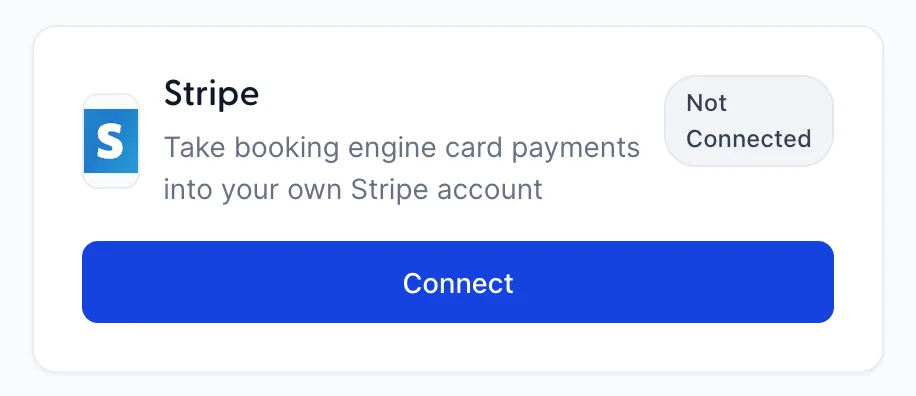
Open Integrations, then the Stripe card. Before setup the screen is one button and three explanations of what the button does.
If the Stripe card is not on your Integrations page, your role does not include the permission for it. An administrator can add it from Users in System Settings, under Integrations › Stripe connection.
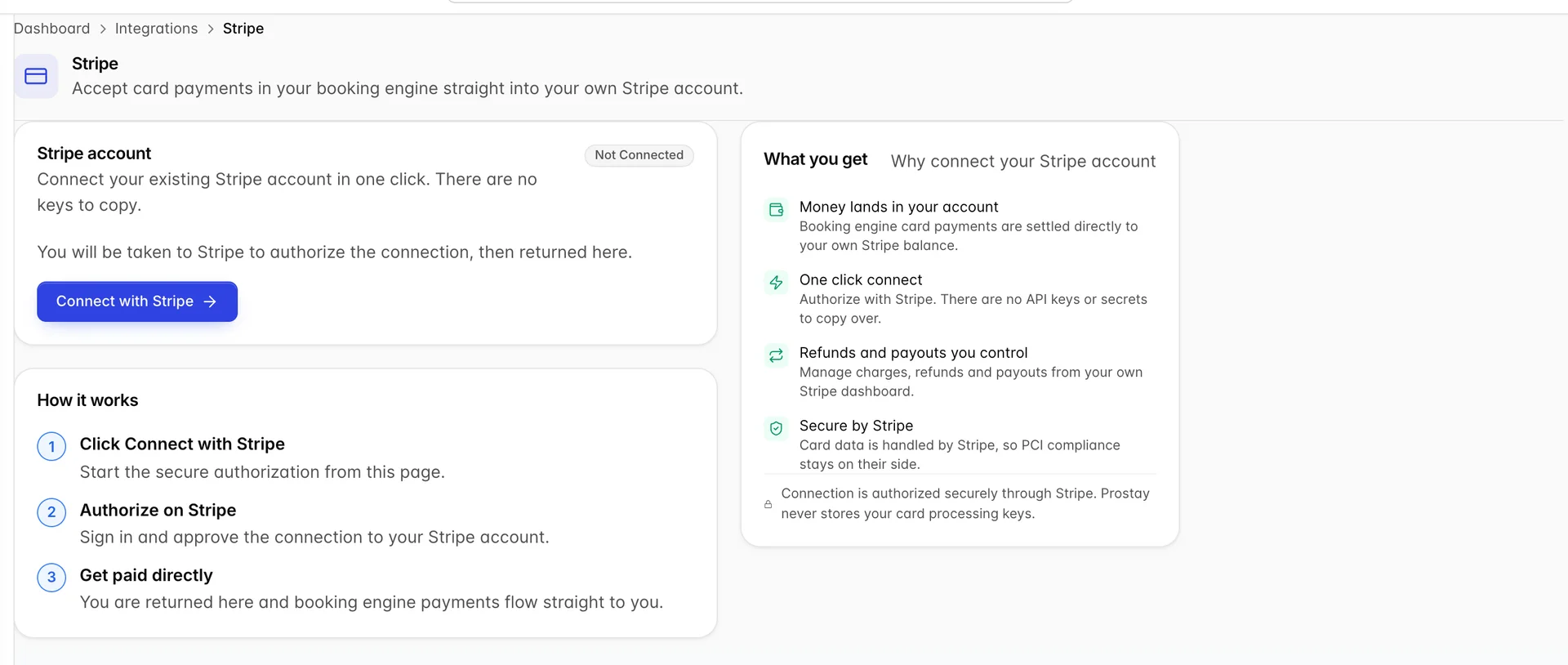
- Press Connect with Stripe. The button changes to Redirecting... and then your browser leaves Prostay.
- You are now on Stripe's own site. Sign in there and approve the connection to the account you want this property paid into. Prostay never sees your Stripe password, and there are no API keys or secrets to copy across in either direction.
- Stripe sends you back to this screen, and the badge reads Connected.
If something goes wrong on the way back, the screen says so in a red banner headed Stripe connection error, carrying whatever reason came back with you. The most ordinary one is that the authorisation was cancelled rather than approved, in which case press Connect with Stripe and go round again.
Checking that it worked
A connected screen shows a green Connected badge and the identifier of the account it is connected to.
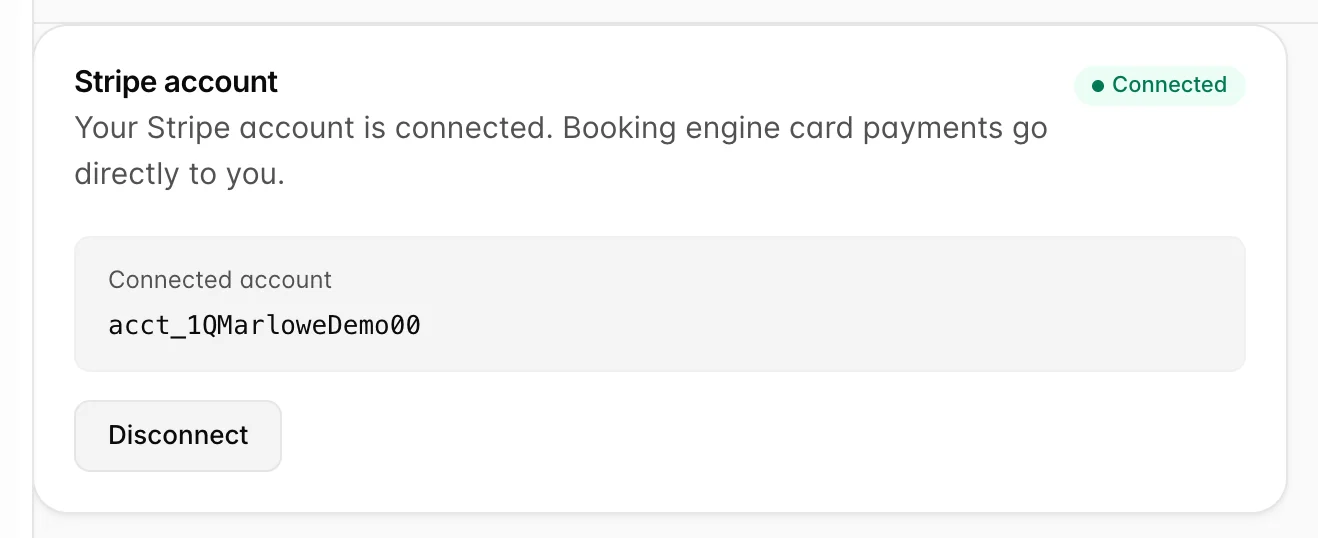
That identifier is worth reading rather than glancing at. It is the account Stripe handed back, and it starts with acct_. If your group holds more than one Stripe account, this is the only place in Prostay that tells you which one this property is now attached to. Compare it with the account id in your Stripe dashboard before you take a live booking.
The Integrations screen shows the same fact more briefly: the Stripe card turns green and its button changes from Connect to Configure.
Test mode
Stripe accounts have a live side and a test side. If the connection was authorised on the test side, the screen says so in an amber banner.
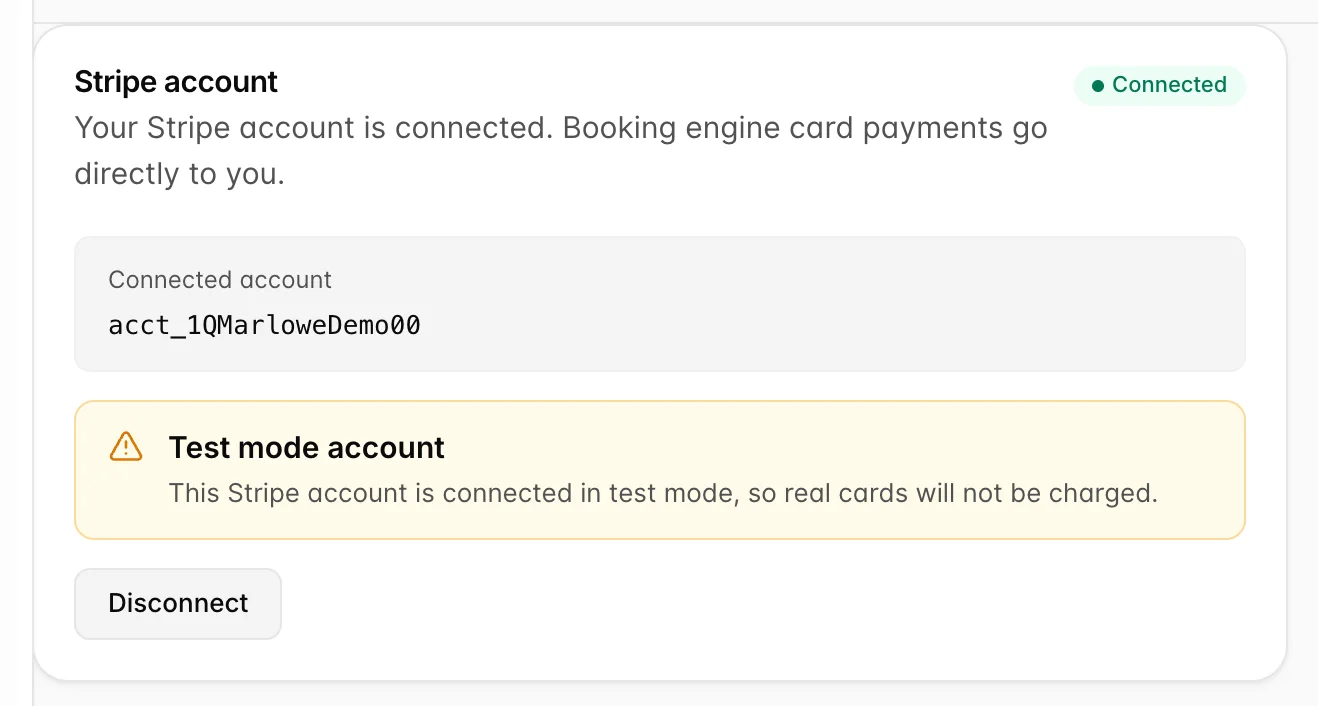
This is the trap worth naming. A test connection looks exactly like a live one everywhere else: the badge is green, the card on the Integrations screen is green, and nothing else in Prostay warns you. What differs is that a real guest card put through a test account is never charged, so the booking arrives and the money does not.
If you see the banner and you meant to be live, connect again from the live side of your Stripe account. The banner is not a setting in Prostay and there is no switch here that flips it; it reports what Stripe said about the account you authorised.
Where card payments are switched on
Connecting decides where booking engine card payments land. It does not, by itself, decide whether your booking engine offers card payment at all. That lives on Settings, then Payment Options, where each card type carries a Booking engine tag when guests are offered it online.
So a property that has connected Stripe but sees no card option on its booking engine should look there rather than here, and a property that changes its mind about how it gets paid has two screens to visit, not one. This screen never reports on the booking engine's payment settings, and the Payment Options screen never reports on this connection.
Disconnecting
Press Disconnect. Prostay asks you to confirm, warning that card payments through this account will stop until you reconnect, and then the screen returns to the state it was in before you connected: a grey Not Connected badge and the button offering to start again.
Disconnecting removes the link between this property and that Stripe account. It does not touch anything inside Stripe. Payments already taken, payouts already scheduled, your customers, your balance and your history all stay exactly where they are, because they were always in your account rather than in Prostay.
Who can connect it
Connecting and disconnecting are both controlled by the Stripe connect permission on your role. Without it the screen still opens and still tells you whether the property is connected, but the button that would change anything is greyed out with a line underneath saying which permission is missing.
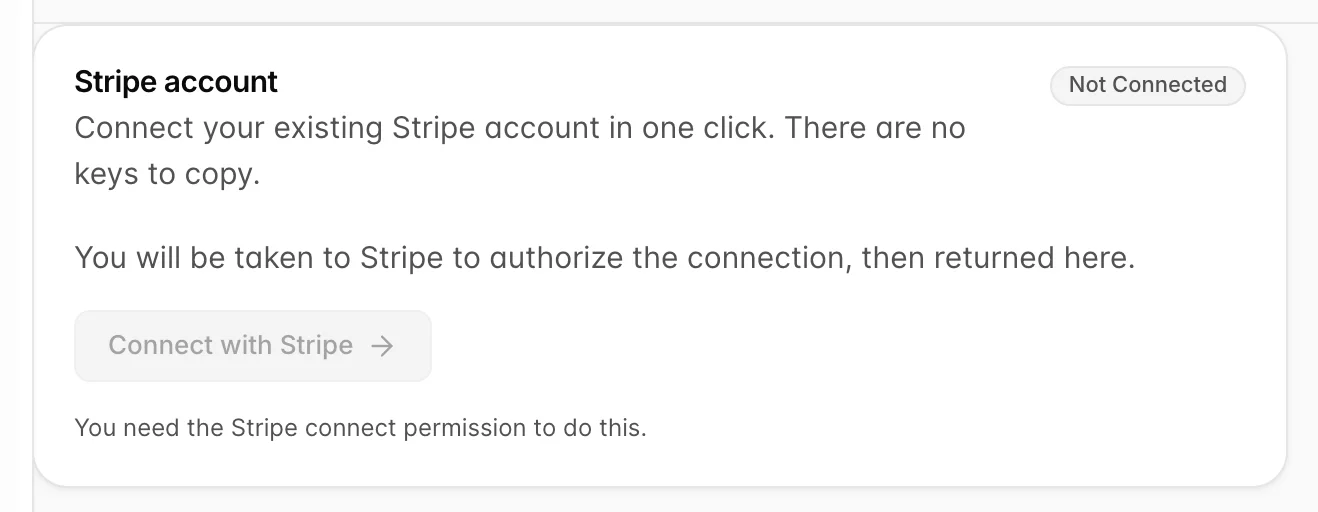
That is deliberate. This is the setting that decides which bank account your guests' money reaches, so it is not a right that comes with being able to sign in. An administrator grants it on the role rather than on the person, in Settings, then Users, which is covered in users, roles and permissions.