Connecting is two decisions and about a minute: sign in to Intuit, then say which of your QuickBooks companies this property belongs to. Prostay never asks for a QuickBooks password, and the connection is per property, so a group with four hotels connects four times.
What you need first
- A QuickBooks Online subscription, and an Intuit sign-in that can authorise apps for it.
- To know which QuickBooks company this property's takings belong in. If your accountant keeps one company per hotel, this matters and it is not easy to undo.
- The Connect / authorize QuickBooks permission on your role.
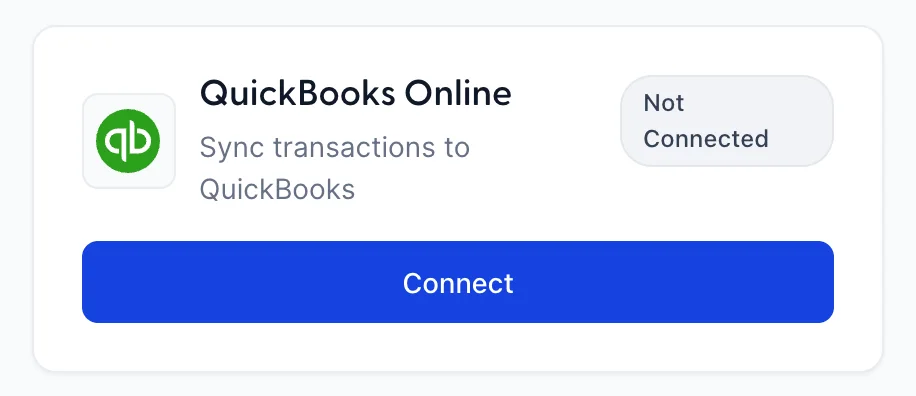
Connecting
- Open Integrations and press Connect on the QuickBooks Online card.
- Press Sign in with Intuit.
- Sign in and approve the connection on Intuit's site. That page is Intuit's, not Prostay's, and what it asks for is between you and them.
- You come back to Prostay, at the company picker below.
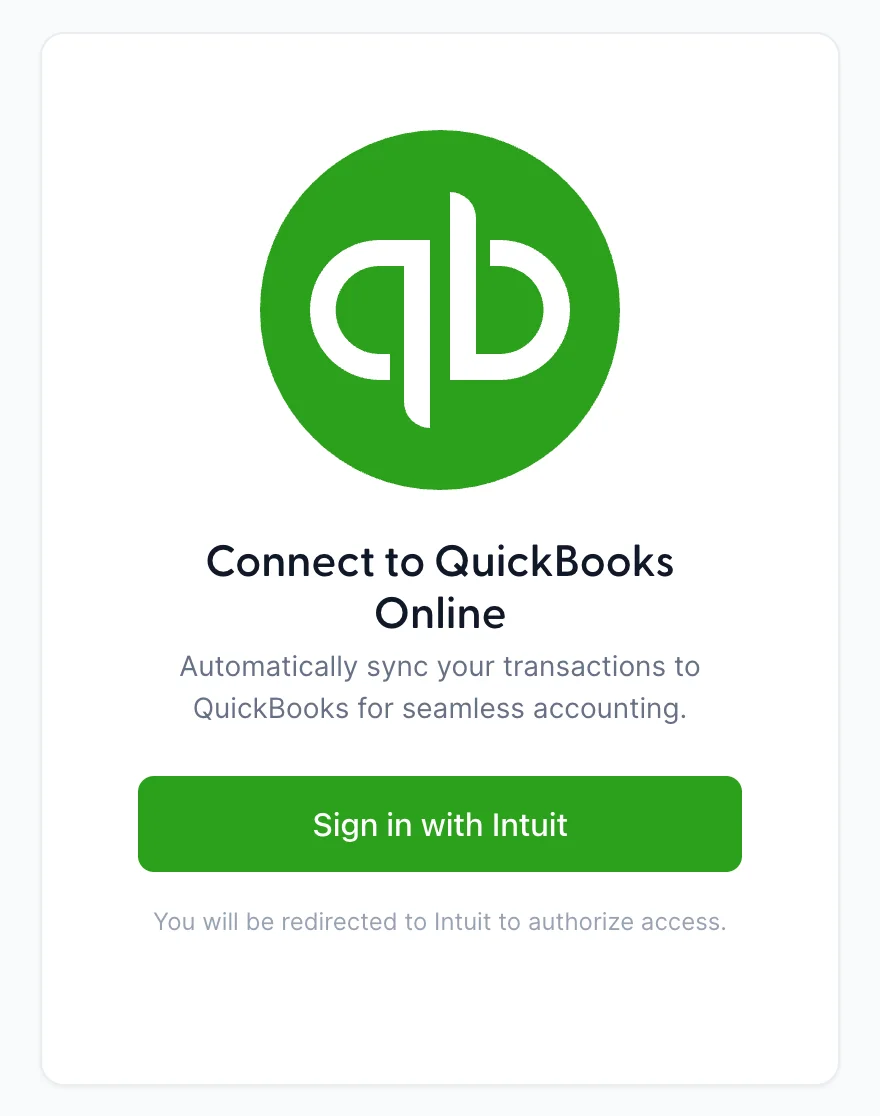
While it waits, the screen says Connecting to QuickBooks... If you close the tab at that point, nothing has been connected and you can start again from the card.
Choosing the QuickBooks company
If your Intuit sign-in reaches more than one QuickBooks company, you are asked which one this property posts to. Everything this property ever sends goes into the company you pick here.
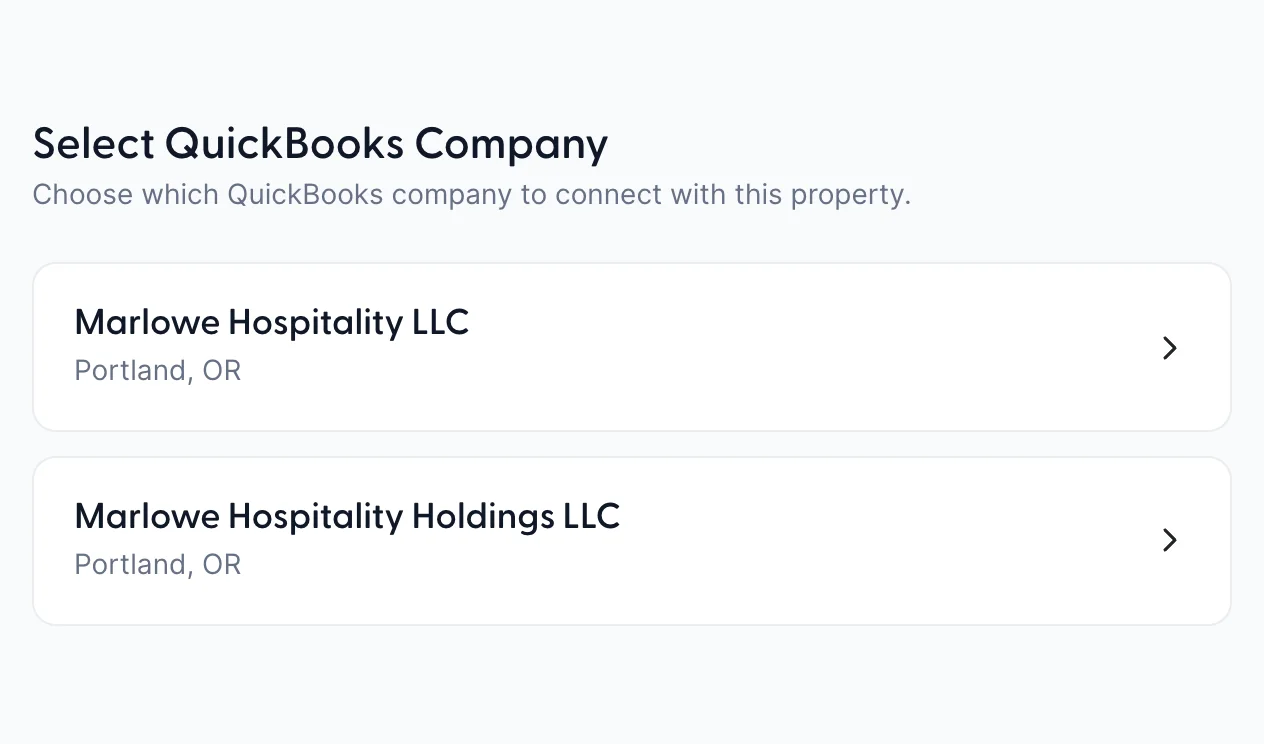
Picking a company takes you straight into the mapping wizard, because a connection with no mapping cannot post anything. Map your QuickBooks accounts covers the three steps.
What you get once it is connected

- The company you picked, with a Connected badge. This is the fastest way to check that a property is pointed at the right books.
- Configure reopens the mapping wizard at step one. Nothing is lost by looking.
- Sync Now builds the next journal entry and shows it to you before anything is sent.
Three things on this screen are held separately by permission. If the QuickBooks Online card is not on your Integrations page at all, if Sign in with Intuit is greyed out, or if Sync Now is greyed out, your role does not include the permission for that part. An administrator can add them from Users in System Settings, under Integrations › QuickBooks connection, where seeing the connection, connecting it and running a sync are three separate rights. It is normal for a bookkeeper to hold the sync and not the connection.
The three cards under the header are the state of the connection:
| Card | What it means |
|---|---|
| Last Sync | When a sync last ran, successful or not. A run that failed still moves this, so read it with the activity log rather than on its own. |
| Sync Mode | Daily Journal or Per Invoice, whichever you chose in step three of the wizard. |
| Pending Items | How many lines are waiting in the next entry. It counts lines, not days, so nine here is one night with nine lines in it. |
Disconnecting, and what it leaves
Disconnect asks you to confirm, then drops the connection and returns the screen to Sign in with Intuit. Syncing stops immediately.
What it does not do is reach into QuickBooks. Journal entries already posted are documents in your QuickBooks company and stay exactly where they are. Nothing in Prostay changes either: no folio, rate or reservation is touched by connecting or disconnecting.