Sync Now does not send anything. It builds the entry and shows it to you, and nothing leaves Prostay until you press Confirm & Sync. That gap is the useful part of this screen, and it is worth using before the first real sync of a new mapping.
What the preview is showing you
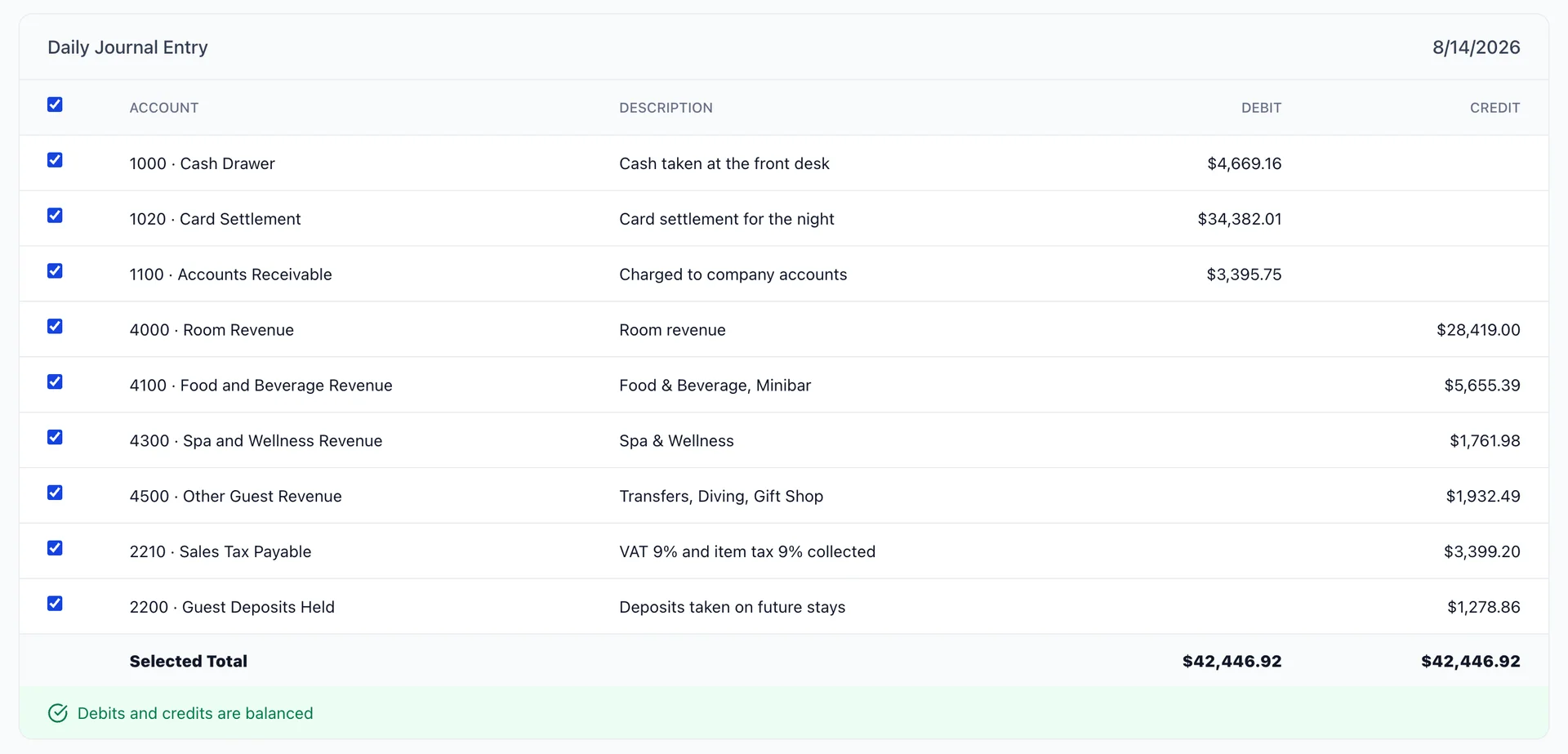
One night, as one journal entry. The date at the top right of the card is the night it covers, which is not today: a day has to finish before it can be posted. Debits are on the left, credits on the right, and the two totals under them have to match.
Every line comes from an answer you gave in the mapping wizard, and a journal entry adds up by account. Two item categories pointed at the same income account arrive here as one line, with both category names in the description.
Reading the lines
Read it as a sentence: this is what guests owed us, and this is how they paid. The debits are the money and what is still owed; the credits are what the money was for.
| Line | What it is |
|---|---|
| Cash, card and receivable debits | How the night settled. The receivable line is the part nobody paid on the night: company accounts and agents you will invoice. |
| Room revenue | What the rooms earned. No wizard step maps this one, so check the account name here rather than looking for the setting. |
| Revenue lines by account | Food and beverage, spa, and whatever else your categories are mapped to. Fewer lines than categories means two categories share an account. |
| Tax | Everything you collected on the property's behalf, credited to the single tax liability account from step two. |
| Deposits | Money taken for stays that have not happened. It sits in a liability account because it is not revenue yet. |
Excluding a line, and the balance rule
Every line has a tick box, and the box in the header row toggles all of them. Unticking a line greys it out and removes it from the Selected Total.
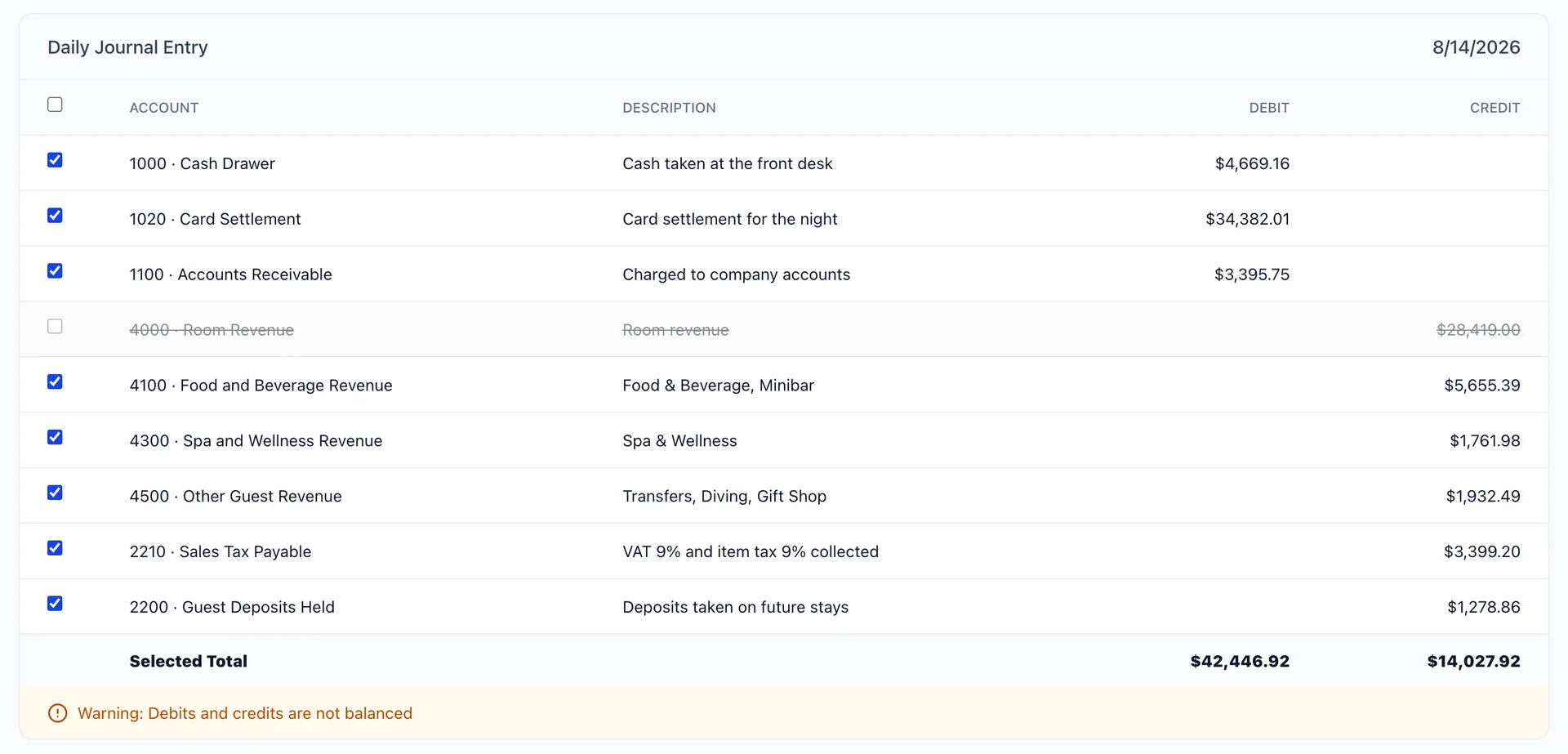
The moment the two selected totals differ, the green line at the bottom of the card turns amber and reads “Warning: Debits and credits are not balanced”, and Confirm & Sync greys out. That is not the screen being fussy. QuickBooks will not accept a journal entry that does not balance, so an unbalanced selection has nowhere to go.
Which means excluding is rarely a single line. Taking out a revenue line means taking out the payment that covered it, and by the time you have done that you are rewriting the night by hand. Excluding is for the case where one line is plainly wrong and you would rather post the rest and fix that line in QuickBooks. If more than one line looks wrong, press Cancel, fix the mapping, and come back.
Running it
- Check the date on the card is the night you meant to post.
- Check the totals match and the line at the bottom is green.
- Press Confirm & Sync.
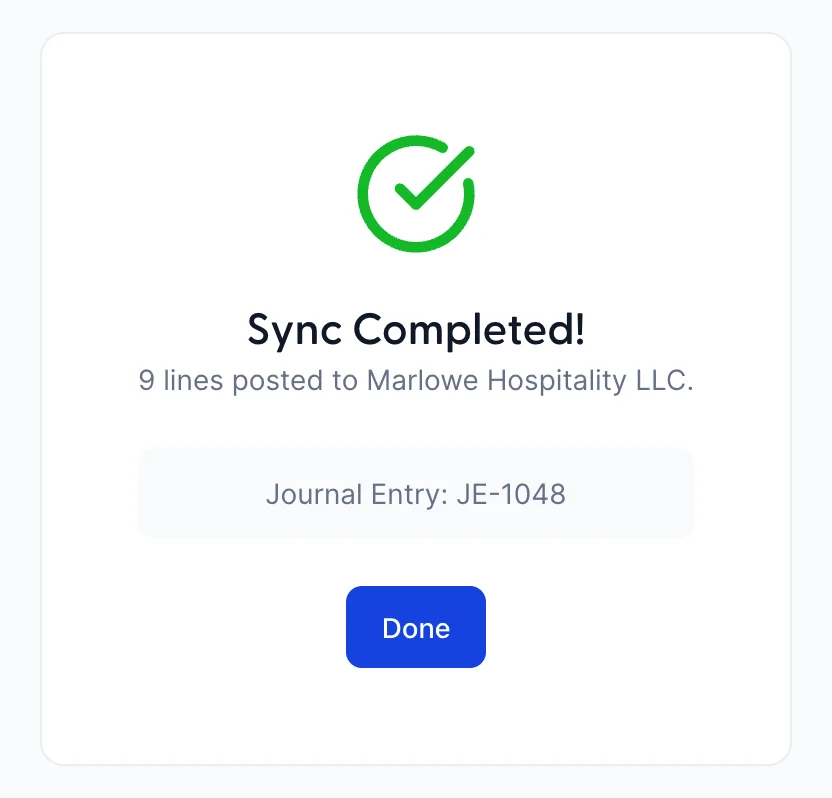
The confirmation carries a Journal Entry reference. Write it down, or leave the screen up: it is what you search for in QuickBooks to find this entry, and it is the fastest way to answer the question of whether something arrived.
The activity log
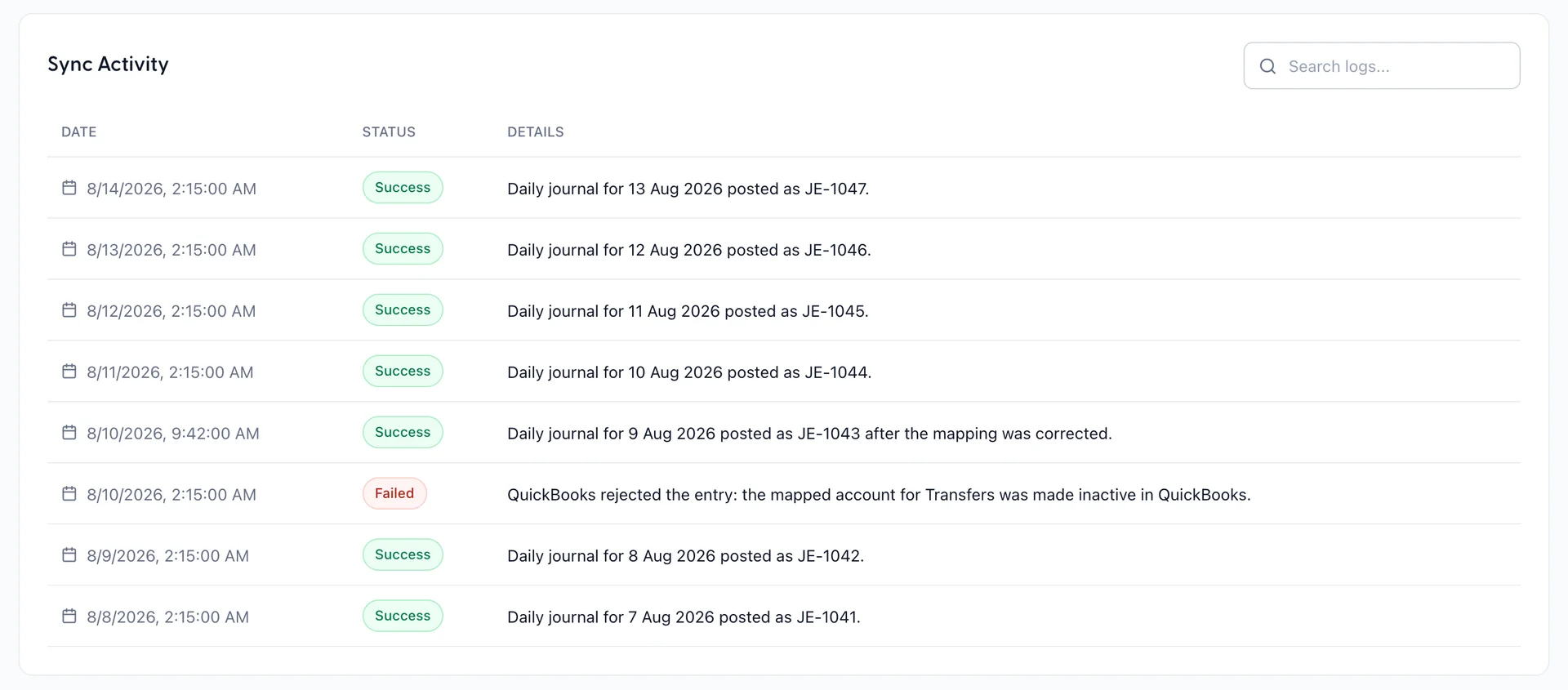
Sync Activity lists the last ten runs, newest first, each with a green Success or a red Failed badge. A successful row names the night it posted and the journal entry number it produced. A failed row carries what QuickBooks said instead.
The search box filters on the date, the status and the message, so typing Failed gives you the failures on their own. It filters what has been loaded rather than searching your whole history.
Two rows can share a night. A run that failed at two in the morning and a run that succeeded later the same day is somebody having fixed the problem and pressed Sync Now, which is exactly what the recovery looks like.
When a run fails
Nothing retries by itself, and nothing partial is left behind: a journal entry is one document, so it either posted or it did not.
- Read the message on the failed row. It is QuickBooks' own complaint, and it usually names the account it objected to.
- Fix the cause. An account made inactive in QuickBooks, or one deleted after you mapped it, is the common one, and the fix is in QuickBooks.
- If the mapping pointed at the wrong account, open Configure and change it.
- Press Sync Now, read the preview again, and post it.