The mapping is the whole integration. Every line of every entry Prostay sends is one of these answers, so a wrong mapping does not fail loudly, it quietly files a month of restaurant revenue under something else. The wizard opens by itself after you connect, and Configure on the QuickBooks screen reopens it at step one whenever you want.
Where the accounts in the list come from
Every picker in the wizard lists accounts from the QuickBooks company you connected. They are your accountant's accounts, named the way your accountant named them, and Prostay does not create any of them. If an account you want is missing, it has to be created in QuickBooks first.
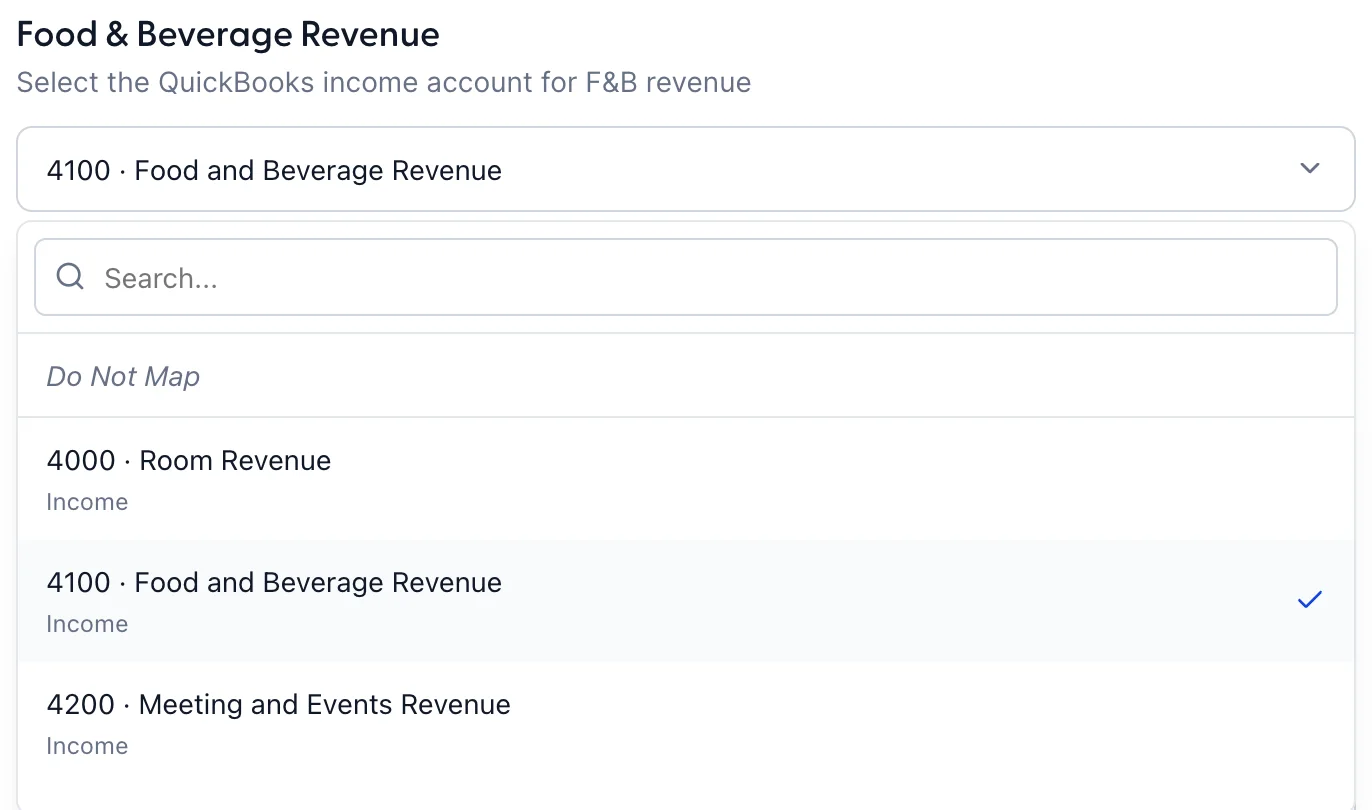
Each picker is filtered to the kind of account its question needs, which is why the same list looks different from one row to the next: income accounts for revenue, asset and bank accounts for money you were paid, liability accounts for tax and deposits, expense accounts for refunds. Type the first few letters to search, and the grey word under each name is the account's type in QuickBooks.
Every picker also carries Do Not Map at the top. It leaves that kind of money without a destination. If you use it, read the journal preview before your first sync, because that is where a missing line shows up.
Step one: revenue and items
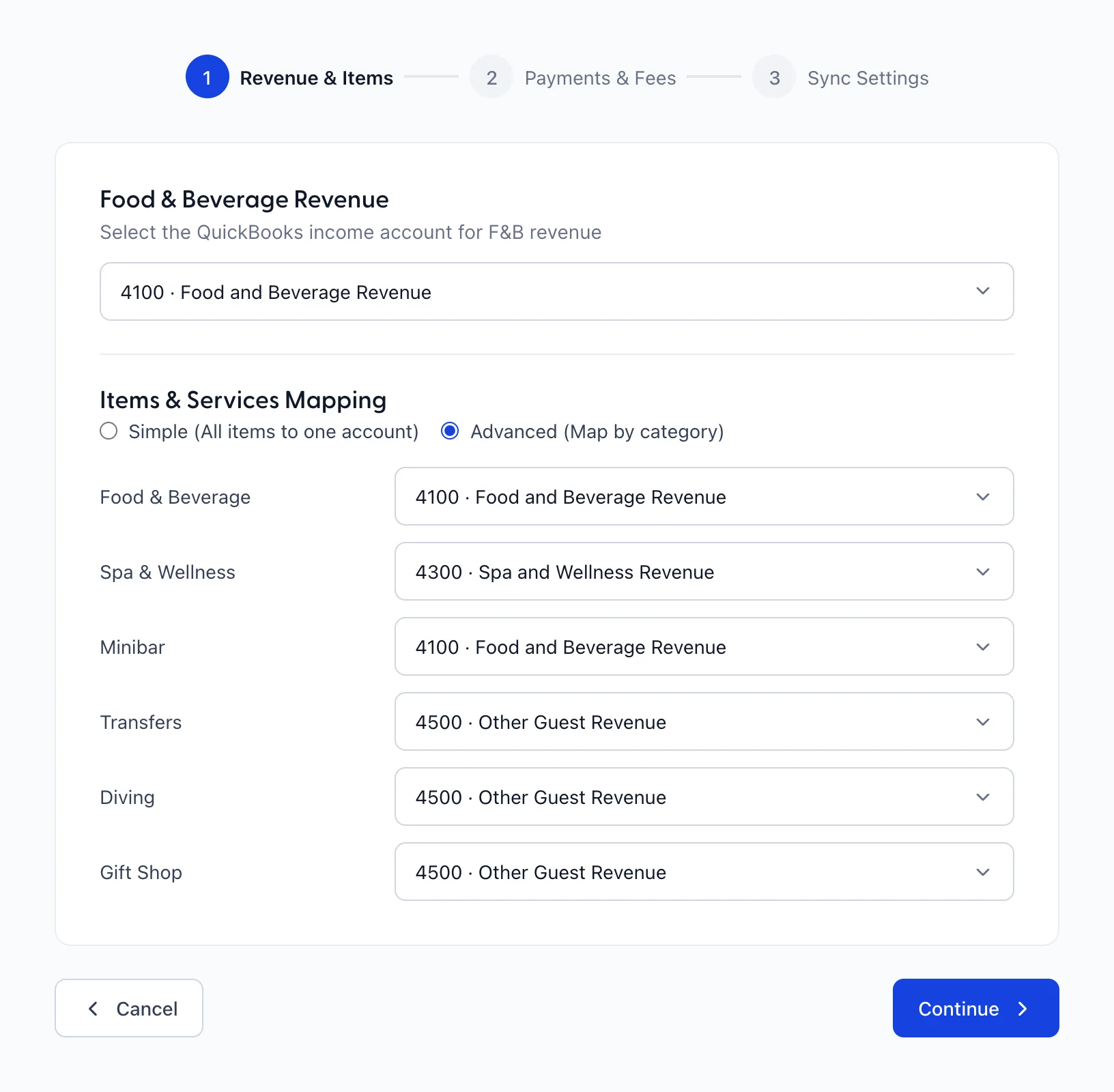
Food & Beverage Revenue takes one income account, and it is separate from the item categories below it.
Items & Services Mapping is a choice between two ways of handling everything a guest is charged for beyond the room:
| Option | What it does |
|---|---|
| Simple (All items to one account) | One income account for every item you sell. The entry is shorter and your QuickBooks reports cannot tell a massage from a dive. |
| Advanced (Map by category) | One row per item category, each with its own account. The categories are the ones on your Items and Services screen, so adding a category there adds a row here. |
Two categories pointed at the same account is a normal thing to do, and it has a visible consequence: a journal entry adds up by account, so those two categories arrive as one line. Six categories mapped across three accounts produce three revenue lines, not six.
Step two: payments and fees
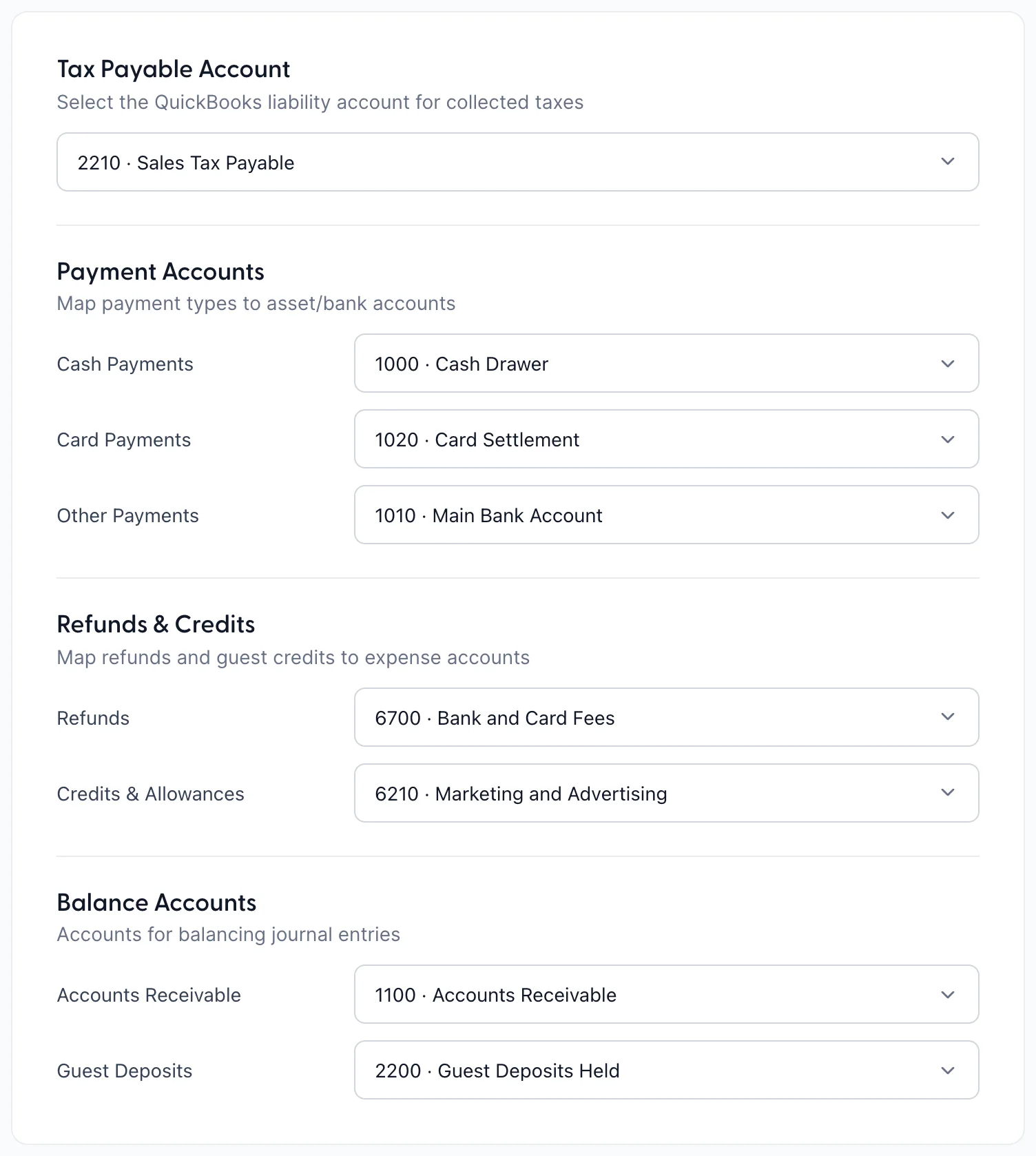
Step one said where revenue goes. Step two says where the money itself goes, in four groups.
| Field | What it decides |
|---|---|
| Tax Payable Account | The liability account every tax you collect is credited to. It is one account for all of them, so if your accountant separates city tax from sales tax in QuickBooks, this entry will not do it for you. |
| Cash Payments | Where cash taken at the desk is debited. Usually the account your float or your daily banking lives in. |
| Card Payments | Where card takings are debited. Undeposited funds or a card settlement account is the usual choice, because the money reaches the bank a day or two later and in a different shape. |
| Other Payments | Everything that is neither cash nor card: bank transfers, vouchers, whatever else your property accepts. |
| Refunds | An expense account for money given back. The picker offers expense accounts only. |
| Credits & Allowances | An expense account for what you write off rather than refund: the comped night, the discount after a complaint. If nothing in your chart fits, create the account in QuickBooks first, because this row will offer expenses and nothing else. |
| Accounts Receivable | Where a charge that was not paid on the night is debited. This is the company account, the travel agent, the invoice you will chase. |
| Guest Deposits | A liability account for money taken for a stay that has not happened. It is not revenue yet, which is why the picker asks for a liability. |
Step three: sync settings
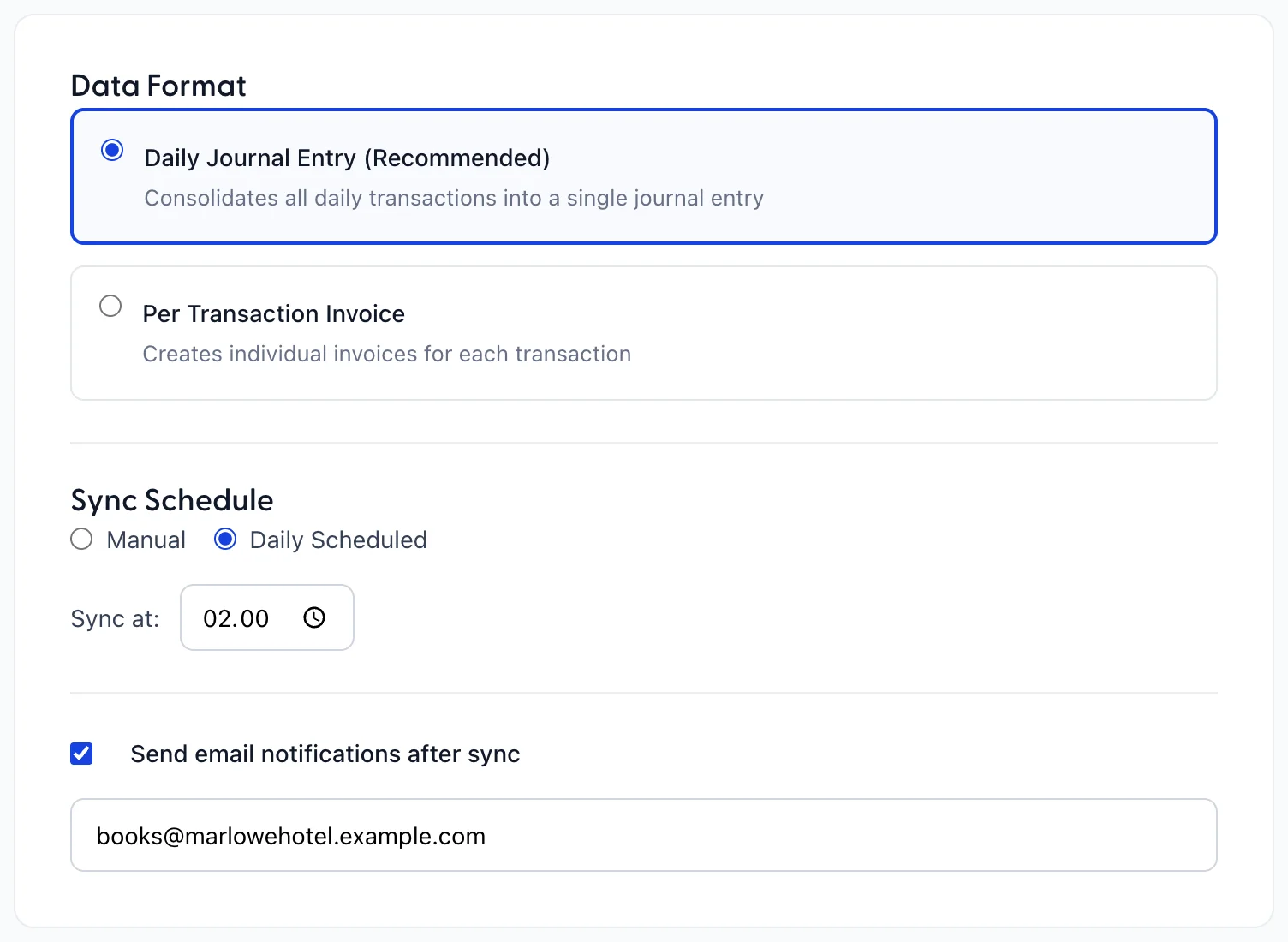
Data Format chooses the shape of what arrives:
- Daily Journal Entry (Recommended) consolidates a day into one journal entry. Your QuickBooks stays readable and your accountant sees the day rather than the transactions.
- Per Transaction Invoice creates an individual document per transaction. That is a lot of documents for a hotel, and it is the choice to make only if somebody has asked for it.
Sync Schedule is Manual or Daily Scheduled. Choosing the schedule reveals a Sync at: time. Set it after your night audit, not before, or the entry describes a day that had not finished.
Send email notifications after sync reveals a field for comma separated addresses. On a scheduled sync this is the only thing that tells anyone a run failed, because nobody is watching the screen at two in the morning. Put a real mailbox in it.
Complete Setup saves everything and takes you to the QuickBooks screen. Nothing is sent to QuickBooks by saving.
What the wizard does not ask
There is no room revenue question anywhere in these three steps, and room revenue is the largest figure in a hotel's day. It still appears in the entry. Open Sync Now before your first real sync and read which account the room revenue line names, because that is the only place this screen will tell you.
Changing a mapping later
Configure reopens the wizard with your answers in it, and Continue steps forward without changing anything, so looking is safe. Saving changes what the next entry does. An entry already posted is a document in QuickBooks and is corrected there, not here.
After any change worth making, run a preview and read the lines before you post them.