The Rate Parity Monitor answers one question: is anybody selling your rooms for less than you are. It reads the rate each connected channel is currently showing, compares it against the rate you publish direct, and flags every pair that does not meet.
It is a reading screen. Nothing on it can be edited, and no control on it changes a price. Once you have found the channel that has drifted, the fix happens in the Channel Manager or in that channel's own extranet, not here.
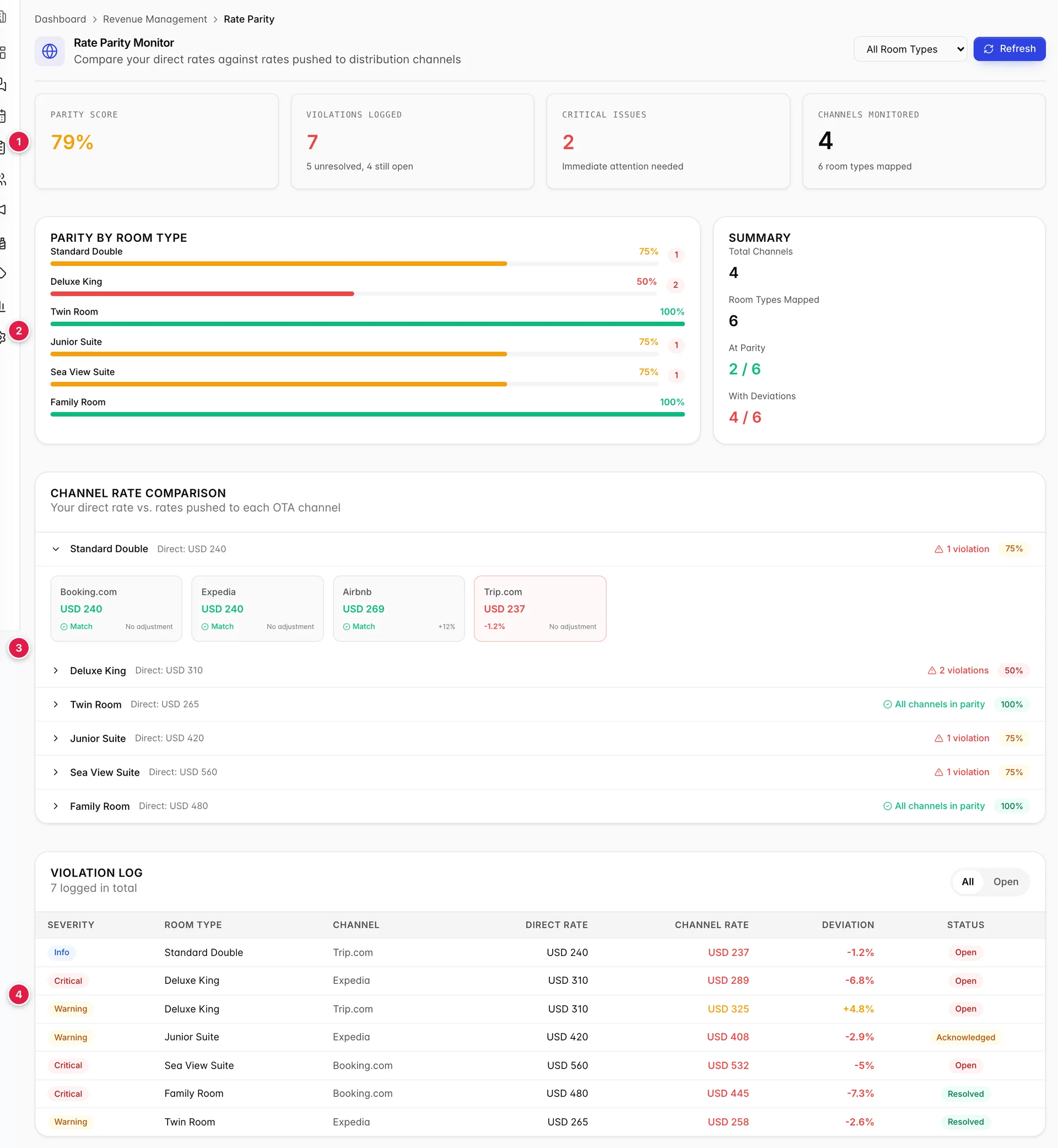
- Four tiles summarising the whole property.
- Parity by room type, and a summary of the same numbers counted differently.
- The channel rate comparison, where the actual rates are.
- The violation log, which is the history.
The one question it answers
Most properties agree, formally or informally, not to be undercut by the channels they sell through. A guest who finds your room cheaper on an OTA than on your own site books it there, and you pay commission on a booking you would have had anyway. Parity is the discipline of making sure that does not happen, and this screen is the check.
Two things count as a violation. A channel selling below your direct rate is the one everyone worries about. A channel selling above it is also flagged, more quietly, because an unexpectedly high rate on a channel usually means a mapping or a markup is wrong rather than that somebody chose to price up.
The four tiles, and the three violation counts

Parity Score is the share of all observations that are in agreement. An observation is one room type on one channel, so with six room types and four channels there are twenty-four of them, and nineteen agreeing gives 79 percent. It is not an average of the per room type scores, which would let a six-unit room type weigh as heavily as a thirty-two-unit one.
Violations Logged is the tile to read carefully, because it carries three numbers and they are not the same number. The headline, 7, is every violation this monitor has ever recorded, including ones that have since been fixed. Under it, 5 unresolved is how many are still outstanding, and 4 still open is how many of those nobody has even acknowledged yet.
| Number | What it counts | When it goes down |
|---|---|---|
| 7, logged | Every violation ever recorded against this property. | Never. It is the history. |
| 5, unresolved | Those still outstanding, whether or not anyone has looked at them. | When the rate is corrected and the monitor sees it agree. |
| 4, still open | Of the unresolved ones, those nobody has acknowledged. | As soon as somebody acknowledges one, or fixes it. |
The gap between 5 and 4 is the acknowledged one: a violation somebody has seen and accepted, but not yet fixed. The gap between 7 and 5 is history, two violations that were corrected.
Critical Issues counts the unresolved violations severe enough to be worth interrupting your day for. Channels Monitored is how many connected channels are actually selling, which is not necessarily every channel you have connected.
Parity by room type
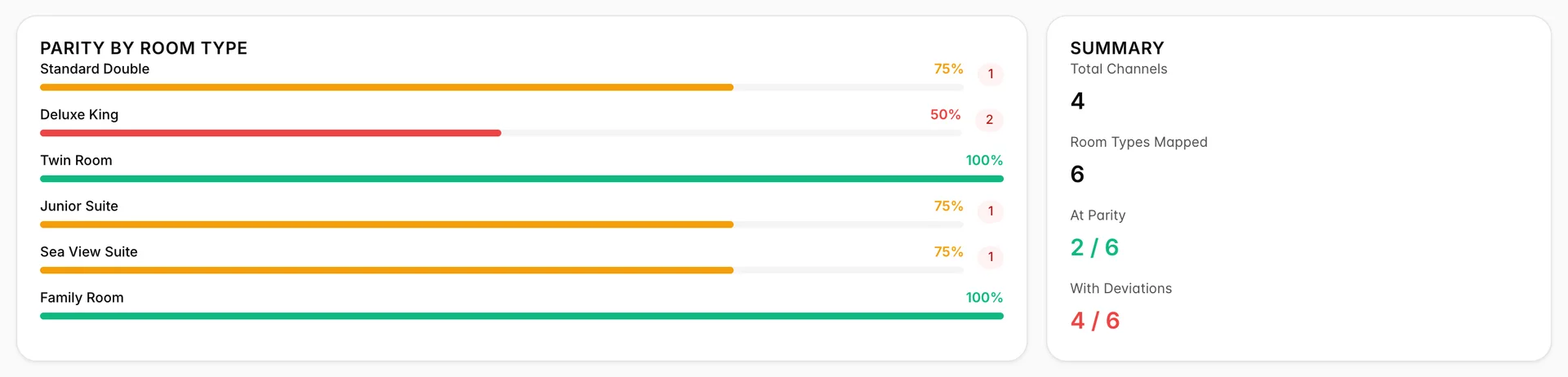
One bar per room type, showing how many of your channels agree on that room. With four channels the only possible scores are 100, 75, 50, 25 and 0, so a room type at 75 percent has exactly one channel out of line. The badge on the right of each bar is how many violations that room type carries.
The Summary panel beside it counts the same situation by room type rather than by observation: two of six room types are completely clean, four have at least one problem. That is a different and usually more useful number than the parity score, because a room type with one bad channel needs the same amount of your attention as one with three.
The channel rate comparison
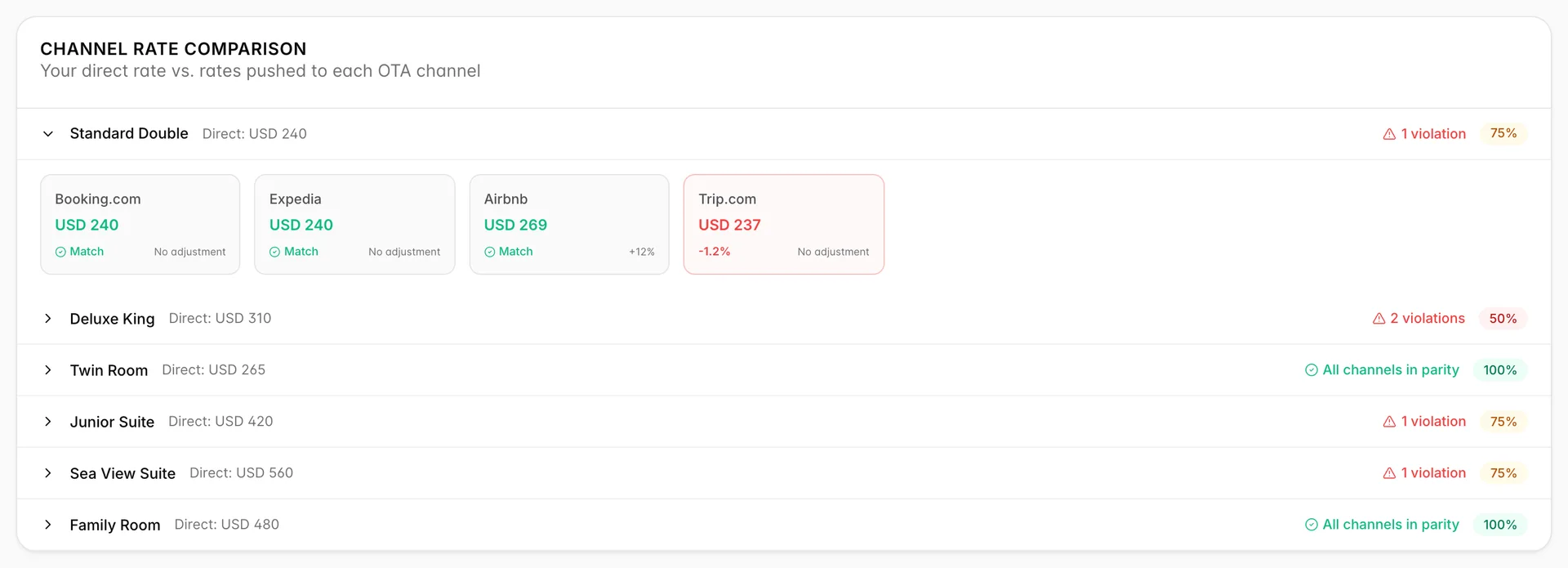
This is where the actual money is. Each room type is a row you can expand, showing your direct rate and one tile per channel with the rate that channel is currently showing. A row you have not expanded still tells you whether it is worth expanding: either a violation count or All channels in parity.
Why a channel can be dearer and still be at parity
This is the one idea on the screen that catches people out, and it is worth understanding before you act on anything here.
A channel can be configured to add a markup. In the figure above, Airbnb carries +12%, which is deliberate: it covers the commission so that the money reaching you is the same as a direct booking. So Airbnb showing USD 269 against a direct rate of USD 240 is not a violation. It is exactly what a 12 percent markup on 240 should produce, and the tile says Match.
Parity is judged against the rate the channel is supposed to be showing, not against your direct rate. So the question the screen is really asking is not "is this channel the same price as me" but "is this channel the price I told it to be". Trip.com at USD 237 in the same row is a violation not because it is cheap in absolute terms but because it carries no adjustment and should therefore be showing 240.
The violation log
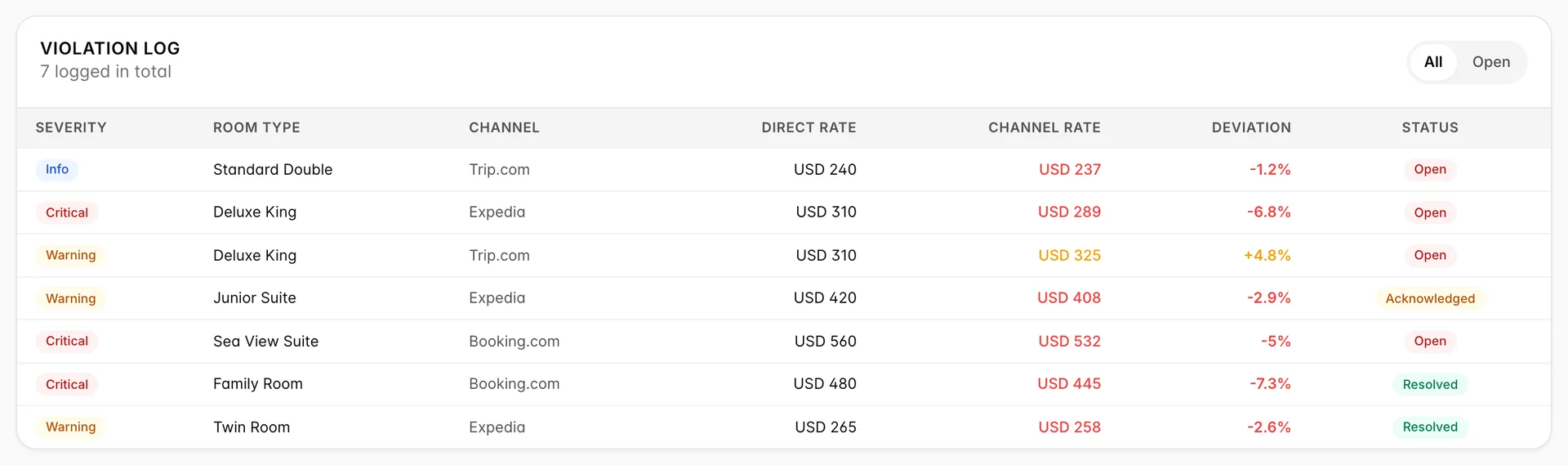
Every violation the monitor has recorded, newest first. Severity is set from the size of the gap, so a channel two percent out is Info and one seven percent out is Critical. Status is where each one has got to: Open, Acknowledged or Resolved.
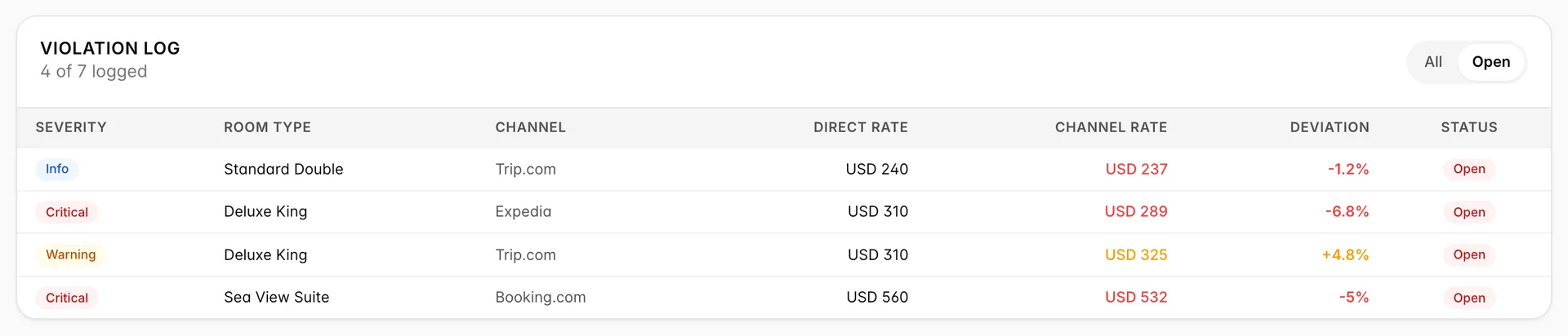
The All and Open chips filter the table, and the header keeps the total in view while they do: 7 unfiltered, "4 of 7" with Open selected. There is no chip for Acknowledged or Resolved, so the only way to see those rows is to go back to All.
The room type selector at the top of the page narrows this table too, so if the log looks emptier than the tile suggests, check whether you have a single room type selected up there.
What to do about a violation
- Check the adjustment first. Expand the room type in the channel rate comparison and look at what the offending channel is configured to add. A violation that appeared without anybody touching a rate is usually a changed markup, not a changed price.
- Check what Prostay pushed. In the Channel Manager confirm the rate that actually went to the channel, and check the room and rate plan mapping while you are there. If it left correct, the problem is downstream.
- Check the channel's own extranet. A rate set by hand there overrides what this system sent, and Prostay cannot see that it happened until the comparison disagrees.
- Fix it where it broke, then wait for the next comparison. This screen has no acknowledge or resolve control on it; a violation clears when the monitor next sees the two rates agree.
What this screen cannot see
It has no competitor data. Nothing here compares you to the hotel down the road, and no amount of reading it will tell you whether your rates are right for the market. That is a different exercise entirely.
It also cannot see a channel you have not connected, a rate for a date other than today, or a discount a channel applies at the point of sale out of its own margin. That last one is the most common surprise: an OTA running a promotion funded by its own commission will show a guest a lower price than the rate it received from you, and this screen will report parity throughout, because the rate it was given is still the rate you sent.
If you want to know what your rates should be rather than whether they are being honoured, start with forecasting demand for the shape of the coming months, and Autopilot for the boundaries that keep automated changes sensible.