Autopilot moves your rates for you. It does not hold a second set of prices: it reads the base rates you have already set and writes an override on the nights it wants to change, which is why everything it does can be seen, and undone, on the rate calendar. Before you switch it on, give it a floor and a ceiling, because nothing else you set here constrains it as tightly.
Set the floor and the ceiling first
Open Pricing Rules and stay on the Rate Boundaries tab. Every accommodation type gets a minimum and a maximum, and no strategy may price outside them. This is the one screen in the module where a mistake costs real money, because a ceiling set too high is a licence for the engine to price you out of the market on a night you would have filled.
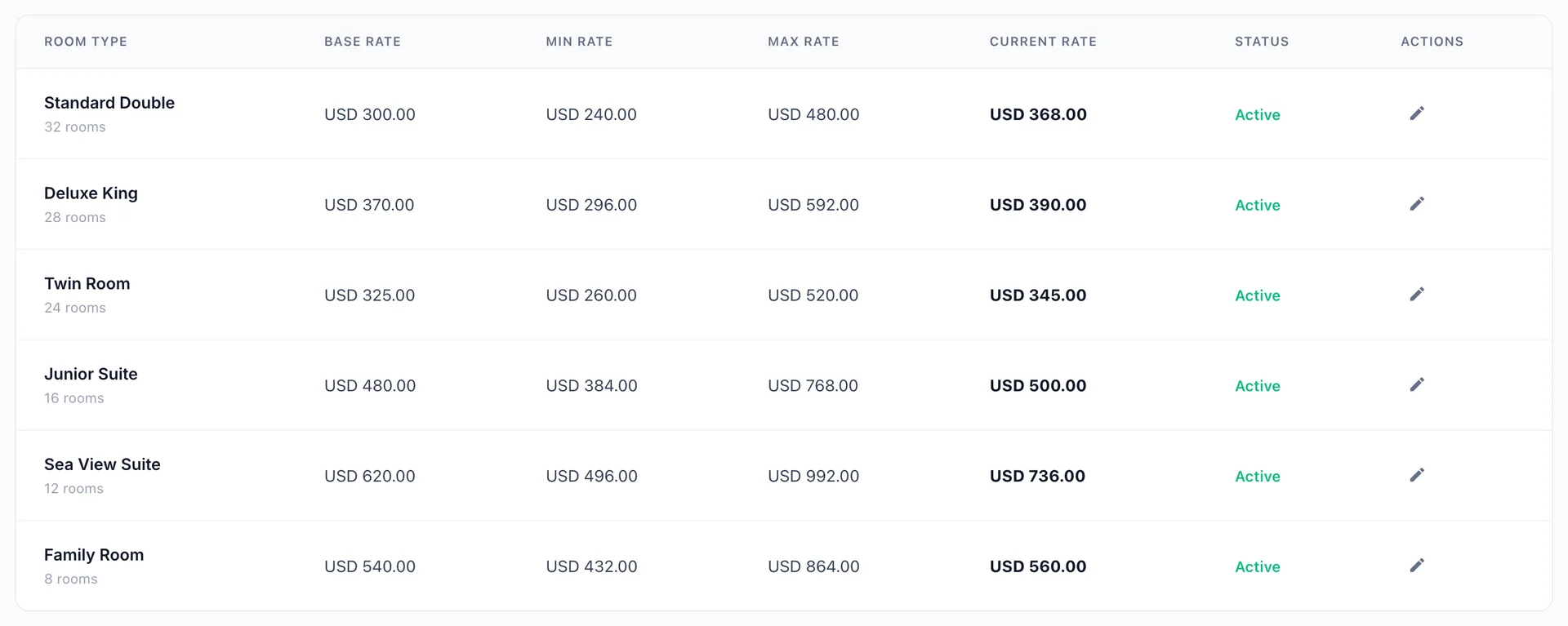
| Column | What it tells you |
|---|---|
| Base Rate | The price from the base rate interval covering today. Read-only here. To change it, edit the interval in base rates. |
| Min Rate | The lowest price any strategy may set. A discounting strategy stops here rather than going lower, so a floor set close to the base rate will make the engine look like it is doing nothing. |
| Max Rate | The highest price any strategy may set. Strategies stack, so this is the only thing standing between a busy weekend in a peak season and three uplifts multiplying together. |
| Current Rate | What the room type is priced at right now, including any override the engine has already written. Compare it against the base rate to see whether Autopilot has touched today. |
| Status | Reads Active while the current rate sits between the floor and the ceiling, and Out of Bounds when it does not. Out of Bounds is not an error the engine caused: it means a rate set by hand, or a boundary tightened afterwards, has left the two disagreeing. |
Click the pencil to edit the minimum and maximum inline, then Save. Leave a field empty and that boundary is left as it was rather than cleared.
The engine switch and the strategy level
The toggle on the Autopilot Engine card is the master switch. Off, nothing is priced automatically and no suggestions are generated. The line under the title counts how many strategies are switched on and repeats what the current level means.
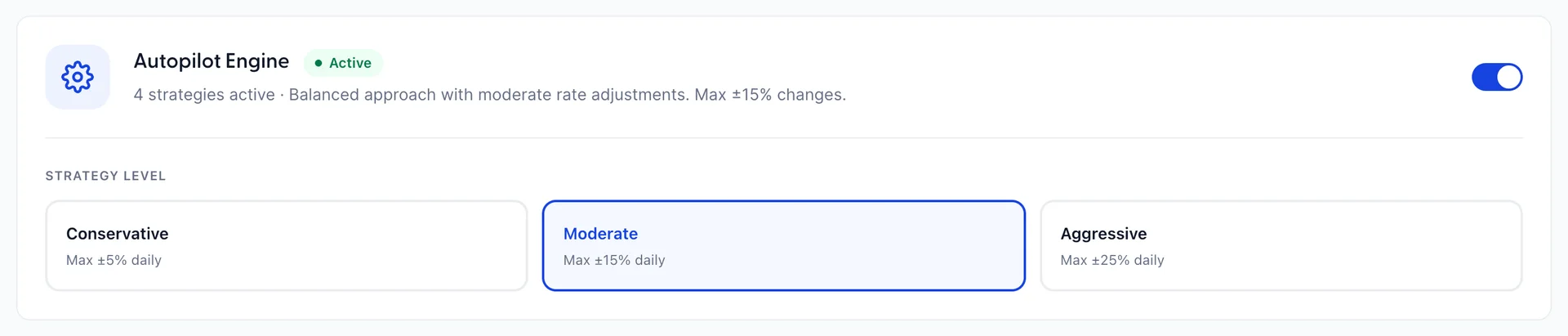
Strategy Level is a single choice that caps how far any rate may move in one day:
| Level | Daily limit and what it feels like |
|---|---|
| Conservative | Maximum 5% a day. A rate needs most of a week to move 30%, so short-notice demand is mostly missed. Choose it when you have contracted rates to protect or a market that punishes visible price movement. |
| Moderate | Maximum 15% a day. The default. |
| Aggressive | Maximum 25% a day. A room type can go from floor to ceiling in two days. Worth it on high-variance dates, uncomfortable on a house with repeat guests who compare what they paid. |
The six strategies and what each one watches
Each card is one reason to change a price. Switch on the ones whose logic you agree with, and use the pencil to set the numbers each one measures against. Strategies that are switched off contribute nothing.
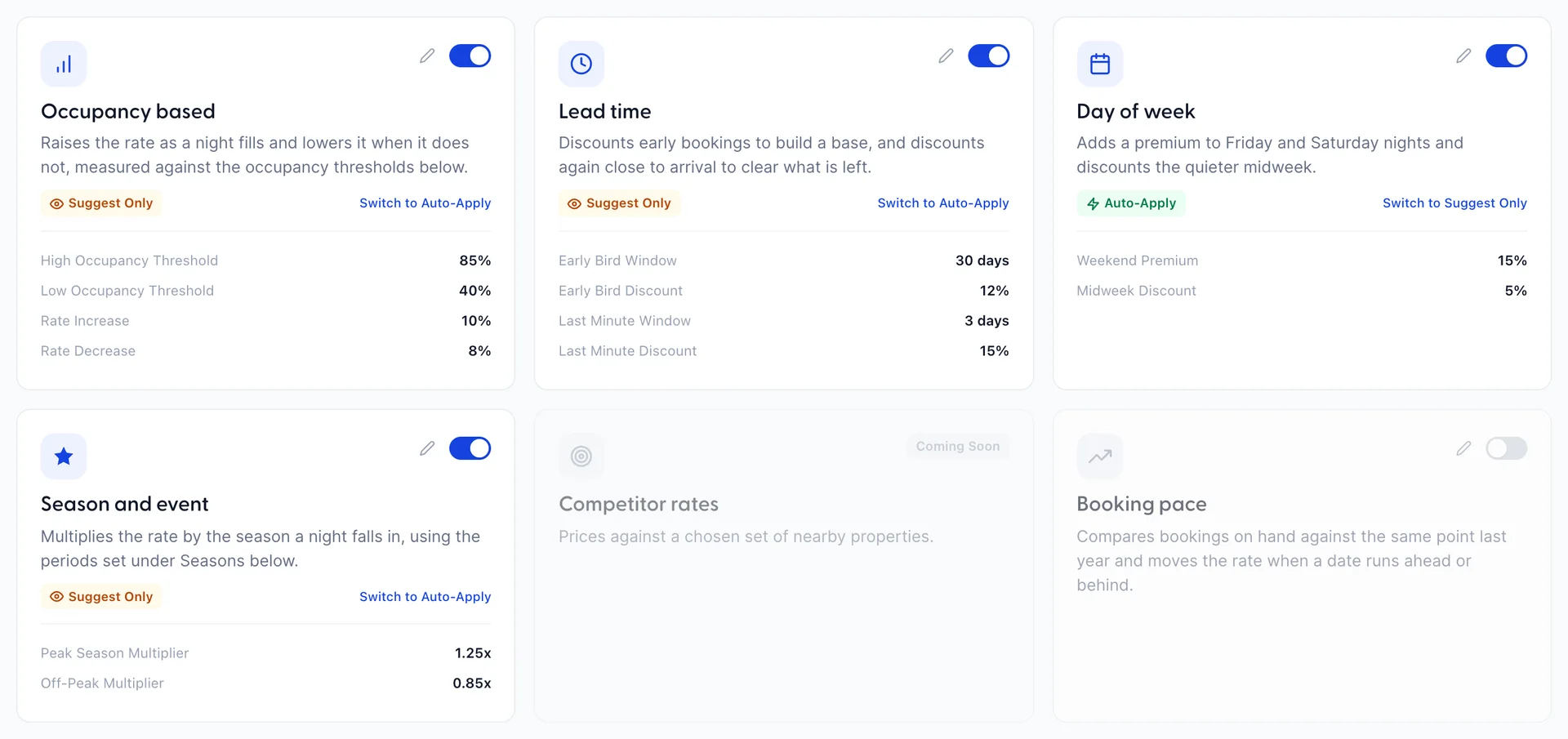
| Strategy | What it reads, and the fields behind the pencil |
|---|---|
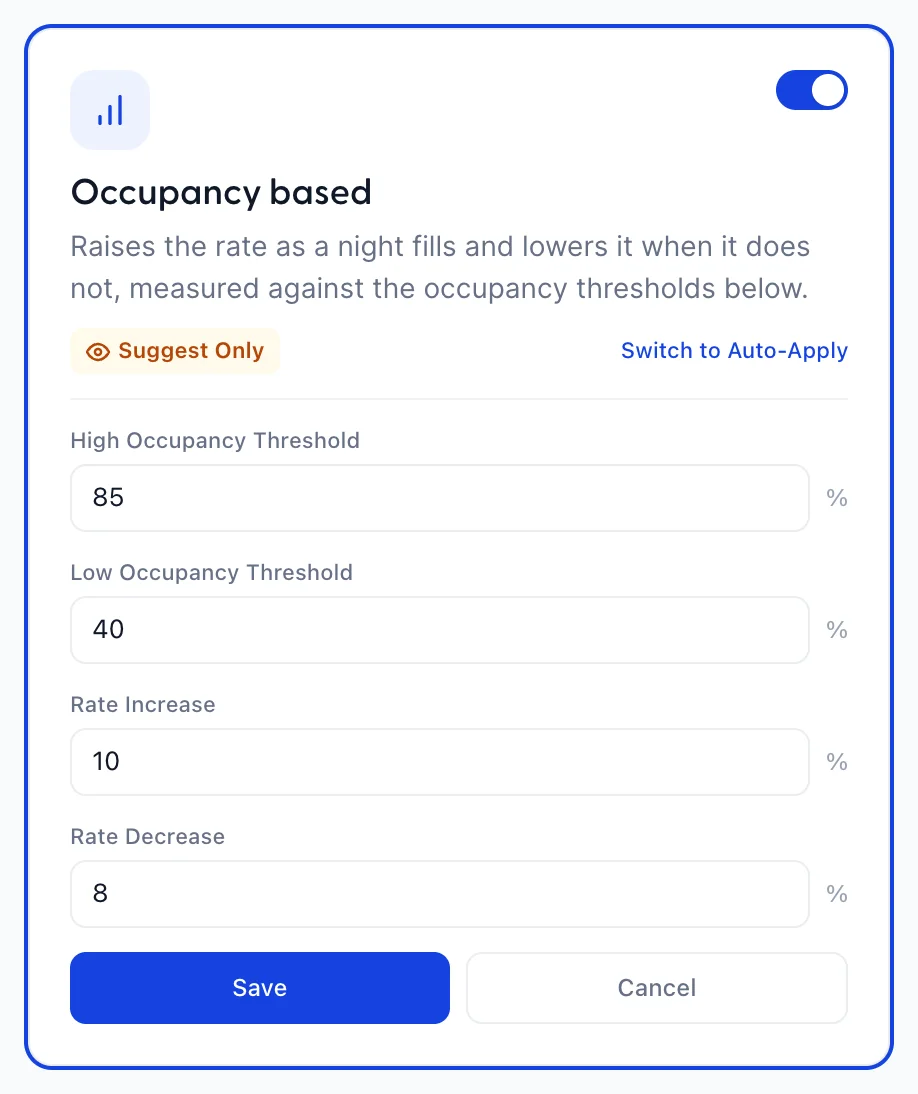
| Occupancy based | How full the night already is. High Occupancy Threshold (50 to 100, default 85) and Low Occupancy Threshold (10 to 60, default 40) are the two lines it watches; Rate Increase (default 10%) and Rate Decrease (default 8%) are what it does when a night crosses one. Note that the increase and the decrease are separate numbers, so the engine can be made eager to raise and reluctant to cut, or the reverse. |
| Lead time | How far out the booking is. Early Bird Window (7 to 90 days, default 30) with Early Bird Discount (default 12%) builds a base early; Last Minute Window (1 to 14 days, default 3) with Last Minute Discount (default 15%) clears what is left. Both are discounts, so this strategy only ever lowers a rate. |
| Day of week | Which day of the week the night falls on. Weekend Premium (default 15%) applies to Friday and Saturday, Midweek Discount (default 5%) to the quieter nights. If your base rate intervals already price weekends higher, this stacks on top of that rather than replacing it. |
| Season and event | Which season period the night falls in. Its pencil opens the season panel rather than a field list. See below. |
| Competitor rates | What a set of comparable hotels is charging. Its card opens a panel of its own rather than a field list, and it has a section below. This one is worth switching on last, once you agree with what the others are proposing, because it is the only strategy whose input you do not control. |
| Booking pace | Bookings on hand against the same point last year. Ahead of Forecast (100 to 200, default 110) and Behind Forecast (40 to 100, default 80) are expressed as a percentage of last year, and Adjustment Amount (default 7%) is the move. This is the same measurement the pickup and pace report shows, so you can see what it would have reacted to before you turn it on. |
Competitor rates and the comparison set
This strategy is the only one that reads something outside your property, so it gets a panel of its own rather than a list of thresholds. Open the Competitor rates card and the panel asks for two things: which hotels you are pricing against, and how you want to sit against them.
Add a hotel by pasting the address of its page on TripAdvisor and giving it a name to recognise it by. The panel links to the site so you can go and find the page. Up to ten properties can be in the set, and the heading counts them for you. Once a hotel is added, its rates arrive on their own: the row shows a best rate and a row of chips naming the online travel agents that quoted it, and Refresh Rates re-reads the lot.
Then the relationship, which is two controls side by side. Match Strategy is Undercut, Match or Premium, and Margin is how far, from 1% to 25%, defaulting to 5%. The sentence beside them spells out what you have chosen, so you are never guessing which way round it is.
What the engine does with that is simpler than it looks. It takes the best rate it found for each hotel in the set, averages them, and moves that average by your margin to get the price it thinks you should be at. If that price is within 1% of your current rate it says nothing. If it is further away, the suggestion arrives in the queue with the arithmetic on it, naming the comparison set average and the relationship you chose, so you can judge the recommendation without reconstructing it.
Suggest Only or Auto-Apply, per strategy
This is the most important setting on the page and the easiest to miss, because it is a small badge rather than a switch. Every enabled strategy is in one of two modes, and the mode is per strategy rather than global:
- Suggest Only, badged in amber. The strategy produces a recommendation that waits for you on Dynamic Pricing. Nothing changes until you accept it.
- Auto-Apply, badged in green. The strategy changes the rate itself. You find out afterwards, from the activity log.
The link beside the badge switches the mode: Switch to Auto-Apply or Switch to Suggest Only. It takes effect immediately, with no confirmation step, so read which way round it is before clicking. The label describes what will happen, not the current state.
Seasons, drawn by you or detected from history
Seasons live here rather than in your rate setup, and they hold no prices. A season period says only that a stretch of dates is busy or quiet; the price still comes from the base rate interval, and the season multiplies it. Reach them through the pencil on the Season and event card, which is the only route in.

Manual Calendar lets you name the periods yourself. Add Period takes a name, a type, a start and an end; Historical Analysis instead derives them from your own booking history and shows you what it found, with the occupancy and rate figures it based each one on. Historical Analysis is the better first move on a property with a year of trading behind it, because it will find the shoulder weeks you have stopped noticing.
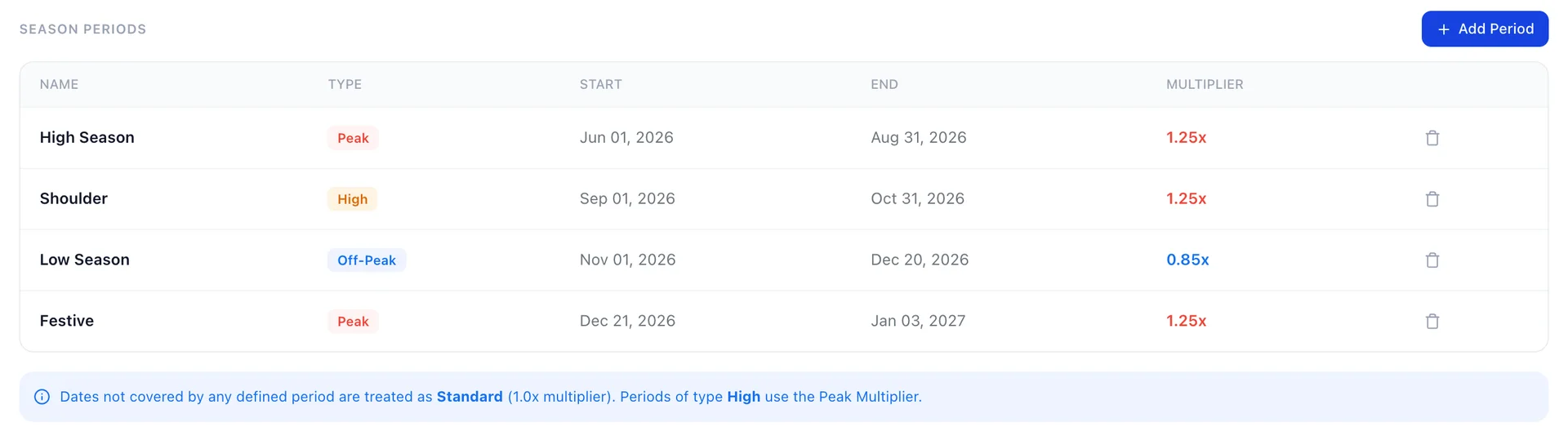
There are four type labels and three behaviours. A period typed Peak or High both take the peak multiplier, Off-Peak takes the off-peak multiplier, and Standard multiplies by 1.0, which is to say it does nothing. Any date not covered by a period is treated as standard, so you only need periods for the parts of the year that differ.
The two multipliers themselves sit above the table: Peak Multiplier accepts 1 to 3 and defaults to 1.25, and Off-Peak Multiplier accepts 0.5 to 1 and defaults to 0.85. Both save when you click away from the field.
The limits every strategy works inside
Safety Guardrails gathers the constraints that apply to every strategy at once, so you can check what the engine is allowed to do without leaving the page.
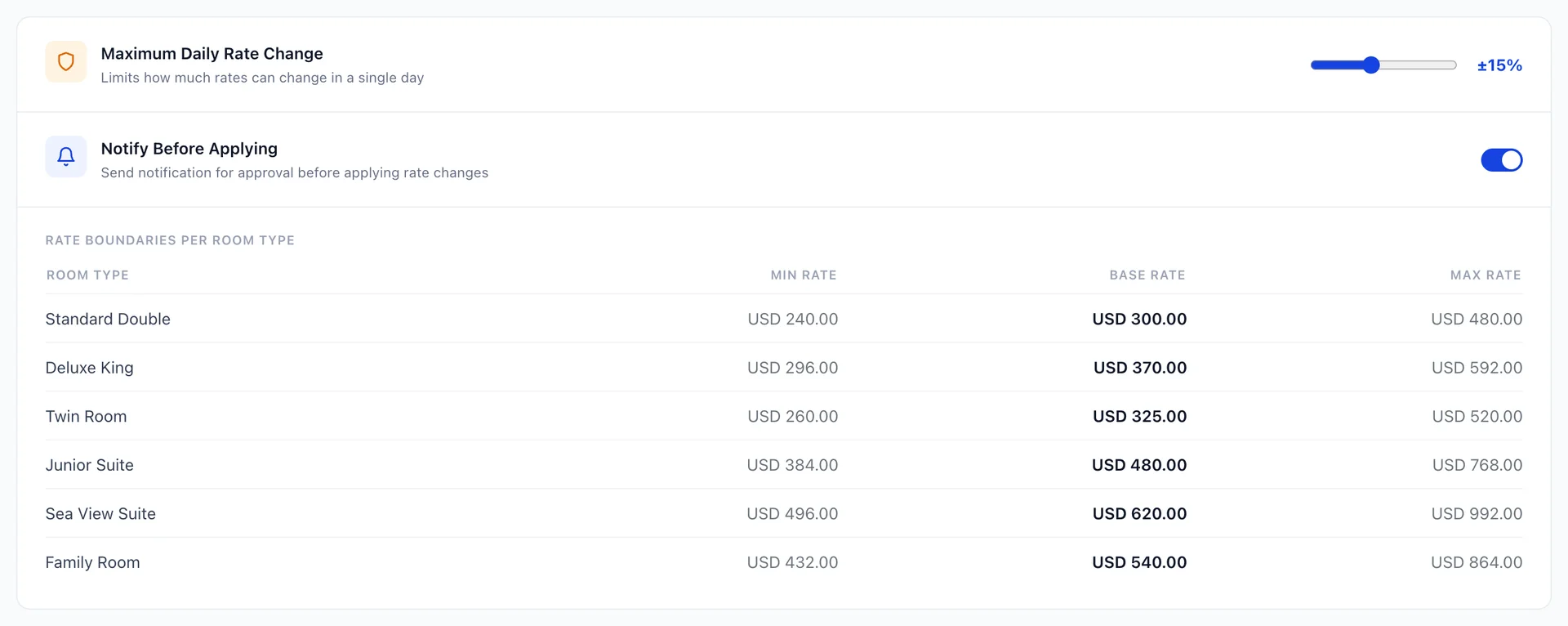
Nothing here is editable. The minimum and maximum are the ones you set on Pricing Rules, and the base rate is what the room type sells for today. They are repeated on this page because they are the limits every strategy is working inside, and reading a strategy's settings without them in front of you is how a threshold ends up looking wrong when it is the ceiling that is doing the work.
The daily change limit that the strategy level sets is not shown here, and there is no control anywhere on the page for it. It is still applied. That matters when a strategy proposes less than you expected: the level's own figure may be holding it back, and the only way to change that figure is to change the level.
Approving or rejecting a suggestion
Everything on Suggest Only collects on Dynamic Pricing. The bar at the top counts what is waiting and totals what accepting all of it would be worth, and the tabs split the queue by status: everything, then the ones still waiting, the ones you took, the ones you turned down, and a read-only tab holding suggestions whose dates have passed.
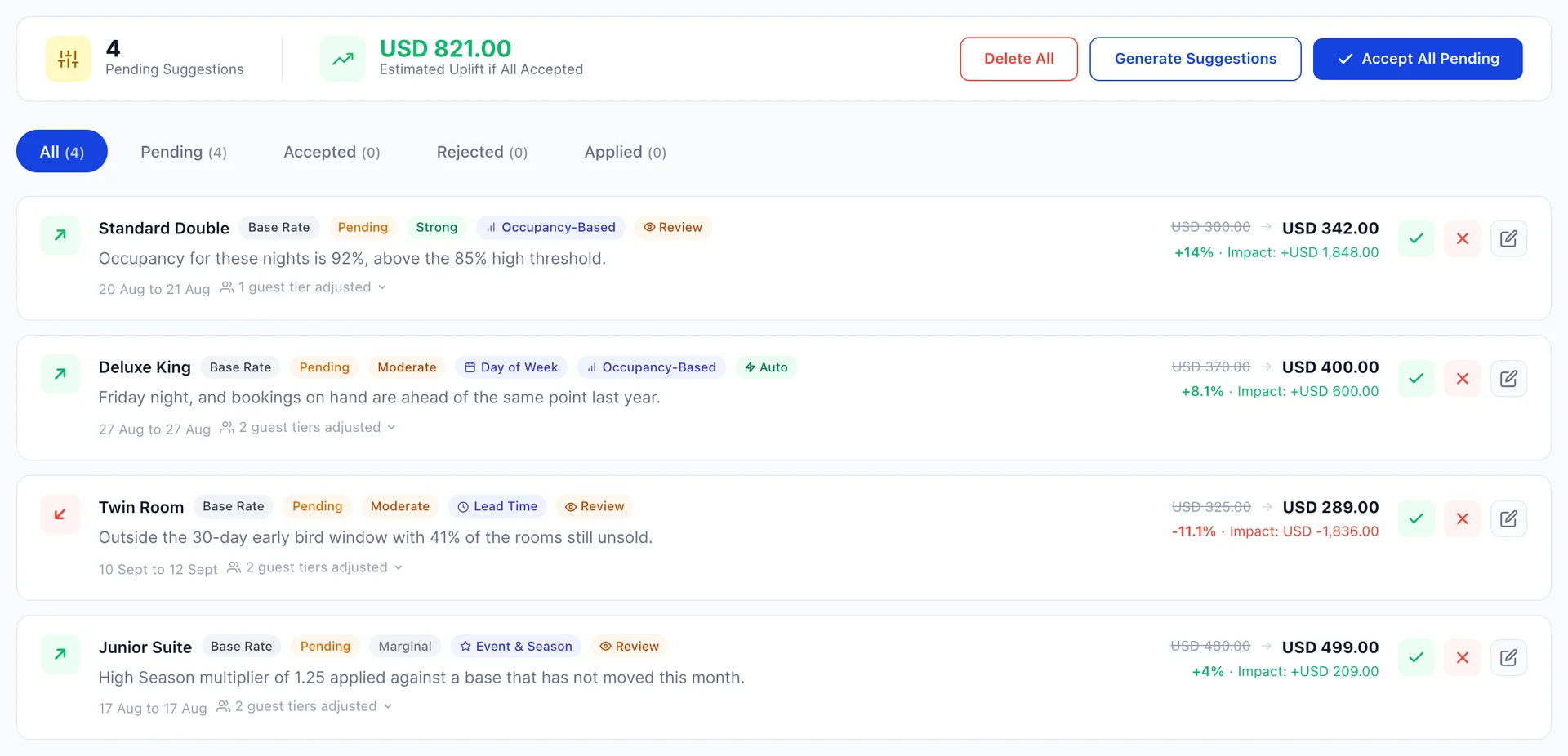
Read a card from the left. The accommodation type, then the badges: the status, a strength of Strong, Moderate or Marginal, the strategy or strategies that triggered it, and whether it came from an auto-apply or a review strategy. Under those, the reason in plain words. On the right, the current rate, the suggested rate, the percentage change and the revenue impact.
The revenue impact is the part worth reading carefully. It is the effect on the nights the suggestion covers, so a large impact can come from a small percentage across many rooms, and a cut shows a negative impact even when taking it is the right decision. A discount that fills eight empty rooms is worth more than the rate it gave up, and this figure does not know that.
Four actions on each pending card:
| Action | What happens |
|---|---|
| Tick | Accepts it. The rate is written as an override on the nights the suggestion covers, so it appears on the rate calendar marked as a manual override, where you can change the figure by hand. |
| Cross | Rejects it. The rate is untouched and the card moves to Rejected. Rejecting does not stop the same strategy proposing the same thing again tomorrow; to stop that, change the strategy's thresholds or switch it off. |
| Pencil | Lets you type your own figure over the suggested one before accepting, then Apply. Use it when you agree with the direction and not the size. |
| Accept All Pending | Accepts everything in the queue after a confirmation dialog. It applies to every pending suggestion, not just the ones on the page you are looking at. |
The button above the queue runs the enabled strategies now rather than waiting for the next scheduled pass, which is the quickest way to see the effect of a threshold you have just changed. Delete All clears the queue of everything still waiting and everything you turned down. Suggestions you accepted are kept, because they are the record of what was applied and the only handle you have on putting one back.
An accepted suggestion can be reversed from its own row, which restores the rate that was in place before it. That is the quickest way back from a change you regret; the rate calendar is the other, and it is the one to use when several suggestions have landed on the same night.
Checking what the engine did while you were out
The activity log at the bottom of the Autopilot page is the record of changes that were actually made. Each row carries the time of the run, the accommodation type, the night affected, the rate before and after, the strategy responsible and its reason.
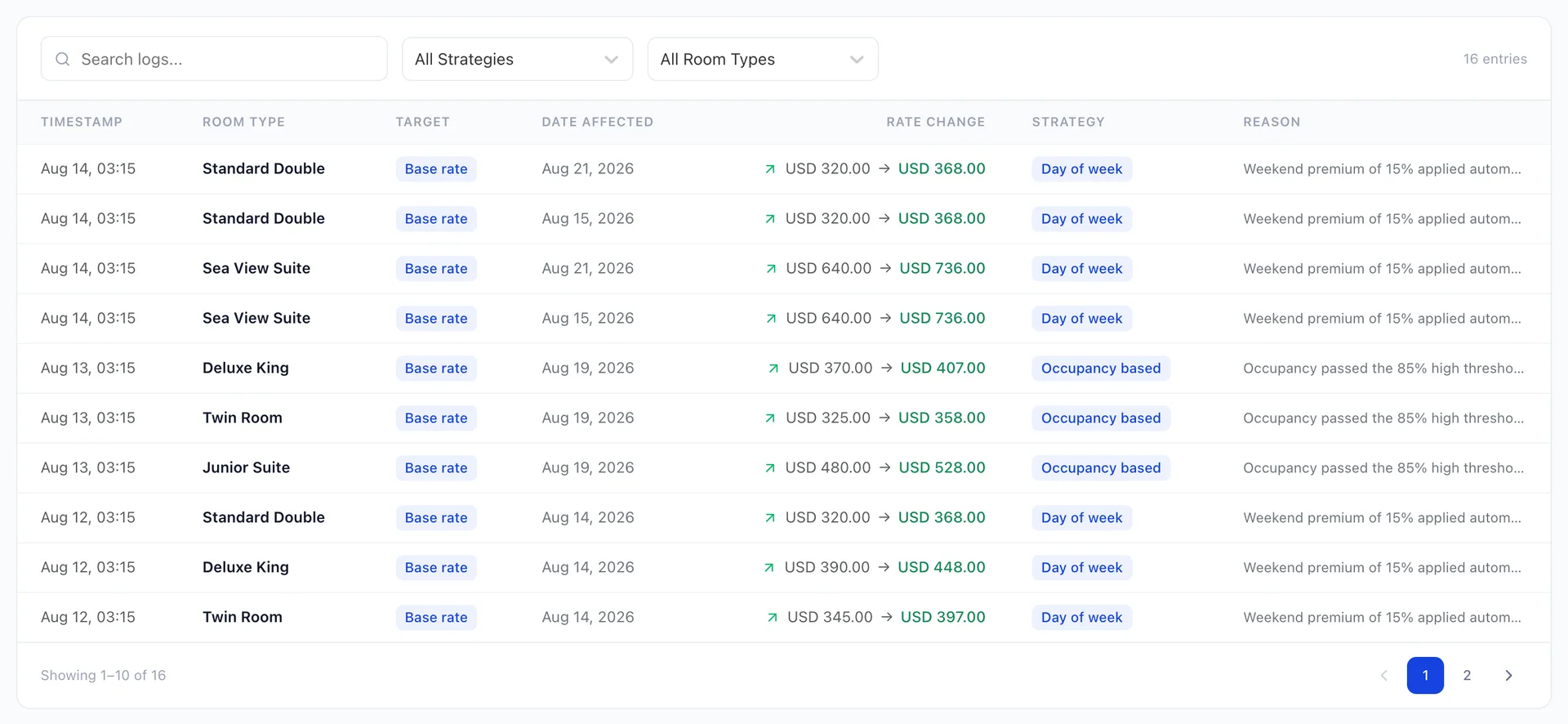
Filter by strategy or by accommodation type, or search the reasons, and the list pages ten at a time. Two things make this screen worth a weekly look. A strategy that appears far more often than the others is usually one whose thresholds are too tight. And every rate here can be checked against the rate calendar, because an automatic change is written as an override on that night, so the log and the grid should always agree.