Every channel you already sell through appears once on this screen, and every setting that belongs to that channel is behind the edit button on its row. That includes the two things most likely to break a booking, room mapping and rate plan mapping, which have an article of their own. This one covers everything else: reading the list, understanding what a channel is capable of, and turning it off and on.
The connected list
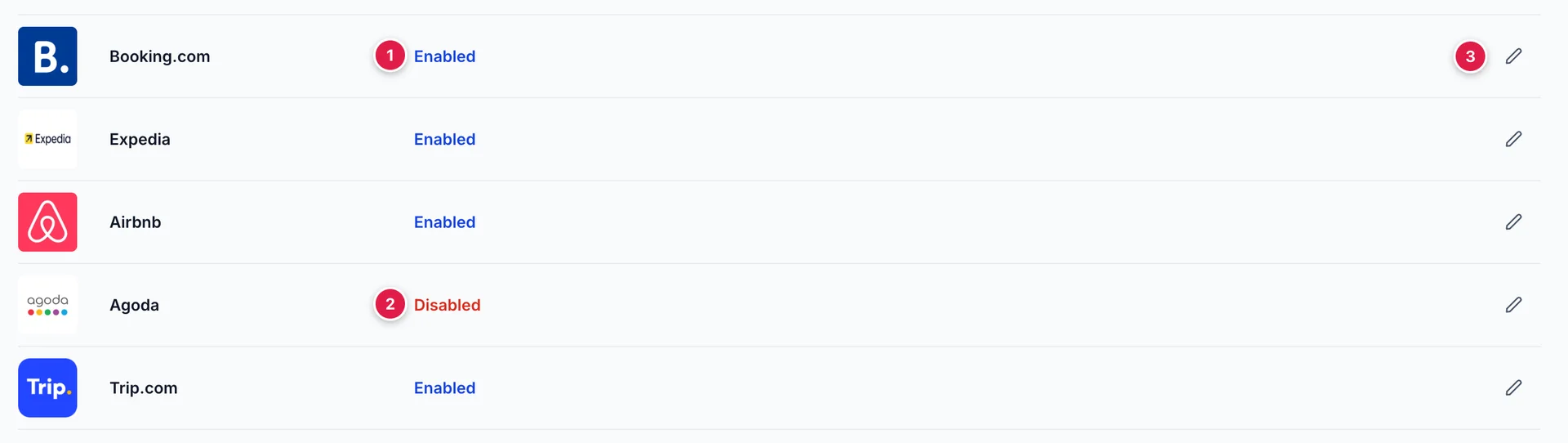
- Enabled. The channel is trading. Availability and rates go out to it, and reservations come back.
- Disabled. The connection still exists and everything set up on it is intact, but nothing is being sent and nothing is being received.
- Edit. Opens the channel panel. There is no other way in, and no controls on the row itself.
The list is short by design. It holds only channels you are connected to, which is also the list you will see when you pick channels for a closeout. A channel that is missing here has not been connected yet, and it is started from the Channels catalogue rather than from this screen.
What opens when you edit a channel

- Status. The same Enabled or Disabled you saw on the row, repeated here so you know which channel you are about to change.
- Disable Channel. Sends you to the Channel Login tab and opens the typed confirmation there. On a disabled channel this button reads Enable Channel and acts immediately.
- Channel Setup Guide. Reserved for the channel's own connection instructions. It does not open anything yet.
- The tabs. General, Channel Login, Room Mapping and Rate Plan Mapping. The panel always opens on General.
General: what this channel will accept
The General tab starts with a sentence or two about the channel, then the part worth reading: a table of the restrictions this channel accepts from Prostay. Each one is marked Available in green or Not Available in red, with a help icon carrying a plain-language explanation.
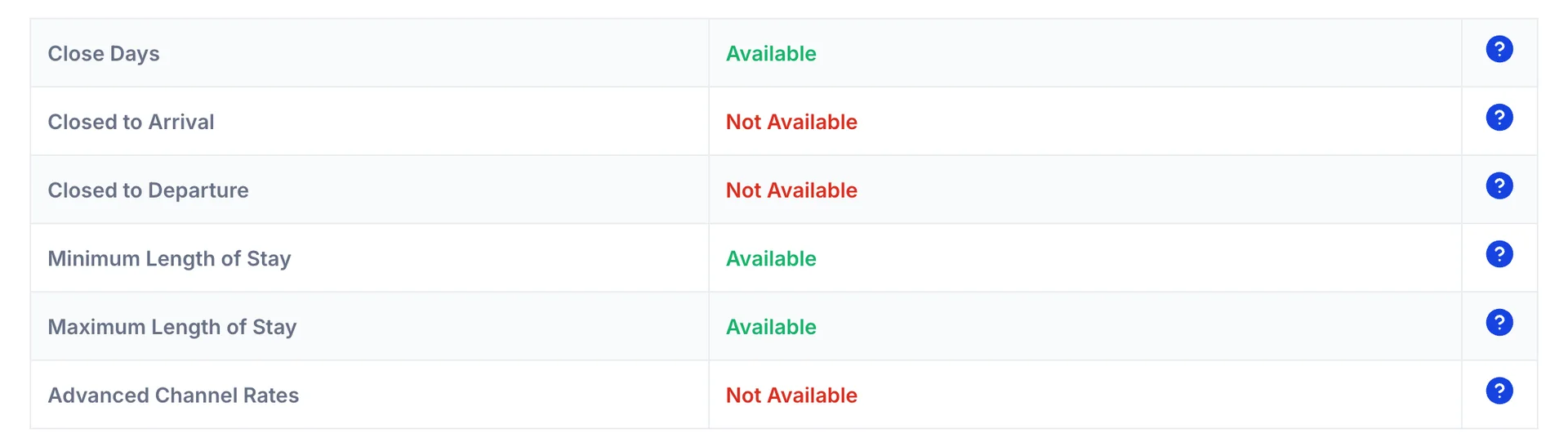
The table differs from channel to channel, which is the whole point of it. Booking.com and Expedia accept all six in the demo property; Airbnb accepts three; Agoda and Trip.com sit in between. Check the channel you are about to configure rather than assuming what worked on one works on the next.
What each restriction means for your business
| Restriction | What it does when the channel accepts it |
|---|---|
| Close Days | Stops the channel selling on chosen dates while you keep the availability in Prostay. This is what a closeout sends. Without it, a closeout cannot reach that channel. |
| Closed to Arrival | Guests may stay through the date but may not check in on it. Used to protect an arrivals day the front desk cannot absorb, usually the middle of a large group check-in. |
| Closed to Departure | Guests may stay through the date but may not check out on it. Stops a three-night holiday weekend being chopped up by stays that end on the Saturday and leave you an unsellable Sunday. |
| Minimum Length of Stay | Rejects bookings shorter than the nights you set, measured from the arrival date. The usual tool for stopping one-nighters eating a peak weekend. |
| Maximum Length of Stay | Rejects bookings longer than the nights you set, so one long low-rate booking cannot take a whole peak week off the market. |
| Advanced Channel Rates | Lets you map more than one Prostay rate plan to the channel. Without it the channel receives your base rate and nothing else, so a non-refundable or corporate rate has no way to reach it. |
Advanced Channel Rates is the one that changes how you work rather than what a guest sees. On a channel without it, the Rate Plan Mapping tab still opens, but only the Prostay Base Rate row at the top does anything useful.
Channel Login: the credentials the connection runs on
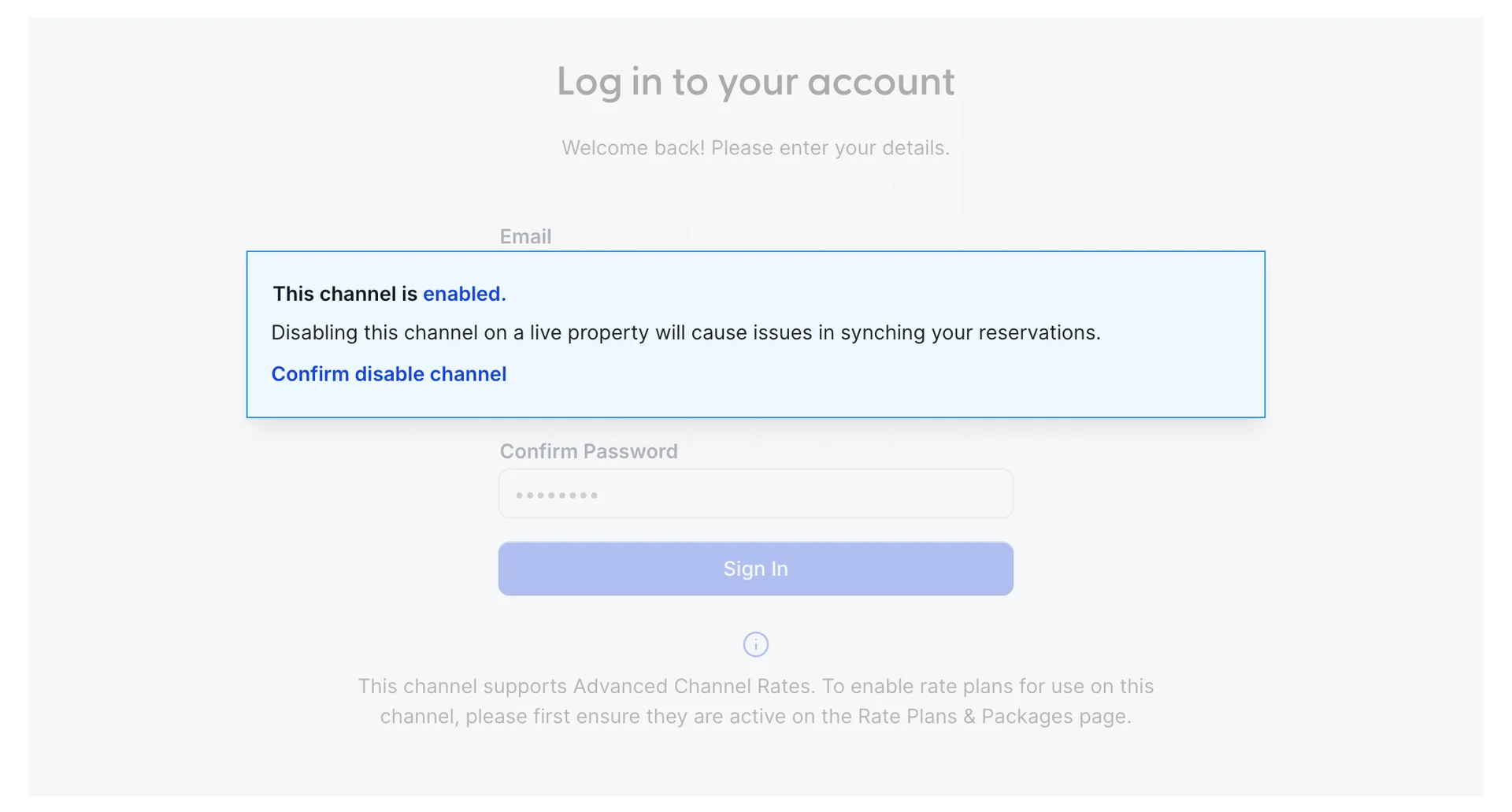
This tab holds the sign-in the connection uses against the channel: an email, a password and a confirmation of the password. On an enabled channel the form sits behind the blue notice and you cannot reach it, which is deliberate. Re-authenticating a live connection means a window where availability is not being sent, so the product makes you turn the channel off first and be explicit about it.
Below the form the tab repeats whether this channel supports Advanced Channel Rates, and adds the piece that catches people out: a rate plan has to be active on the Rate Plans & Packages screen in the Property Management System before it can be mapped here. A rate plan you have switched off there does not appear as an option in rate plan mapping, and nothing on this screen explains its absence.
Taking a channel off sale
Disabling is the right move when you want a channel to stop trading for a while: a contract dispute, a period where the commission does not pay, or a connection you are about to re-authenticate. It is not the right move for a busy weekend, because it has no dates on it and stays off until you remember. Use a closeout for that.
- Open the channel from its row on Active Channels.
- Press Disable Channel in the header, or open the Channel Login tab and press Confirm disable channel. Both land in the same place.
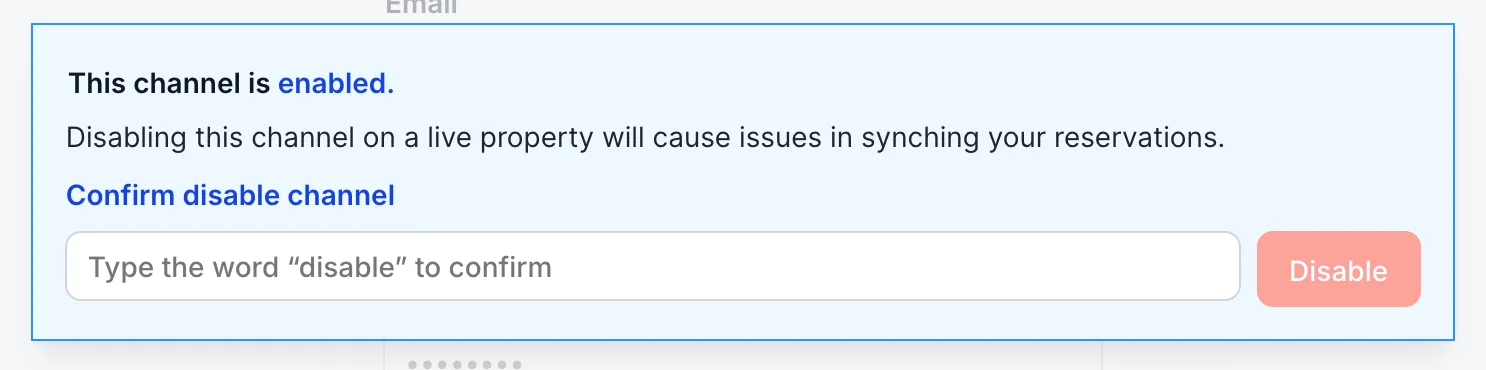
- Type the word disable into the box. Case does not matter and surrounding spaces are ignored, but nothing else is accepted.
- Press Disable.
The panel closes as soon as the change goes through and the list refreshes behind it, so the row you started from now reads Disabled in red. There is no separate success message; the row is the confirmation.
Putting it back on sale
Enabling is a single click: open the channel and press Enable Channel. There is no typed confirmation, because the risk runs the other way. Turning a channel on puts inventory back on sale, which is recoverable; turning it off takes it away, which costs you bookings you never find out about.
Nothing was lost while it was off. The room mapping, the rate plan mapping and the credentials are all as you left them, so a channel disabled for a season starts selling again the moment it is re-enabled. That is worth knowing before anyone decides to disconnect a channel entirely to achieve the same thing.
Save, Cancel, and what each one covers
Save and Cancel sit at the foot of the panel on the General, Channel Login and Room Mapping tabs. There is one save for the whole channel: pressing it writes the room mapping and the rate plan mapping together, whichever of those tabs you happen to be on. The one thing it does not write is the enabled state, which is applied the moment you confirm it rather than waiting for a save.
Rate Plan Mapping has no footer of its own, so its Save sits at the bottom of an individual room's rate plan grid. It is the same save doing the same job.
A successful save shows a green Success! notice and closes the panel a few seconds later. If Prostay cannot reach the channel you get a red notice instead, saying nothing was changed, and the panel stays open so you can try again without retyping anything.