A channel does not know what a Deluxe King is. It knows about a listing it calls “Deluxe King Room with Partial Sea View”, and it needs to be told that the two are the same thing. Mapping is that translation, and it is the part of the Channel Manager that decides whether a booking lands against the right room at the right price or against something else entirely.
Two tabs do it, and they are not interchangeable. Room Mapping pairs your accommodation types with the channel's rooms. Rate Plan Mapping pairs your rate plans with the channel's own rates, one accommodation type at a time. Both live behind the edit button on a row of Active Channels.
What mapping actually decides
Three things follow from a mapping, and all three are invisible until something goes wrong:
- Whether the room is sold at all. Availability and rates are sent for mapped rooms only. An unmapped accommodation type is never offered on that channel, whatever its availability says.
- Which room a booking consumes. When a guest books the channel's “Twin Room”, Prostay decrements the accommodation type mapped to it. Map it to the wrong one and you sell a room you do not have while a room you do have sits empty.
- Which price the guest is quoted. The channel receives the price of the rate plan mapped to the channel rate the guest is booking, plus any adjustment you set here.
Room Mapping, one row per accommodation type
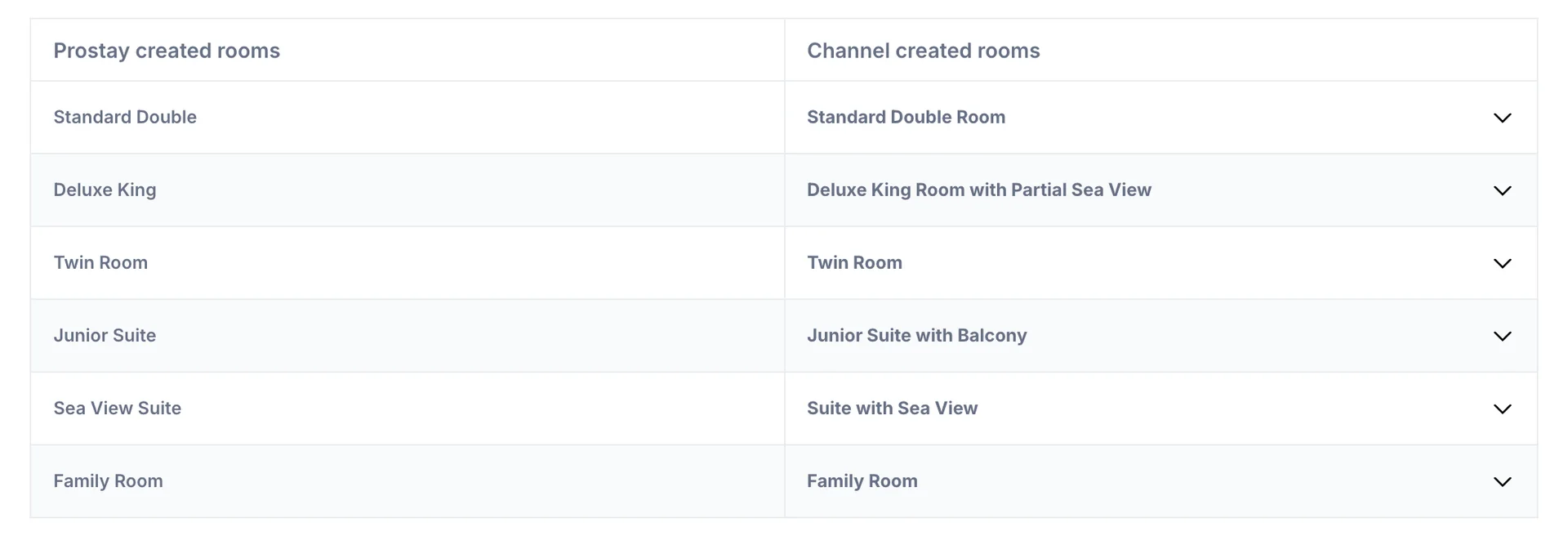
The left column, Prostay created rooms, is your list of accommodation types exactly as the Property Management System holds them. You cannot add to it here, and you cannot rename anything here; both are property settings. The right column, Channel created rooms, is what this channel currently has on its own listing for your property.
The search box above the grid filters the left column by your own room name. It is there for properties with thirty accommodation types, and it does not touch what has been mapped.
Choosing the channel room
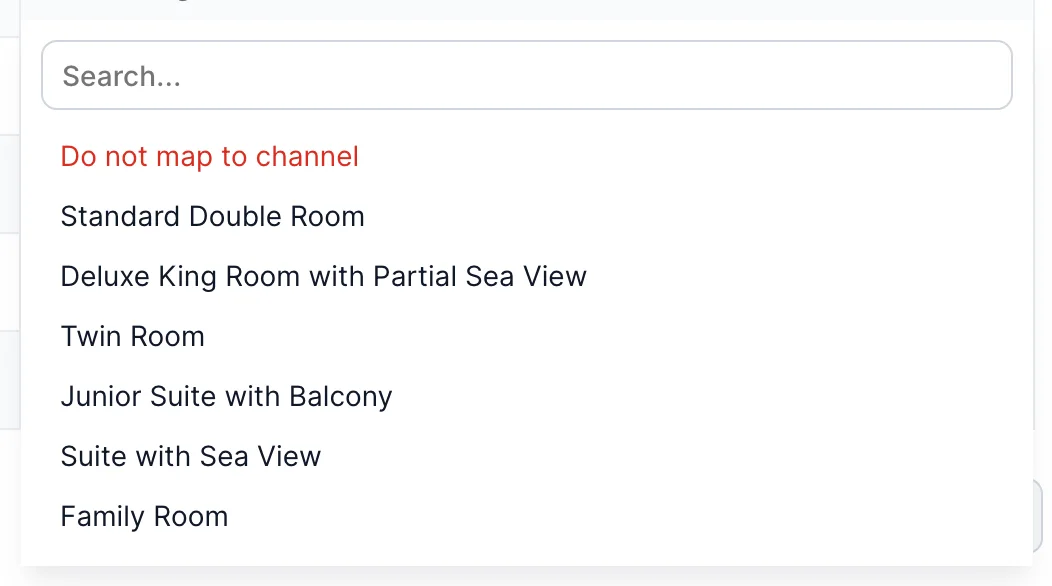
- Click anywhere in the right-hand cell of the row you want to change.
- Use the Search... box inside the menu if the channel has a long list. This one filters the channel's rooms, not yours.
- Click the channel room that corresponds to your accommodation type, or click Do not map to channel in red to clear the row.
The menu closes as soon as you choose, and only one row's menu is open at a time. Clicking the cell again with the menu open closes it without changing anything, so a mis-click costs nothing.
Leaving a room off a channel on purpose
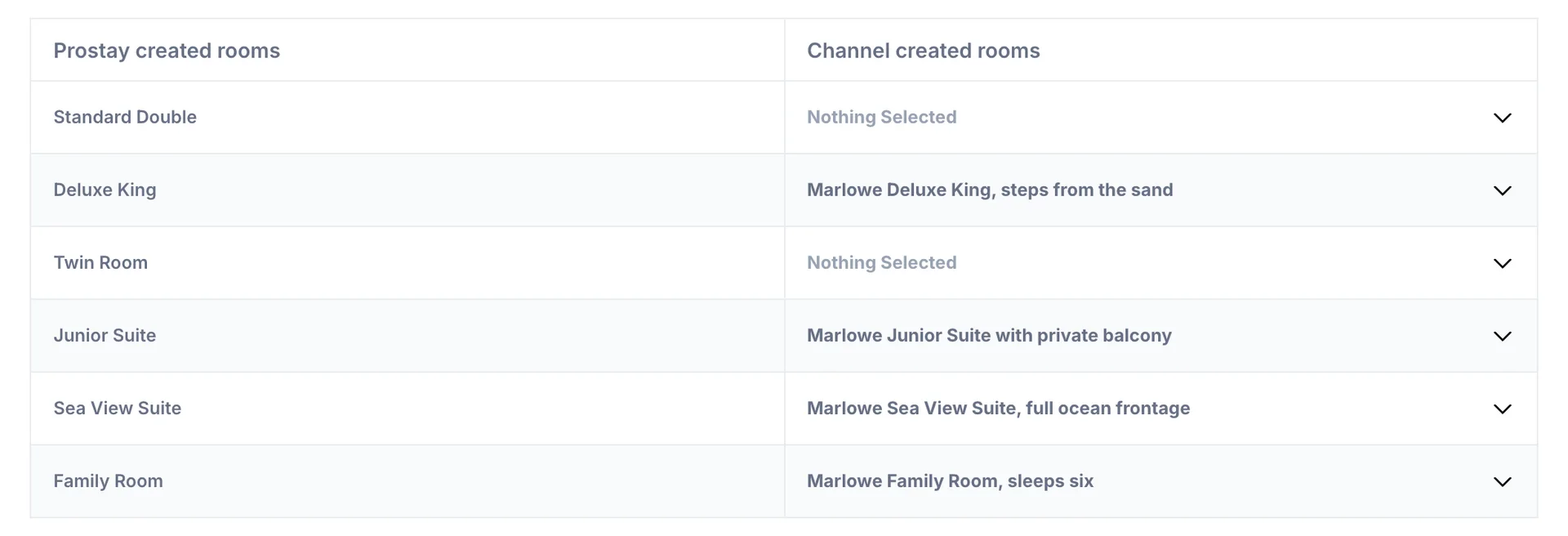
A row reading Nothing Selected in grey is not an error and not an incomplete setup. It means this accommodation type is not sold on this channel, and it is a normal thing to want. The property above sells whole units on Airbnb and keeps its two shared-configuration types, the Standard Double and the Twin Room, off it entirely.
The distinction to hold on to is that an unmapped room is invisible rather than sold out. A guest browsing that channel is never shown it, so it cannot be booked and its availability is never touched. That is the right tool for “we never sell this type here”, and the wrong tool for “we are full on those nights”, which is what a closeout is for.
Rate Plan Mapping starts with a room
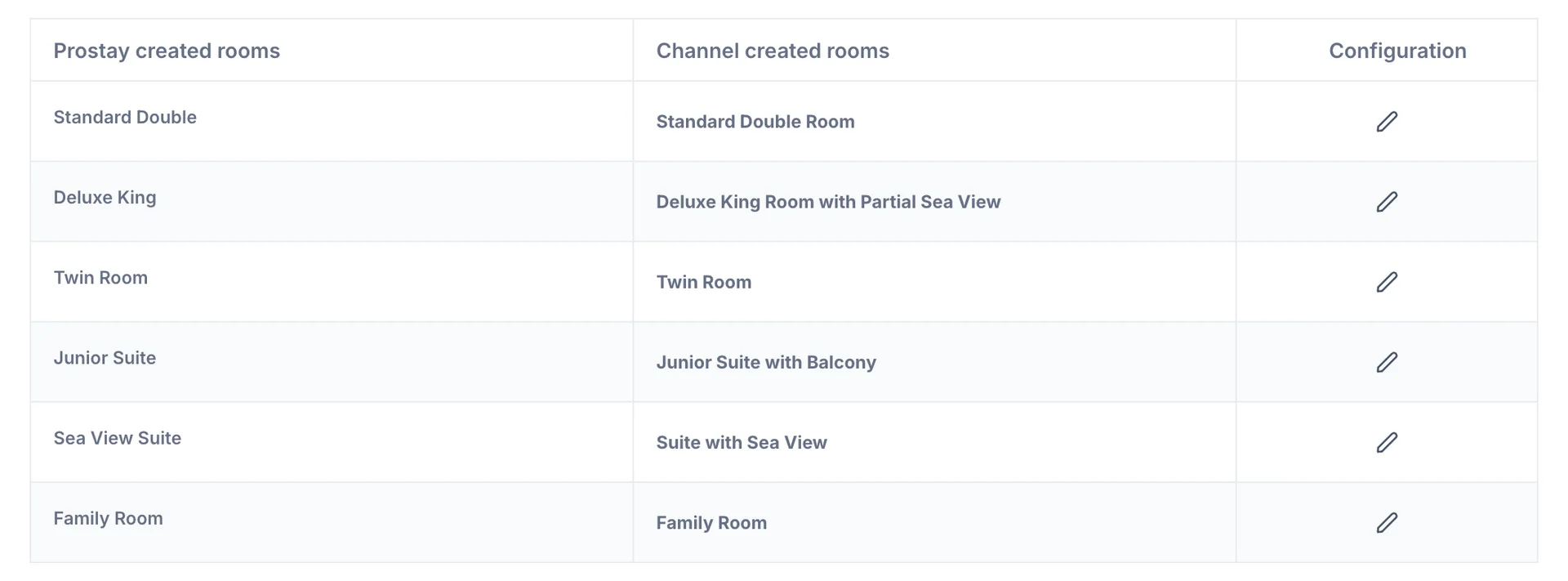
This tab looks like Room Mapping and is not. Nothing on this list is editable: it repeats the pairing you set on the previous tab and adds a Configuration column whose pencil opens the actual rate plan grid for that one accommodation type.
A room that is not mapped reads Not Mapped here rather than Nothing Selected, and the pencil still opens. There is nothing useful to do inside it: the channel has no room to attach a rate to, so map the room first.
The rate plan grid
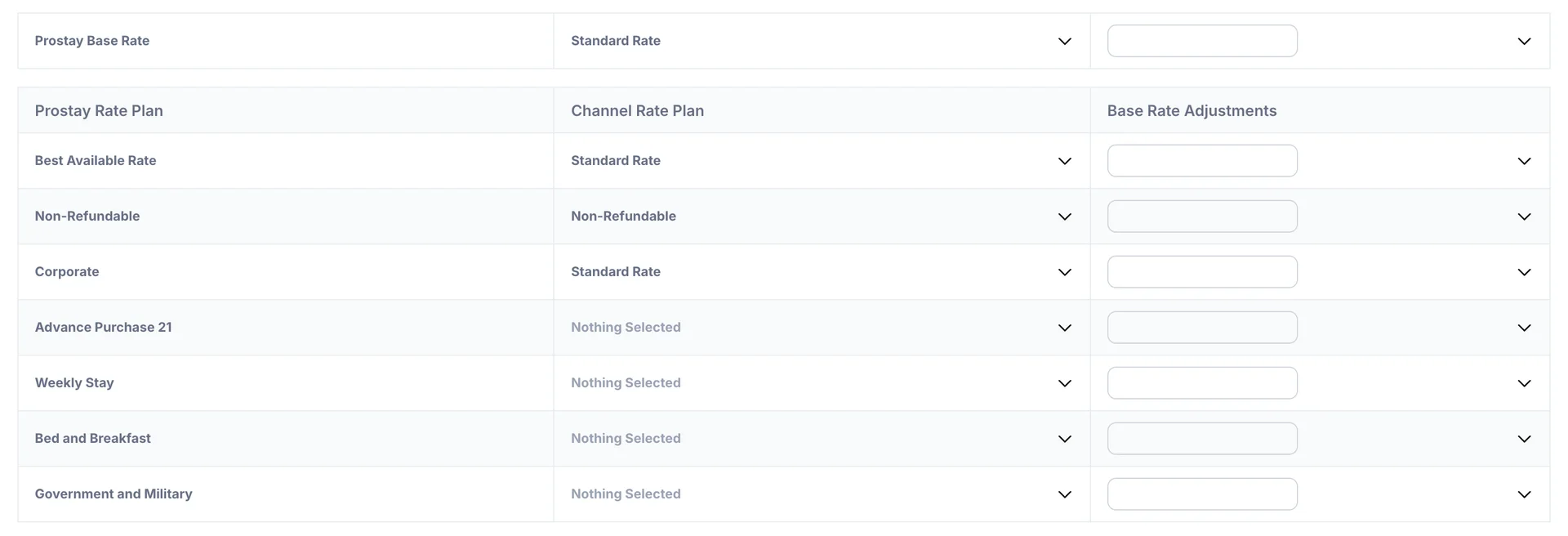
The single row at the top and the table below it do different jobs, which the layout does not make obvious.
| Row or column | What it controls |
|---|---|
| Prostay Base Rate | The channel rate that receives this accommodation type's base price, the one the calendar and the availability matrix show. On a channel without Advanced Channel Rates this is the only row that reaches the channel. |
| Prostay Rate Plan | Your rate plans, from Rate Plans & Packages in the Property Management System. A rate plan switched off there does not appear here at all. |
| Channel Rate Plan | The rate the channel sells under. Pick from the rates that channel holds, or Do not map to channel to leave the plan off it. |
| Base Rate Adjustments | An optional amount added to or taken off the price before it is sent. Empty means send the price unchanged. |
Several of your rate plans may point at the same channel rate. In the grid above, Best Available Rate and Corporate both map to Booking.com's “Standard Rate”, which is normal when the channel sells fewer rate types than you do. What you cannot do is send two different prices to one channel rate for the same night, so if both plans are priced differently, decide which one is the one the channel gets and unmap the other.
A row reading Nothing Selected is a rate plan this channel does not receive. Four of the seven above are in that state, which is deliberate: a weekly stay rate and a government rate have no business on an OTA that cannot verify eligibility.
Above the grid, a Search... box filters the table by your own rate plan name. It hides rows rather than changing them, so a plan you have filtered out keeps whatever it was mapped to and still goes out with the next save.
Sending a price that differs from yours

An adjustment is set in two parts. Open the chevron at the right of the Base Rate Adjustments cell and pick the operator, then type the number into the box. The operator then sits inside the box in front of the number, so a row reading +10 under a plus percent operator is ten percent above your price, not ten dollars.
| Operator | What it sends |
|---|---|
| +USD | Your price plus a fixed amount of money, in the property's currency. |
| -USD | Your price minus a fixed amount of money. |
| + % | Your price plus a percentage of it. |
| - % | Your price minus a percentage of it. |
The two money options carry the property's own currency, taken from your general system settings, so a property trading in euros sees +EUR here. Leaving the box empty sends the price unchanged, which is what most properties want on most rows.
Saving
One Save covers the whole channel. It sends the room mapping and the rate plan mapping for every accommodation type together, so it does not matter which room you happen to have open when you press it.
Where the button sits depends on the tab. On General, Channel Login and Room Mapping it is at the foot of the panel. On Rate Plan Mapping it is at the bottom of a room's rate plan grid, and the list of rooms has no Save of its own, because there is nothing to change on that list. So the way to finish a session on that tab is to open the last room you want to configure and save from inside it.
- Work through the accommodation types, using Back to move between them.
- Press Save from inside the last room.
- Wait for the green Success! notice. The panel closes on its own a few seconds later.
- Reopen the channel if you want to read back what stored.
If the save fails, a red Mapping not saved notice appears saying nothing was changed, and the panel stays open with your work intact so you can try again. Anything other than that notice means the save reached the channel.