Every message a guest sends you arrives on this one screen, whether they emailed you, messaged your WhatsApp number or wrote through Booking.com or Expedia. You read it, answer it and close it here, and the reply goes back out on whichever channel it arrived on without you choosing anything.
That last part is the whole point, and it is also the thing people get wrong when they first use it. This is not a mailbox with some extra folders. It is three different messaging systems presented as one list, and a few things behave differently depending on where a message came from.
Three columns and a rail
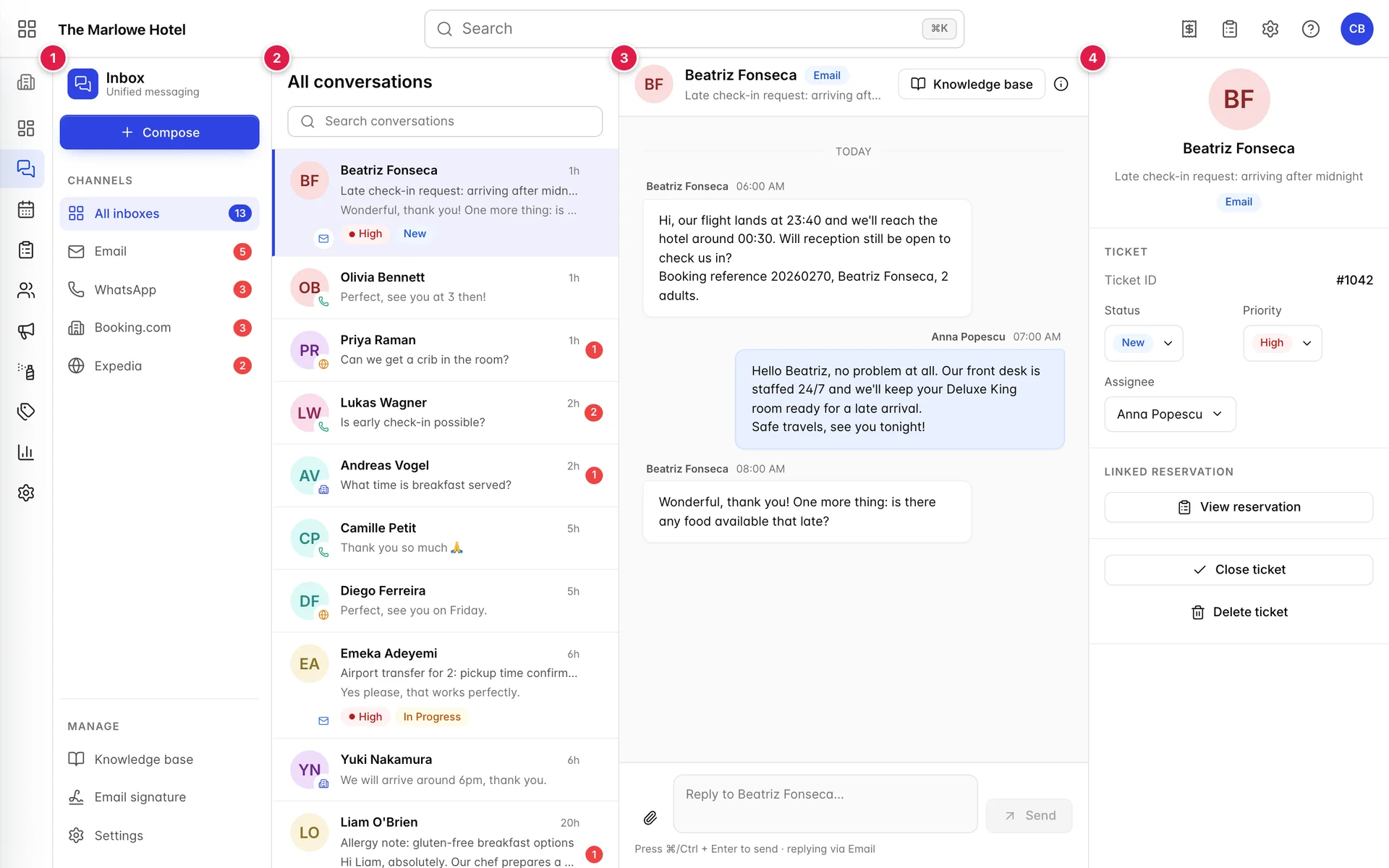
Reading from the left: the rail chooses which channel you are looking at, the list holds the conversations in that channel, the middle pane shows the one you have open, and the panel on the right holds everything you can do to it. Nothing here opens a new page. Clicking a conversation swaps the middle and right panes and leaves the rest of the screen where it was.
The inbox opens the newest conversation for you rather than waiting to be asked, which means the top one is marked as read the moment you arrive. That is worth knowing before you wonder why the count went down by one while you were still reading the list.
The channel rail and its numbers
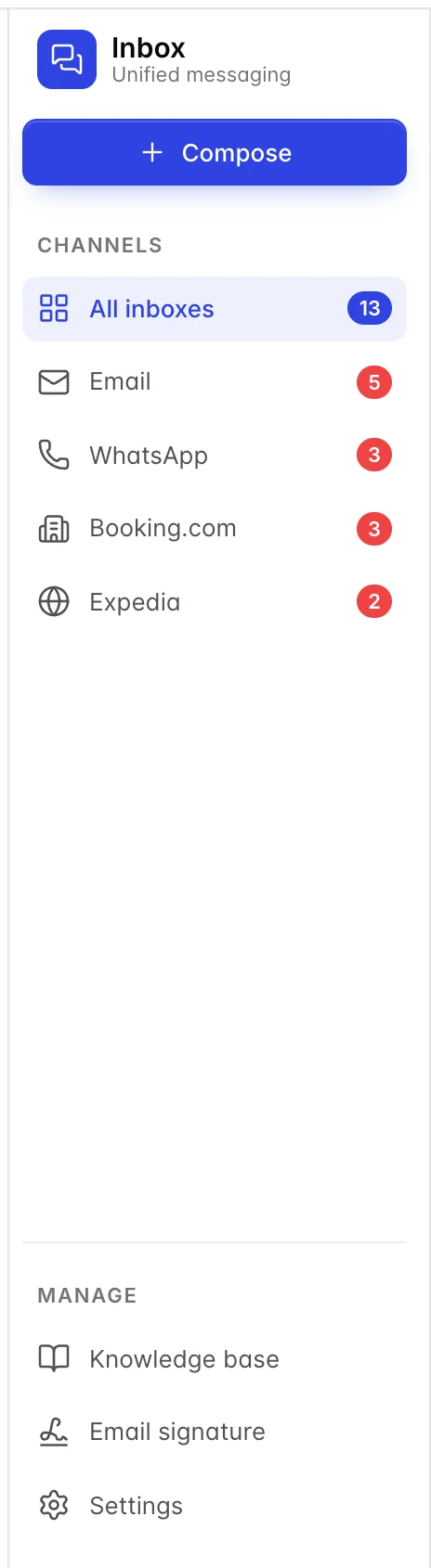
All inboxes is everything in one list, newest first, regardless of channel. The four entries under it narrow the list to one channel each. You will spend most of your day on All inboxes, because a guest who emailed on Tuesday and messaged on WhatsApp on Wednesday is two conversations here, and looking at one channel at a time is how you answer the second without knowing about the first.
The number on each entry is unread conversations, not unread messages. A thread where a guest has sent you four messages since you last opened it counts as one. If the number looks lower than the amount of work in front of you, that is why.
One name to know before you meet it. The email channel runs on Nexus, Prostay's own mail engine, and that is the word the product uses wherever it refers to the mailbox behind Email: on the compose drawer, on the WhatsApp card in Settings and on the email signature screen. It is not a second inbox and there is nothing separate to open. Where a screen says Nexus, it means the mail system that sends and receives everything sitting in your Email channel.
How to read a row
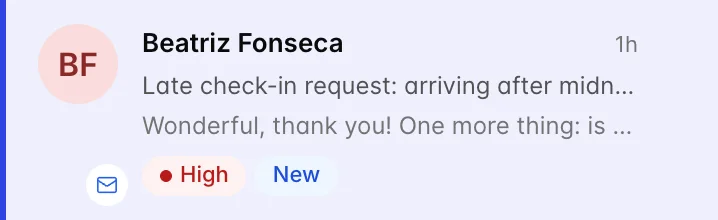
Reading a row from the top down:
- The name and the time. The name is the guest. The time is when the newest message arrived, counted from now, so it reads 1h or 2d. Anything older than a week shows a date instead.
- The subject, on email only. WhatsApp, Booking.com and Expedia have no such thing, so their rows skip this line.
- The opening line of the newest message, which is what tells you whether this needs you now or can wait.
- The badges, on email only: priority and status. Those are ticket controls, covered in the article on working email as tickets.
The avatar on the left carries a small channel glyph in its corner, so you can tell an email from a WhatsApp message without reading anything.
An unread conversation is drawn in bold with a count on the right. A conversation you have open is highlighted and stays highlighted while you work in the other panes.
The conversation
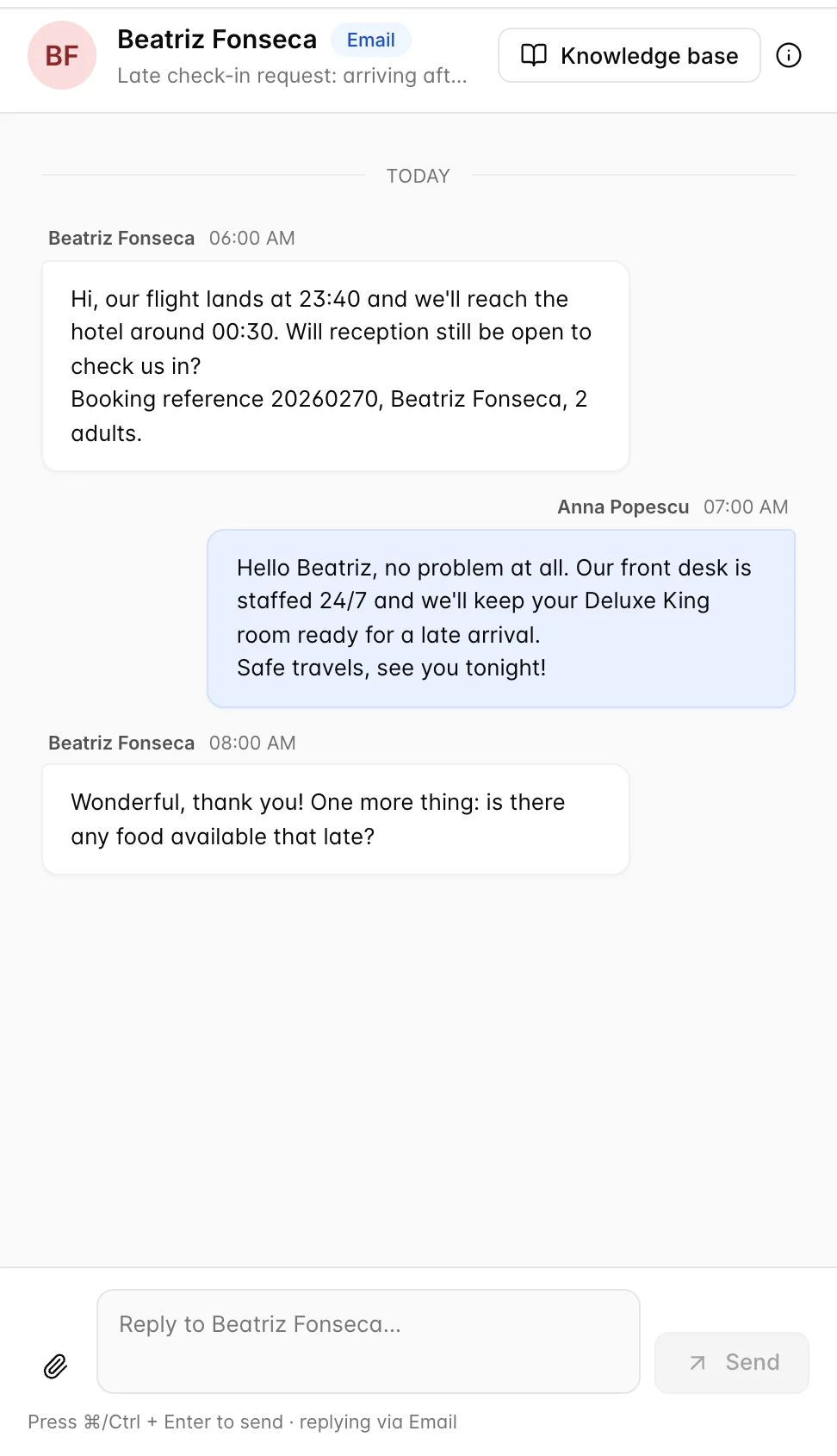
Messages run oldest to newest with a date separator between days. Anything the guest sent sits on the left; anything sent from your hotel sits on the right and carries the name of the person who sent it. That name is worth reading before you reply, because it tells you whether a colleague has already answered and what they promised.
Attachments a guest sends appear in the thread. Images are shown; anything else becomes a file you can download.
Replying
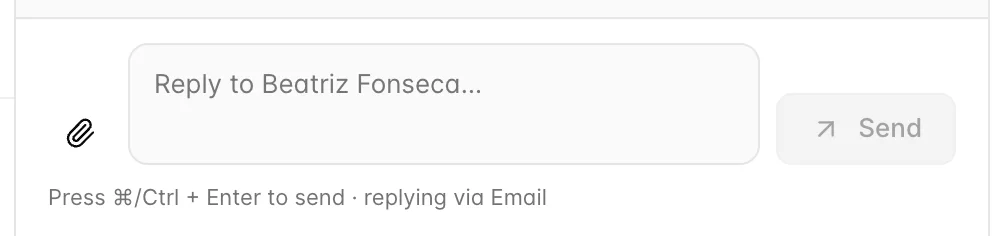
Type in the box and press Send, or press Ctrl and Enter together, or Command and Enter on a Mac. Plain Enter starts a new line rather than sending, which is deliberate: this box holds a message to a guest, not a chat line.
The line under the box tells you which channel the reply will go out on. Read it. It is the only thing on the screen that distinguishes a reply that will arrive in someone's email from one that will arrive on their phone, and the two want quite different writing.
What changes per channel
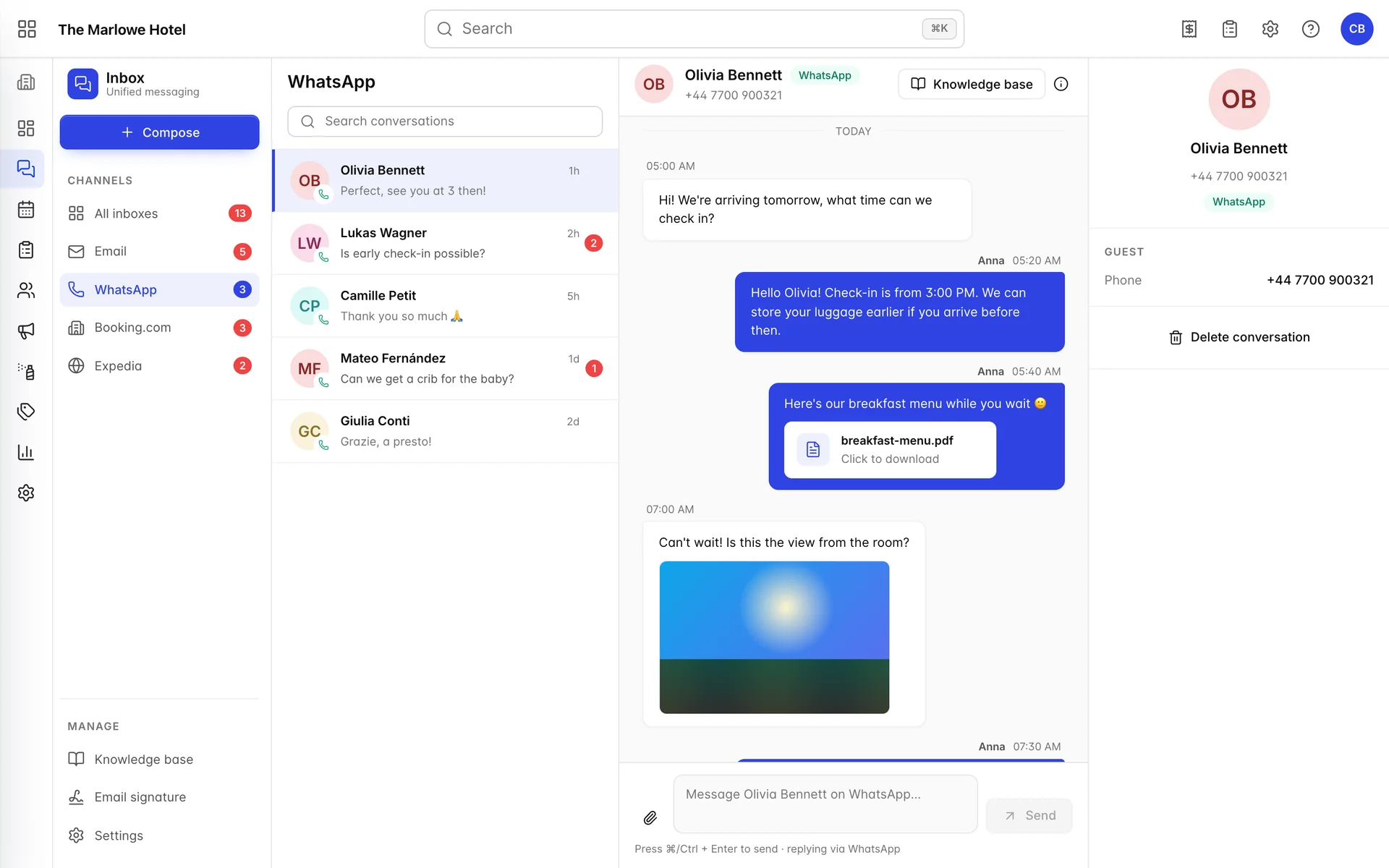
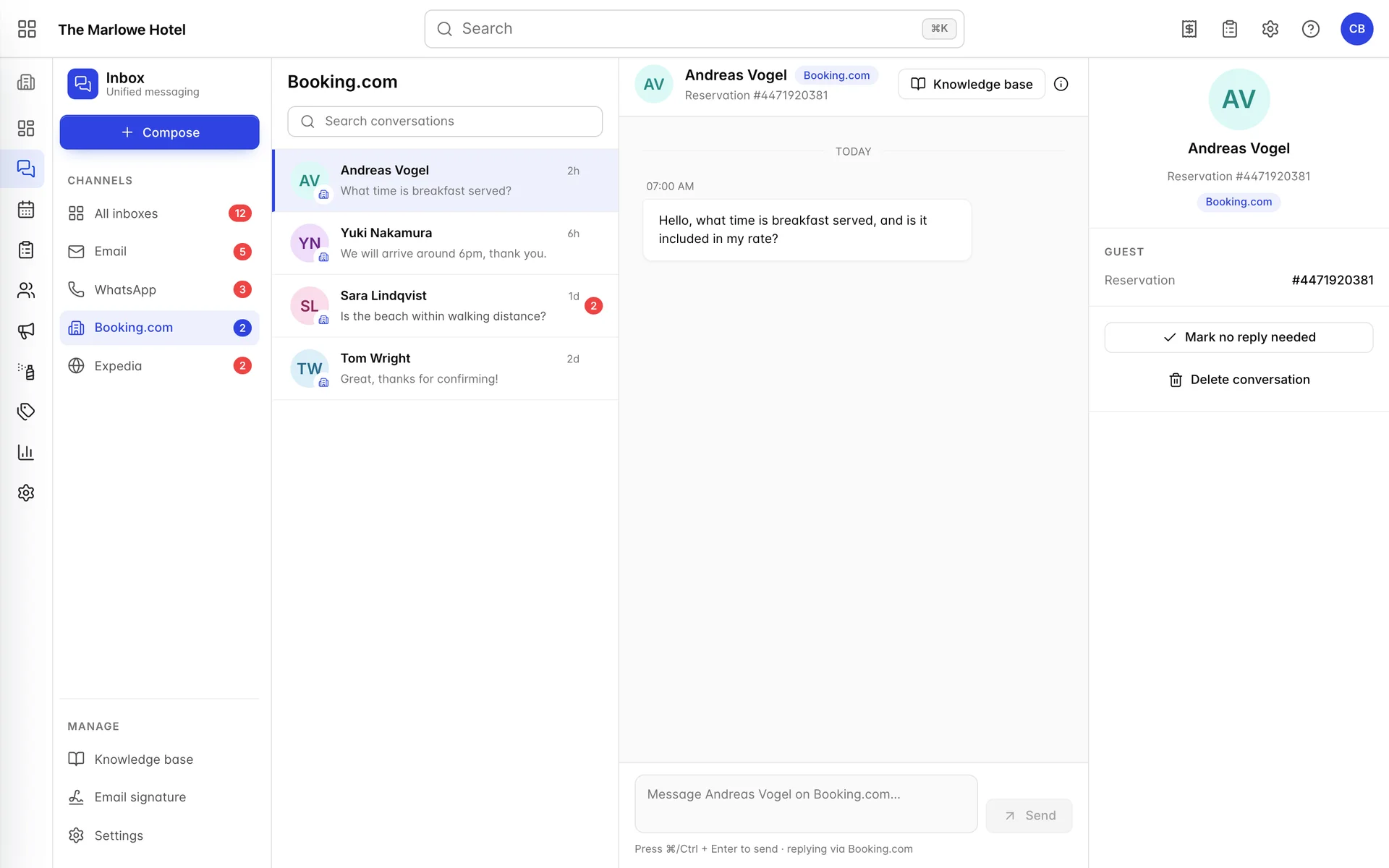
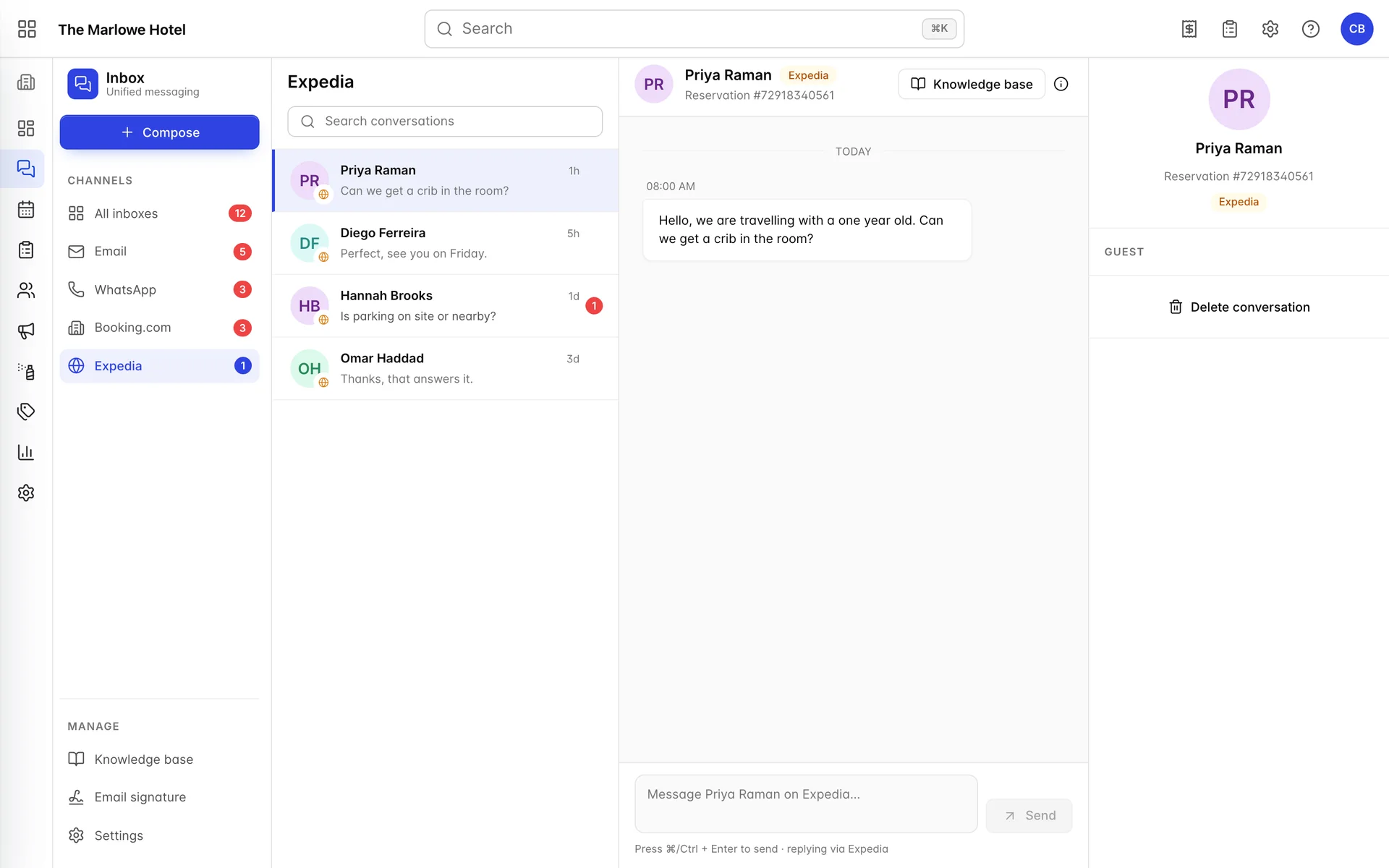
Expedia and Booking.com are the same conversation with one difference, and it is the missing button. Both carry a channel reservation reference instead of an email address, both take text only, and neither has a subject line. Only Booking.com has Mark no reply needed, so the Expedia details panel offers a single action where Booking.com offers two.
| Booking.com | Expedia | |||
|---|---|---|---|---|
| Subject line | Yes | No | No | No |
| Attachments you can send | Yes | Yes | No, text only | No, text only |
| Identifier on the conversation | Email address | Phone number | Channel reservation reference | Channel reservation reference |
| Ticket controls | Status, priority, assignee, folders | None | None | None |
| Extra action | Close ticket | None | Mark no reply needed | None |
| Way to get rid of it | Close, archive or delete | Delete conversation | Delete conversation | Delete conversation |
The practical consequence of that table is that only email can be handed over. A WhatsApp thread has no assignee and no status, so the only record that somebody dealt with it is that somebody replied. On a property where two people share the inbox, that is worth a spoken rule: answer WhatsApp when you see it, or tell the other person you are on it.
Delete conversation is not as final as the word suggests on one of those channels. A deleted WhatsApp conversation is held for thirty days and can be brought back, which is covered in restoring a deleted WhatsApp conversation. On Booking.com and Expedia there is no such safety net, so read the guest name twice before you use it there.
Mark no reply needed, on Booking.com only, exists because Booking.com measures your response rate. A message that genuinely wants no answer, a guest saying "thanks, see you Friday", still counts against you until it is marked. Use it, and use it the same day.
Dropping in a saved answer
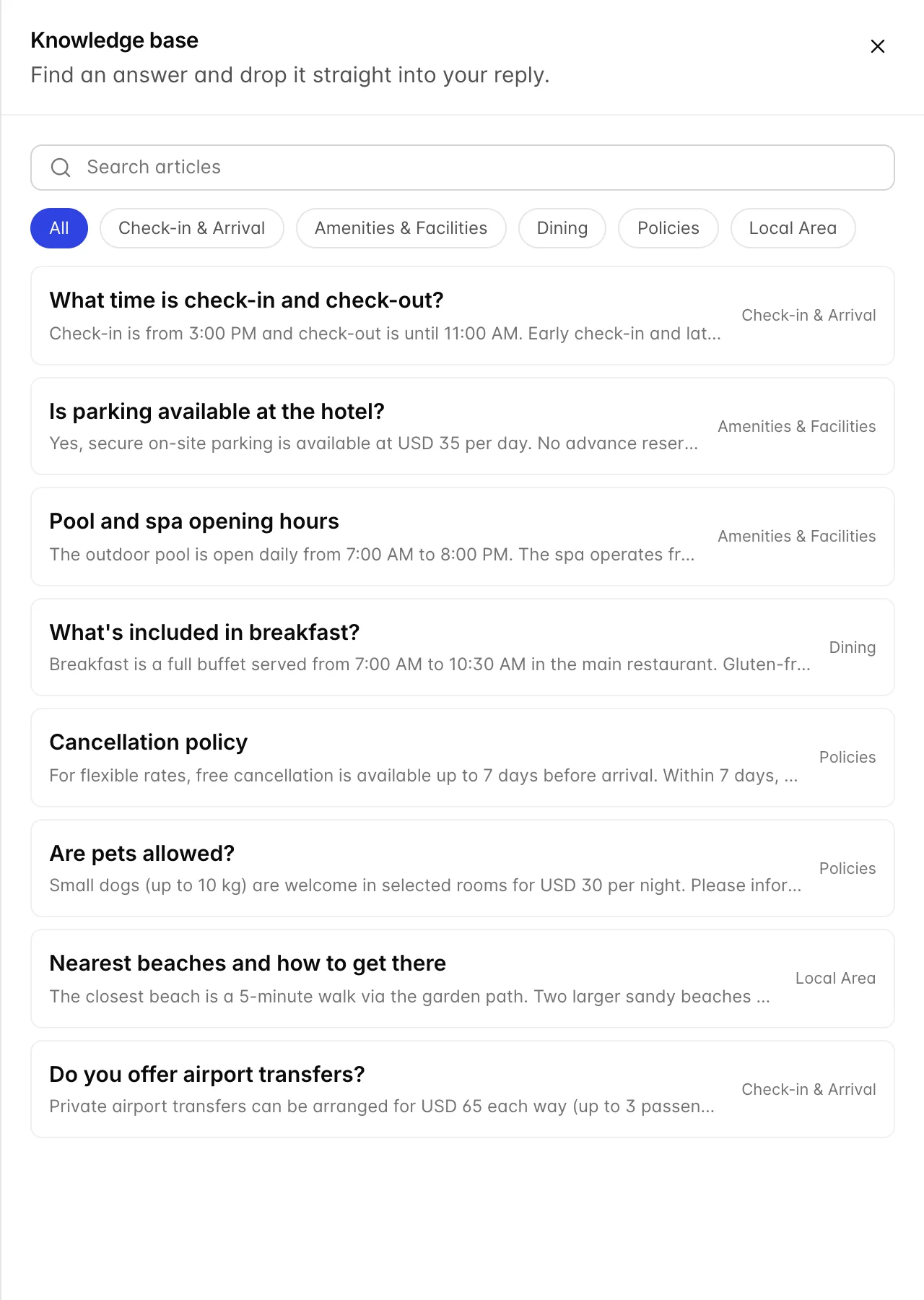
Knowledge base, at the top of the open conversation, opens a drawer of answers your team has written to questions you get constantly. Search it or filter by category, choose one, and its text drops into the reply box where you can edit it before sending. Nothing is sent automatically and the guest never sees the drawer.
It works on every channel, which is the argument for keeping the answers short. Text written for an email reads badly as a WhatsApp message.
Starting a new conversation
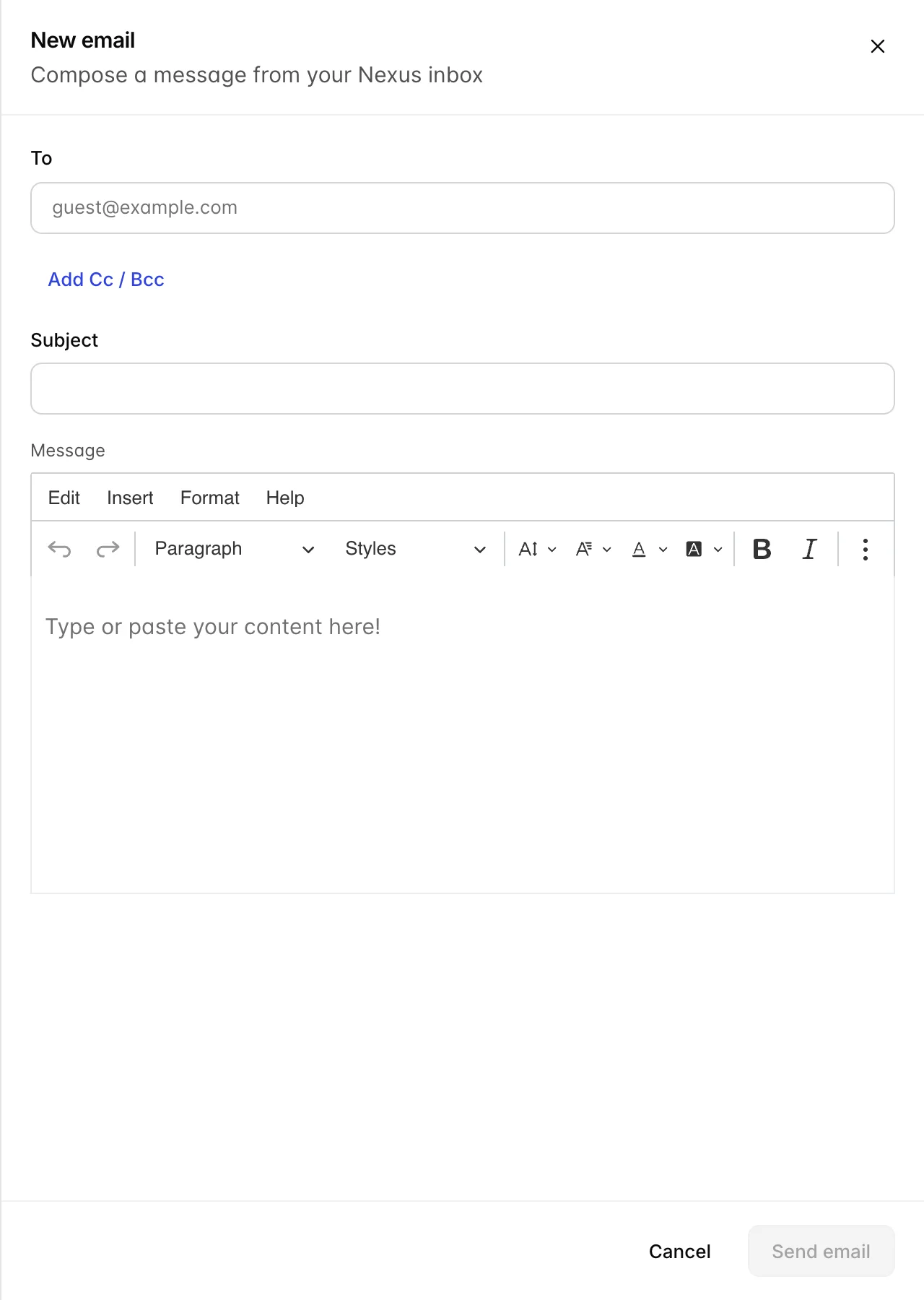
Compose writes an email. It does this whether you are looking at WhatsApp, Booking.com, Expedia or everything at once, which is why the drawer is subtitled Compose a message from your Nexus inbox rather than naming whichever channel you happen to be reading. You cannot start a WhatsApp conversation from here: on WhatsApp the guest has to write first.
| Field | What it does |
|---|---|
| To | The guest's email address. Required. Nothing sends without it. |
| Add Cc / Bcc | Reveals two more address fields. Cc is visible to everyone on the message; Bcc is not. Use Bcc when you copy a colleague on a reply to a guest, so the guest does not get their address. |
| Subject | Becomes the name of the ticket this creates, so it is what you and everyone else will see in the list afterwards. "Deposit for July" is findable. "Hello" is not. |
| Message | A formatting editor: bold, italic, lists, links. Your email signature is added underneath when it sends, so do not type it here as well. |
Sending creates a new conversation in the email list straight away, so when the guest replies it lands on a thread that already exists rather than arriving as something nobody recognises.
Finding an old message
The box above the list searches the conversations currently in front of you, which is to say it searches whichever channel the rail is on. It matches the guest name, the subject and the opening line of the newest message. It does not read further back into a thread, so searching for a phrase somebody used three messages ago will not find it.
For anything older than what is in the list, use the folders on the email channel rather than the search box. Closed conversations leave the inbox and the search box does not reach into them.
Two habits worth forming
Work from All inboxes, not from a channel. The point of putting three systems on one screen is that you stop missing the one you were not looking at. Filtering to a channel is for when you already know what you are looking for.
Read the line under the reply box before you write. It is the only thing telling you whether the guest will read your answer as an email or as a message on their phone. Four sentences and a signature is a good email and a terrible WhatsApp message.
Where to go next
- Working email as tickets, for the status, priority and owner every email carries.
- Building and using your knowledge base, for the saved answers you drop into a reply.
- Channels, notifications and your signature, for connecting WhatsApp and Booking.com in the first place.
- The words Prostay uses, if you have met this module called Nexus or Knowledge base elsewhere in the product.