Prostay is one application holding a dozen fairly different products, and the controls that move you between them all live in the same strip across the top of every screen. This article covers getting in, and then those controls. Nothing here belongs to any one module, which is why it was never written down anywhere else.
Signing in
Sign in at your property address, which asks for your email first and your password on the next screen. There is no sign up: your account is created for you by whoever administers Prostay at your property, and the invitation arrives by email.
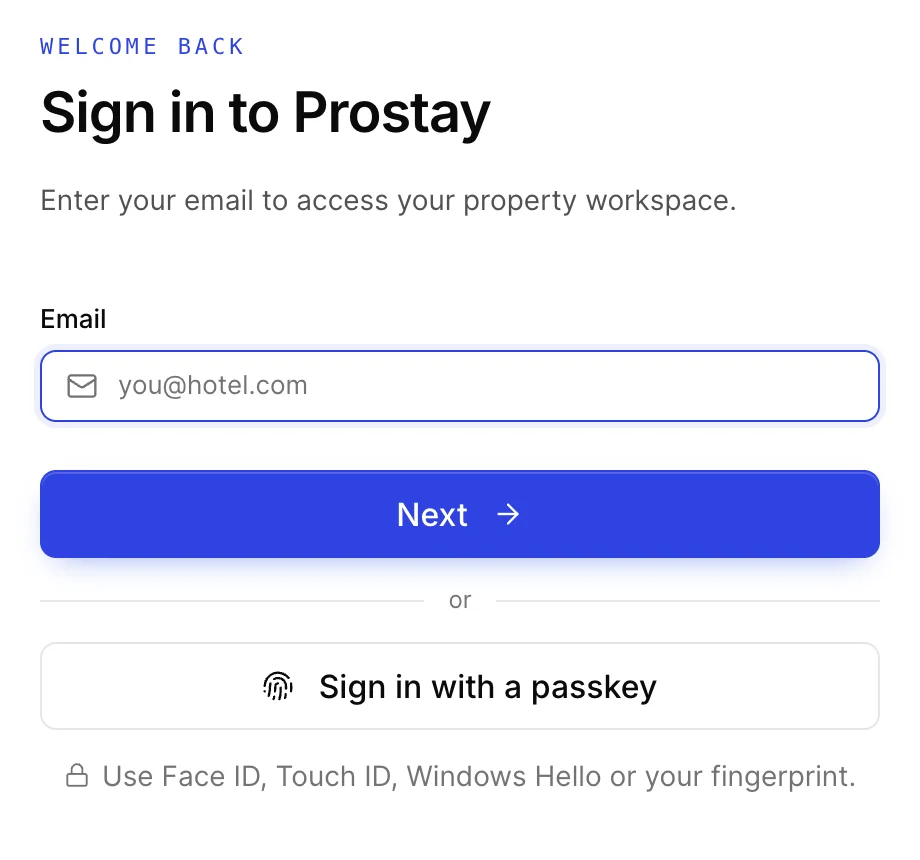
Sign in with a passkey replaces the password with whatever unlocks the device you are on: Face ID, Touch ID, Windows Hello or a fingerprint reader. It has to be set up once from the device you want to use it on, and Prostay offers to do that after you sign in normally. A passkey is tied to that device, so on a shared front desk machine it signs in whoever is holding the phone or finger, which is worth thinking about before enrolling one there.
The password screen shows the email you gave, with a Change link if it is the wrong one, a Remember for 30 days checkbox and the Forgot password link. Remembering keeps you signed in on that browser for a month. It does not keep you signed in through a period of inactivity, which is a different thing covered below.
The verification step
After the password, Prostay asks for a second thing. This is not optional, and every account passes through it.
If your account has never set this up, you get Account security, offering two methods. One emails an eight digit code to your registered address each time you sign in. The other pairs an authenticator app on your phone by scanning a QR code, and the app then generates a six digit code without any email. Remind Me Later puts the choice off for this sign in, and the screen comes back on the next one.
The two lengths are not a mistake and it is worth knowing which you are looking at: emailed codes are eight digits, authenticator codes are six, and the row of boxes on screen always matches the method you chose. The authenticator app is worth choosing if you have a phone that can run one, for the ordinary reasons rather than any fault with email: it works when the mail is slow or filtered, it works when you are somewhere with no signal for mail but the app still generates codes offline, and there is nothing to intercept in a mailbox.
If it is already set up, you get boxes for the code and nothing else. Codes expire, so treat a code left in an email overnight as dead and ask for a fresh one rather than trying the old one.
When you cannot get in
| What you see | What it means |
|---|---|
| Your password does not work | Forgot password on the password screen emails you a reset link. The link is what sets a new password; nobody at your property can read your existing one. Asking for a reset, and what the link opens, including what to do when it says it has expired. |
| You are asked to change your password immediately after signing in | An administrator has flagged the account for a password change, usually after creating it or resetting it. You cannot skip this and reach the application. See when Prostay asks you to change your password. |
| A message saying your account has been deactivated | The account still exists but has been switched off. Only an administrator at your property can switch it back on, from the users screen. |
| The verification code never arrives | It goes to the address the account was created with, which may not be the one you are typing. If that address is wrong, an administrator has to correct it. |
The four controls in the top bar
Once you are in, four things move you around and they do genuinely different jobs. Confusing them is the most common reason someone says a screen has disappeared.
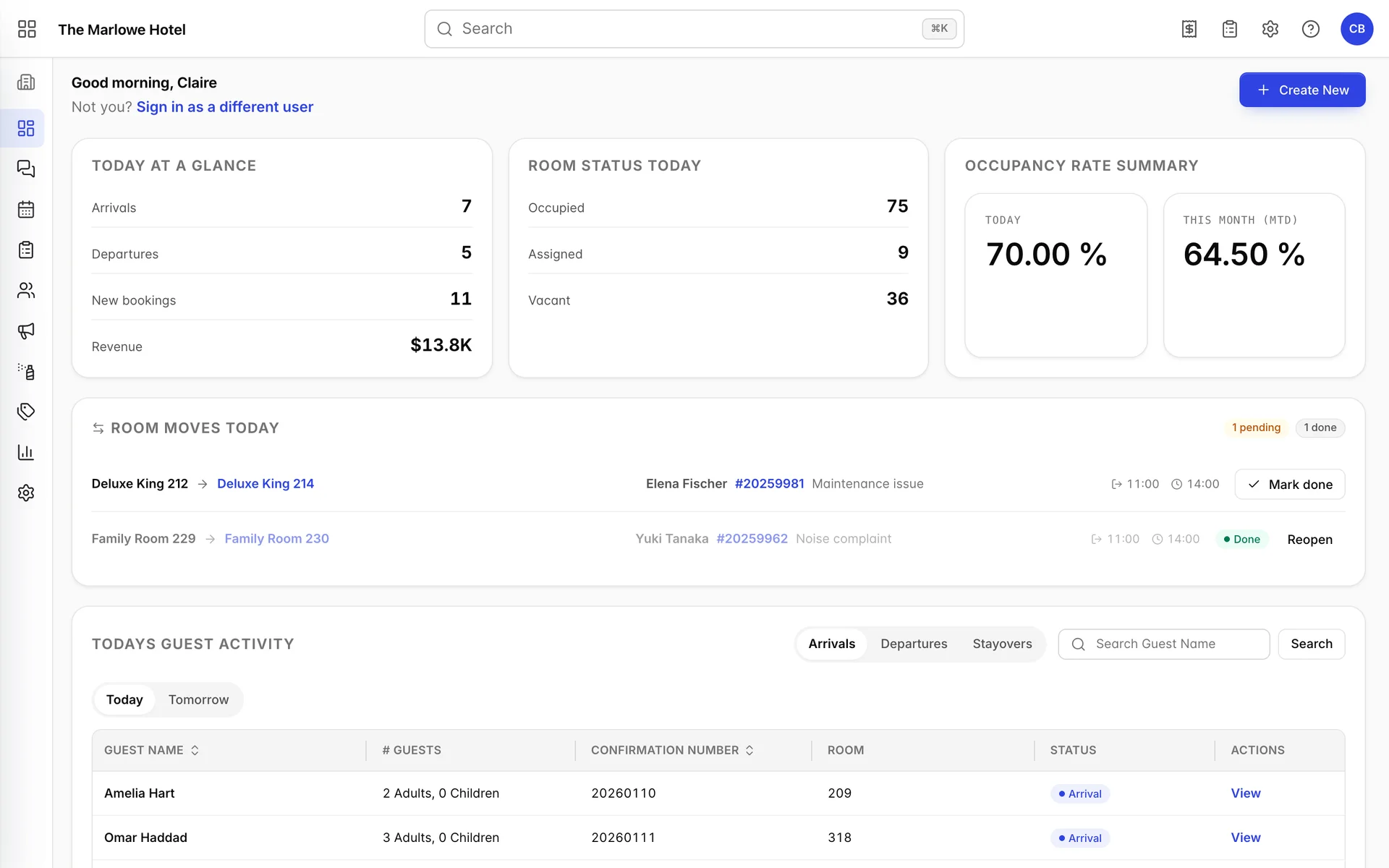
| Control | What it changes |
|---|---|
| The grid button, top left | The whole product you are in. It opens the module list: front desk, accounting, booking engine and the rest. Covered in the modules and what each one does. |
| The property name, beside it | Nothing. It is a label telling you which hotel you are working in, and clicking it returns you to that module's home screen. To change hotel, use the account menu. |
| The icon strip down the left | The screen, within the module you are in. It is collapsed to icons and expands to full names when you move the pointer onto it, so the labels are there even though the strip looks cryptic. |
| The avatar, top right | Your own account: your profile, switching property, and signing out. |
The search box in the middle finds bookings, by guest name or booking number, and opens the reservation you pick. It does not find screens or settings. It has a keyboard shortcut, shown as the small mark at its right hand end: Command and K on a Mac, Control and K on Windows, and it remembers your recent searches between sessions.
Working in more than one property
One account can hold several properties. If yours does, the property chooser appears immediately after verification rather than dropping you into one, and you can change property at any time from the avatar menu at the top right, then Switch Property.
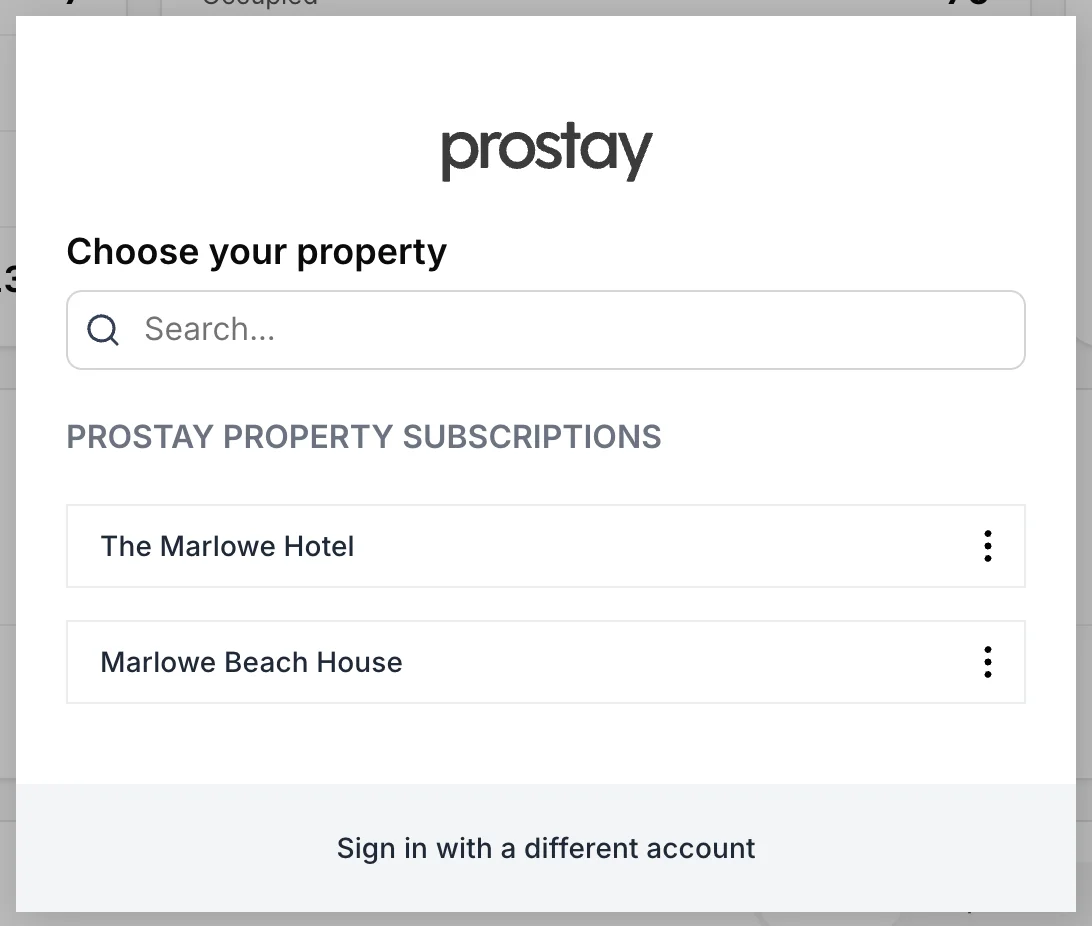
The three dot menu on a row pins a property to the top of this list or hides it from the list. Both are per person and change nothing for anyone else. Sign in with a different account at the foot signs you out entirely, which is what you want when a colleague needs the machine rather than a different hotel.
Why Prostay signs you out
Prostay signs you out after 30 minutes without any activity, and says so on the sign in screen when it happens. It is a front desk application on machines in public areas, so the timer is deliberate and it is not configurable per property.
Work in progress is kept where the screen had already saved it. A reservation you had saved is safe; text typed into a panel you had not saved is not. The safe habit on a shared machine is to save and then walk away, rather than leaving a half filled panel open.
Signing out on purpose is the Log Out entry in the avatar menu, and it asks for confirmation first.
Where to go next
- Activating your account and resetting your password, if you cannot get as far as this article's first screenshot: the invitation link, the reset link and what to do when it has expired.
- What Prostay is, and which part you are in, for the module list and what each one covers.
- Setting up a new property, if the property itself is new and the setup checklist is showing.
- The dashboard, for the screen most people land on and what its cards mean.
- Users, roles and permissions, for adding a colleague, resetting somebody's access, or working out why a screen is missing.