You can change your own password without asking anybody, and without knowing anything you do not already know. It takes about a minute. The one thing worth reading before you start is what counts as a valid password, because deciding that on the screen is what turns a one minute job into a five minute one.
If you are locked out rather than signed in, this is the wrong page. Go to Activating your account and resetting your password instead.
Where the control is
Everything about your own account lives on one screen, and the password control on it is a button rather than a field, which is why people look for it in Settings and do not find it.
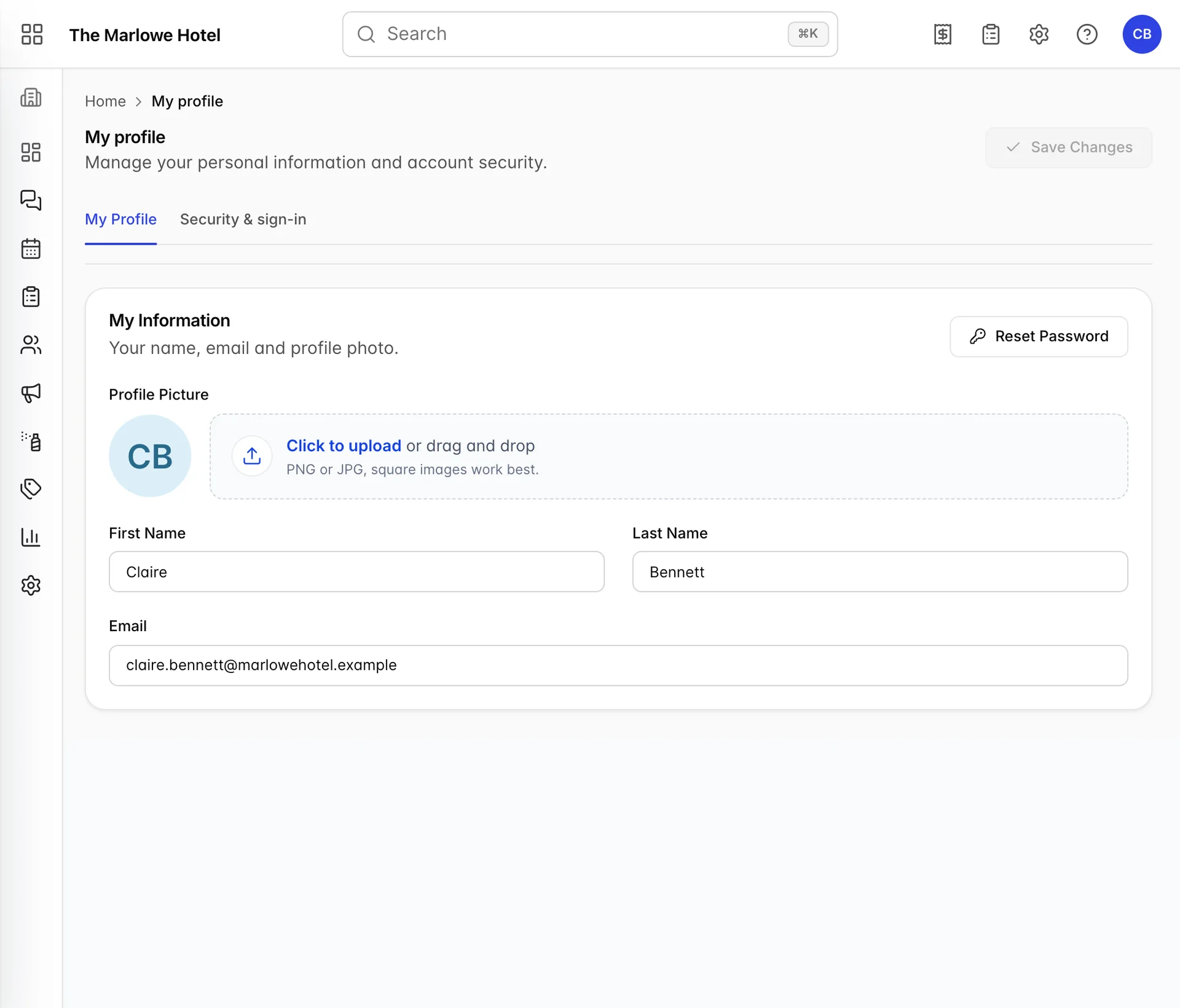
The button is Reset Password, in the top right corner of the My Information card. It is called reset rather than change because the same panel is what an administrator uses on somebody else's account, and a few of its controls only make sense in that use. Those are covered further down.
Save Changes, at the top right of the page, has nothing to do with the password. It saves your name, email and photo, and it stays greyed out until you edit one of them. Changing your password does not need it and is not affected by it.
Changing the password
Reset Password opens a panel from the right hand side of the screen, headed Reset Password, with your email address at the top so you can see whose account you are about to change. Below that are two password fields, New Password and Confirm Password, each with an eye button at its right end that reveals what you have typed.
- Type the new password into New Password.
- Type the same thing into Confirm Password.
- Use the eye buttons to check both, which is safer than choosing something simple because you cannot see it.
- Press Save.
It does not ask for your current password. That is worth knowing so you do not go looking for a third field, and worth knowing for a second reason: anybody who is signed in as you, on an unlocked machine, can change your password from here. Lock your screen.
What counts as a valid password
The panel prints a rule above the fields and enforces a stricter one, so go by this list rather than by the sentence on screen. A password needs all four of these:
- at least eight characters;
- at least one capital letter;
- at least one number;
- at least one of these symbols: ! @ # $ % ^ & * or ?
There is a fifth rule, and it is the one that catches people, because it refuses rather than requires: any character outside letters, numbers and those nine symbols is rejected. A hyphen, an underscore, a space, a plus sign, a bracket or a full stop will fail, however long and however strong the passphrase around it is. If a password you are confident about is being refused, that is almost always why, and the fix is to swap the punctuation for one of the nine rather than to make the password longer.
There is a checkbox reading Automatically create a password, which fills both fields with twelve random characters and greys them out. If you use it on your own account, reveal the password with the eye button and write it down before you press Save, because after that the only copy is in your inbox. It is a more useful control for an administrator setting up somebody else than for you changing your own.
What happens after you save
This is the part that reads as a failure and is not. On success the panel simply closes and nothing else appears: no banner, no tick, no message. So the rule to remember is the opposite way round from most screens.
Two things do happen, neither of them on screen. An email arrives at your own address, headed Your Password Has Been Reset, and it contains the new password in readable text along with the name of whoever changed it, which when you did it yourself is your own name. Delete that message once you have read it, and empty the deleted items folder if anybody else can open that mailbox. Anyone who can read it can sign in as you.
The change is also written to your property's activity log as a password change, naming the account it happened to. That is how an administrator can see that it happened without ever seeing the password, and it is the same record they would look at if you reported a change you did not make. See Who did what: the user activity log.
The two checkboxes, and when to leave them alone
Both exist for the administrator use of this panel, and both do something on your own account that you probably do not want.
| Control | What it does to your own account |
|---|---|
| Require this user to change their password when they first sign in | Flags the account so that the next sign in stops at a screen demanding another new password before Prostay will open. On somebody else's account that is the point of it. On yours it means choosing a password twice for no reason. The email you receive gains a red note warning you about it. Leave it unticked. |
| Email the sign-in info to me | Sends a second email, to the person doing the changing, listing the account name, its email address, the new password and the property. When you are changing your own password that is a duplicate of the email you already get. Leave it unticked, and if you tick it by accident, delete both messages. |
The wording of the first one is a clue to what this panel is: "this user" is you, because the same component serves both jobs.
Two-step verification and passkeys
The second tab on this screen, Security & sign-in, holds the rest of what protects your account. It is worth a look while you are here, because one of its settings goes one way only.
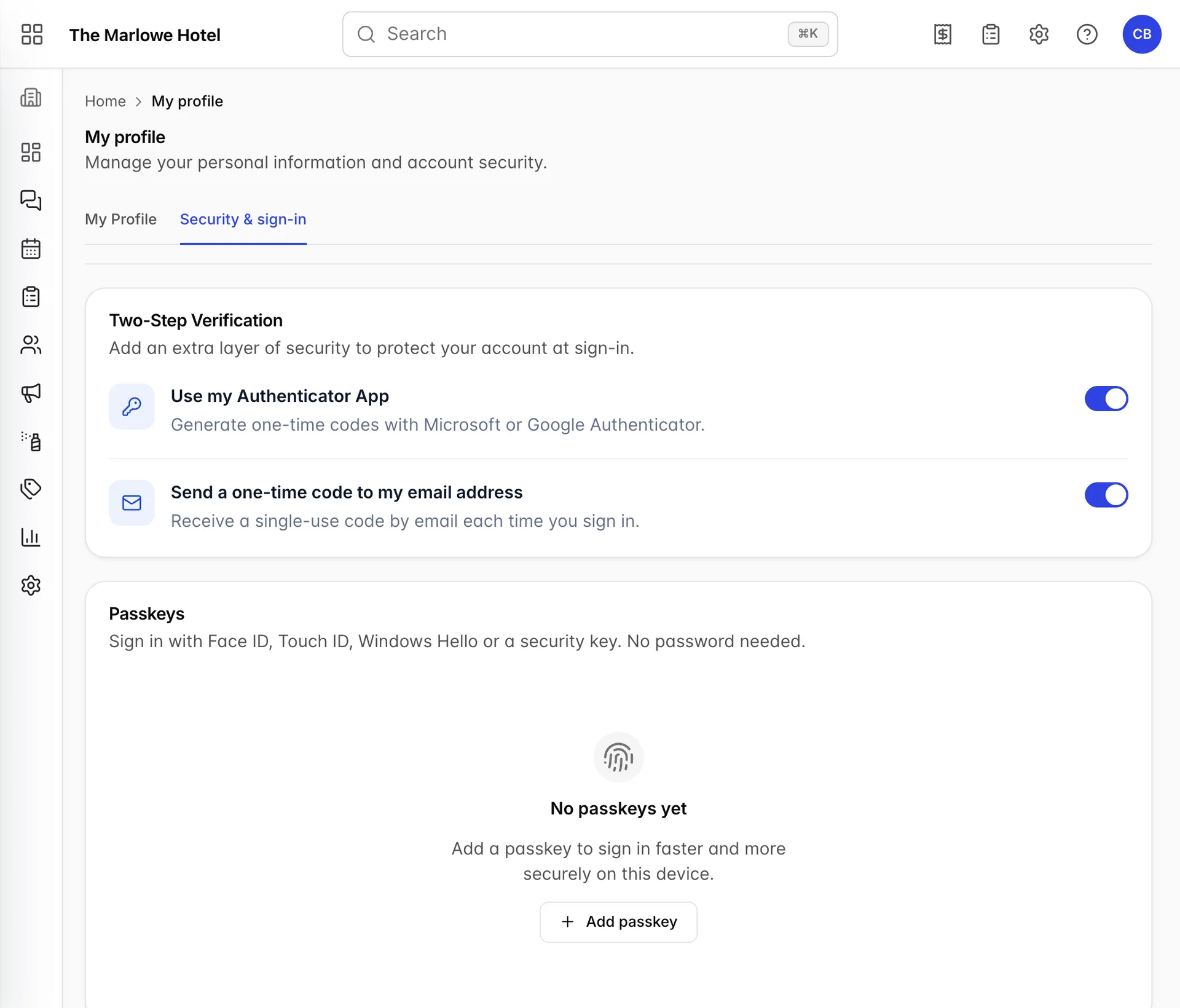
Use my Authenticator App shows you a QR code to scan with Microsoft or Google Authenticator, then asks for the six digit code it generates. Send a one-time code to my email address emails you a code instead and asks you to type it back. In both cases the method is only switched on once you have entered a code correctly, so an abandoned setup leaves you as you were.
Passkeys are the other half of the card, and they replace the password rather than adding to it: your device's own fingerprint, face or PIN unlocks Prostay. Add passkey starts your device's usual prompt. A passkey you no longer want can be removed with the bin button beside it. Renaming one, with the pencil button, does not currently work and reports an error; the workaround is to remove it and add it again from the device you want named. That is reported too.
If you cannot use the button
Reset Password is greyed out when your role does not carry the permission for it, which is my-profile.profile.change-password. There is nothing you can do about that from this screen and no other route to changing your own password, so the answer is to ask whoever administers Prostay at your property, either to grant it or to change the password for you from the users screen. If they change it for you, you get the same email described above.
Two other things that look like this and are not. A panel that opens and refuses to save is a password rule problem, not a permission one, and the notification will say which rule. And a Save Changes button that stays grey is normal: it is waiting for you to edit your name, email or photo, and it has no bearing on the password.
Where to go next
- Activating your account and resetting your password, if you are locked out rather than signed in, or if Prostay is demanding a new password before it will open.
- Signing in and finding your way around, for what the verification step asks for each time you sign in.
- Users, roles and permissions, for administrators changing somebody else's password or granting the permission above.
- Who did what: the user activity log, to see password changes recorded against your property.