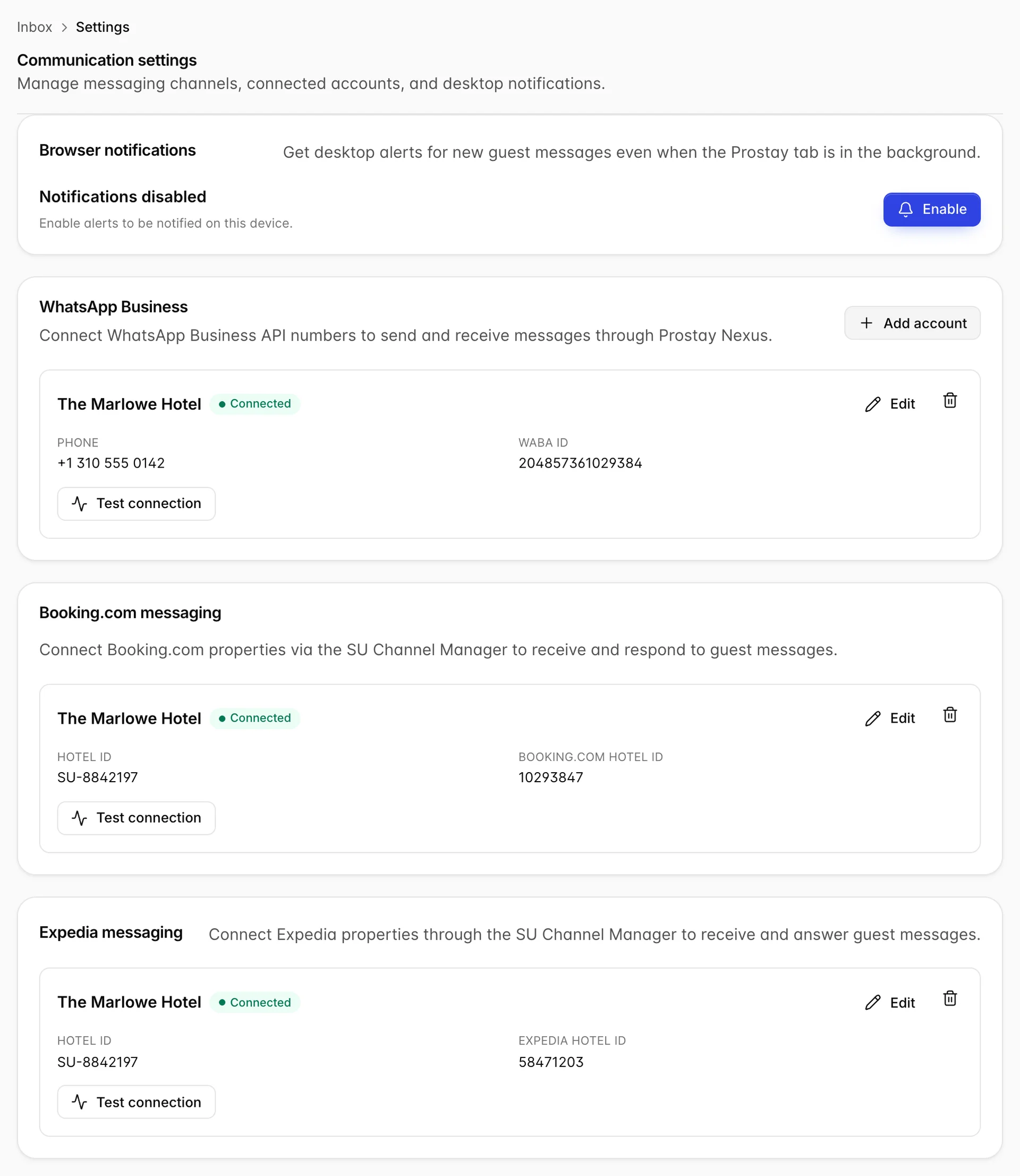
What is and is not on this screen
This screen connects the two channels that are not email, and turns on desktop alerts. It is short, and the most useful thing to know about it is what is missing.
Email accounts are not configured here. The mailboxes that feed the email side of the inbox live in System Settings, under email accounts, and are usually set up once when the property is onboarded. Nothing on this screen affects them.
Browser notifications

With this on, a new guest message raises a desktop notification even when the Prostay tab is behind something else. It is the difference between an inbox somebody is watching and an inbox somebody remembers to check.
The row is a permission, not a setting, and it belongs to the browser rather than to Prostay. That has three consequences worth knowing:
- Every person switches it on for themselves. Turning it on does not turn it on for a colleague, and it does not follow you to another computer.
- It is per browser too. Someone using Chrome at the desk and Safari at home has to allow it twice.
- If the browser has already been told no, the card says so and the button cannot help you. Undoing a refusal is done in the browser's own site settings, not here.
WhatsApp Business
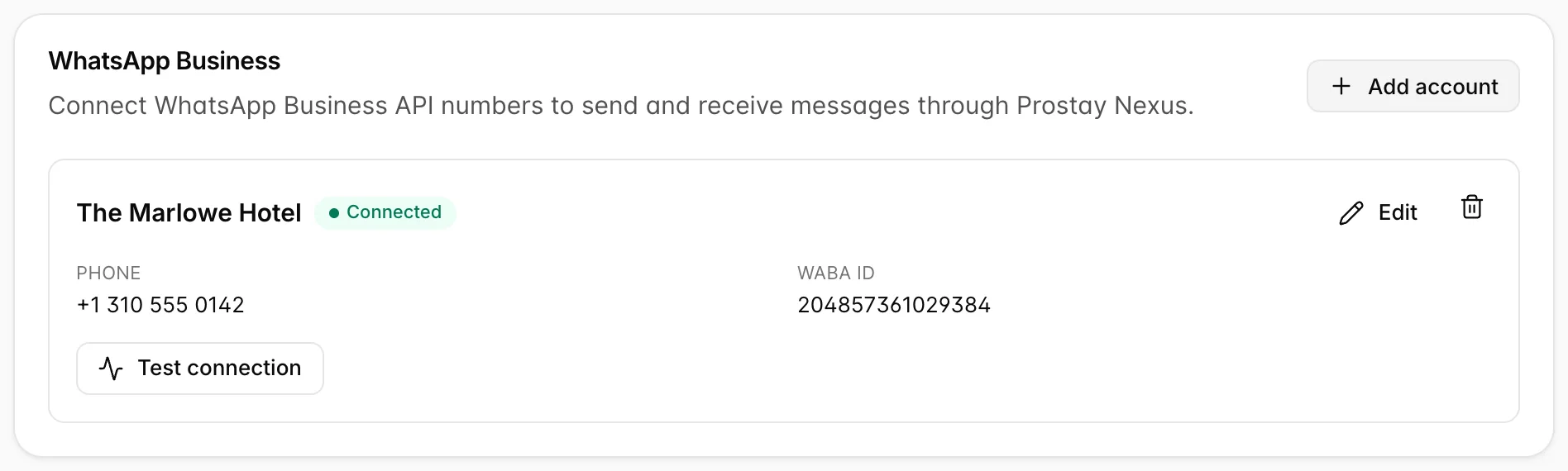
This connects a WhatsApp Business API number, which is not the same thing as the WhatsApp on your phone. You get one through Meta or through a business solution provider, and the six values on the form come from that account rather than from Prostay. If you do not have them, the person who set up your Meta business account does.
Add account connects another number. A property with a separate reservations line and spa line can run both, and messages from either land in the same WhatsApp list.
The WhatsApp fields
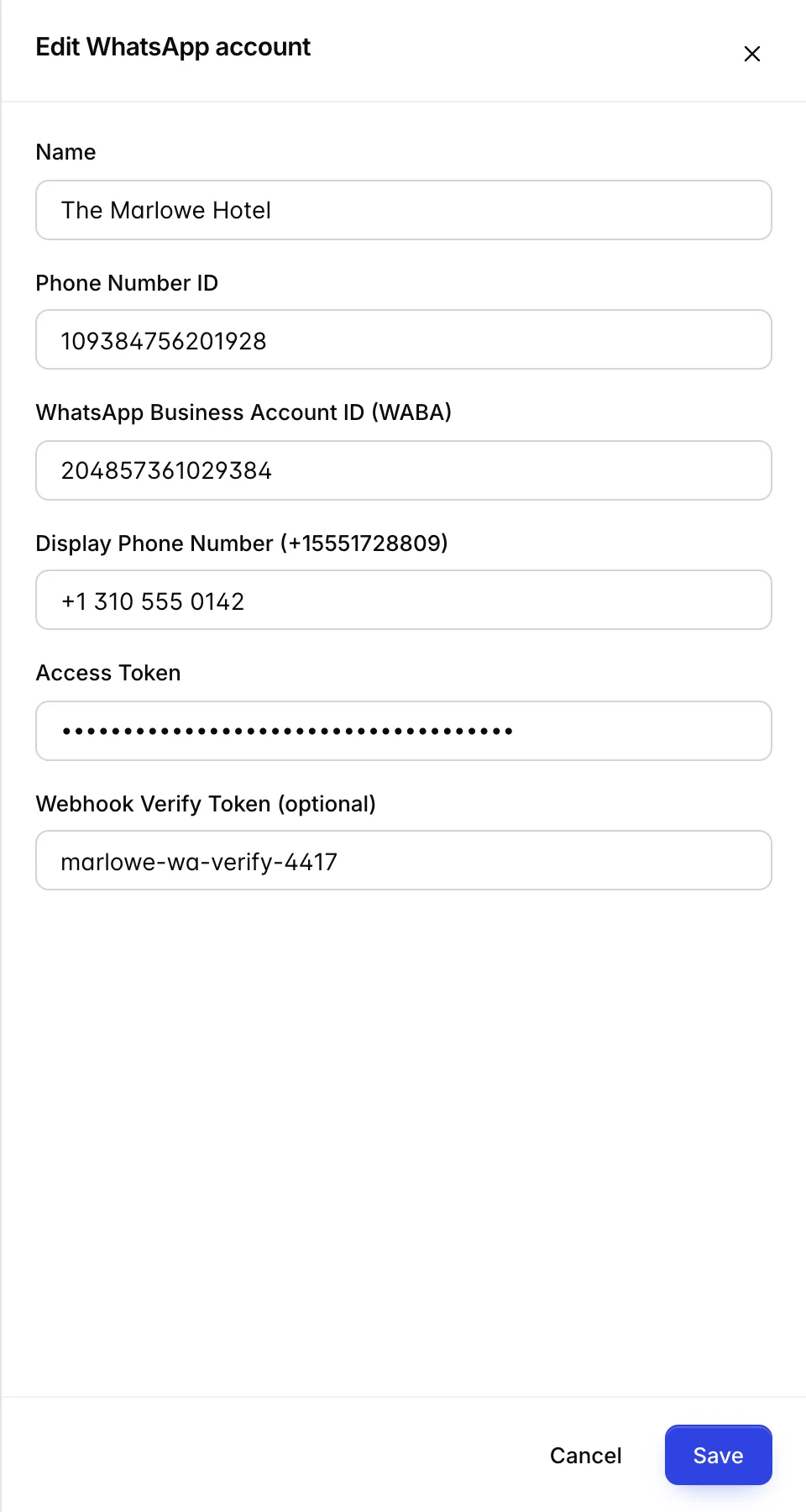
| Field | What it is, and what goes wrong without it |
|---|---|
| Name | A label for your own benefit, shown on the card and nowhere a guest can see. Name it after the number's job, not after the hotel, or two accounts look identical. |
| Phone Number ID | Meta's internal ID for the number, from the WhatsApp section of your Meta app dashboard. Not the phone number. Sending fails without it. |
| WhatsApp Business Account ID (WABA) | The business account the number sits under. One WABA can hold several numbers, which is why both this and the Phone Number ID are needed. |
| Display Phone Number | The number in readable form, used on screen so your team knows which line a message came in on. Cosmetic; a wrong value confuses people but breaks nothing. |
| Access Token | The credential Prostay sends messages with. Treat it like a password. A temporary token from the Meta dashboard expires within a day and takes your WhatsApp channel down with it, so use a permanent one. |
| Webhook Verify Token (optional) | A word you invent and then type identically into Meta's webhook configuration. Meta quotes it back when it delivers a message, which is how Prostay knows the delivery is genuine. Marked optional here, but leaving it empty means outbound messages work and inbound ones never arrive, which looks like a guest who never replied. |
Booking.com messaging
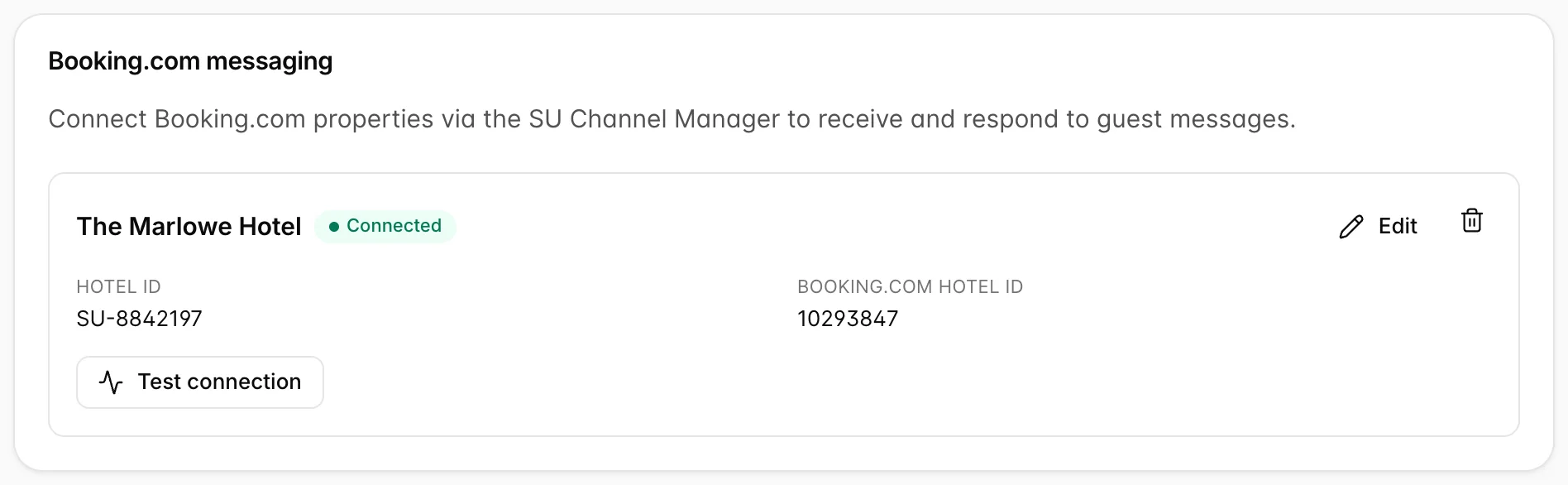
Booking.com messages arrive through the SU Channel Manager rather than directly, so this connection depends on your channel manager being set up first. Hotel ID is the property's identifier in the channel manager and Booking.com Hotel ID is the identifier Booking.com uses. They are different numbers and swapping them is the usual reason a connection tests clean but never delivers a message.
There is no Add account button on this card. One property, one Booking.com connection.
Expedia messaging
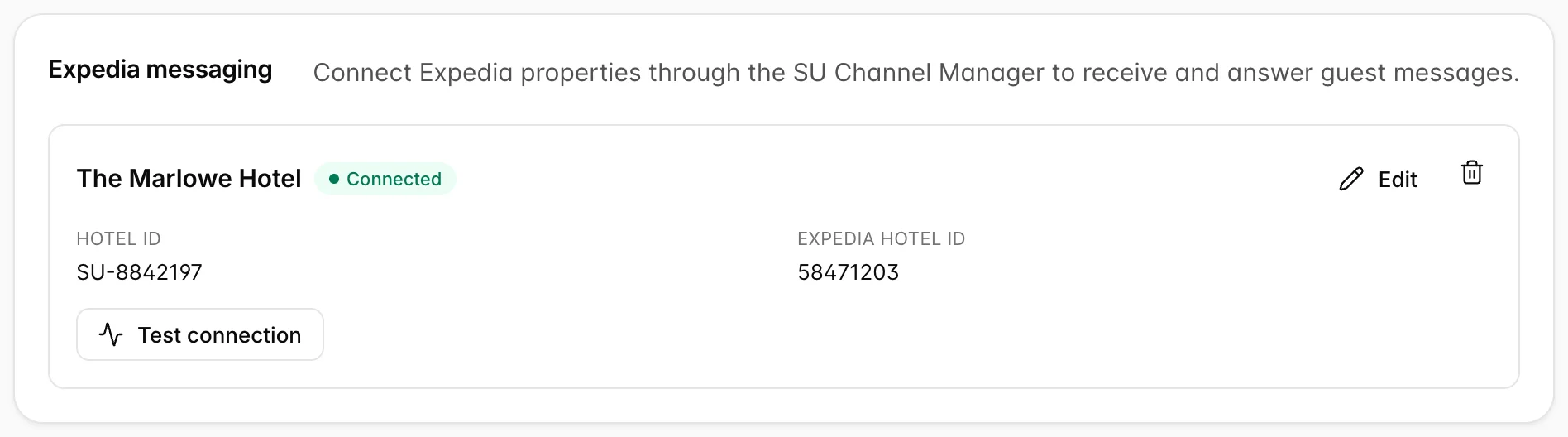
Expedia arrives over the same SU Channel Manager link as Booking.com, which is why the card asks for the same two identifiers and why connecting one does not connect the other. Hotel ID is again the property in the channel manager, and Expedia Hotel ID is the identifier Expedia uses for it.
If the channel manager is not connected yet, the card says so instead of offering a button, because there is nothing for the connection to ride on. Connect the channel manager first and the Connect Expedia button appears here.
Reading a connection test

Test connection checks each credential in turn and lists them with a tick or a cross, with the time it ran on the right. A green headline means every check passed. If some passed and some did not, the headline says how many did not rather than claiming success, so the ticks under it are worth reading either way.
The checks are individually useful. A failure on Access Token is an expired credential. A failure on Webhook configured is the one that leaves you sending fine and receiving nothing, and it is the failure most likely to be mistaken for quiet guests.
Editing and disconnecting
Edit reopens the form with the values in place, except the access token, which is masked. The bin icon disconnects the account. Doing that stops messages arriving and stops replies going out on that channel; the conversations already in the inbox stay where they are, so nothing is lost, but nobody can answer them any more.
Your email signature
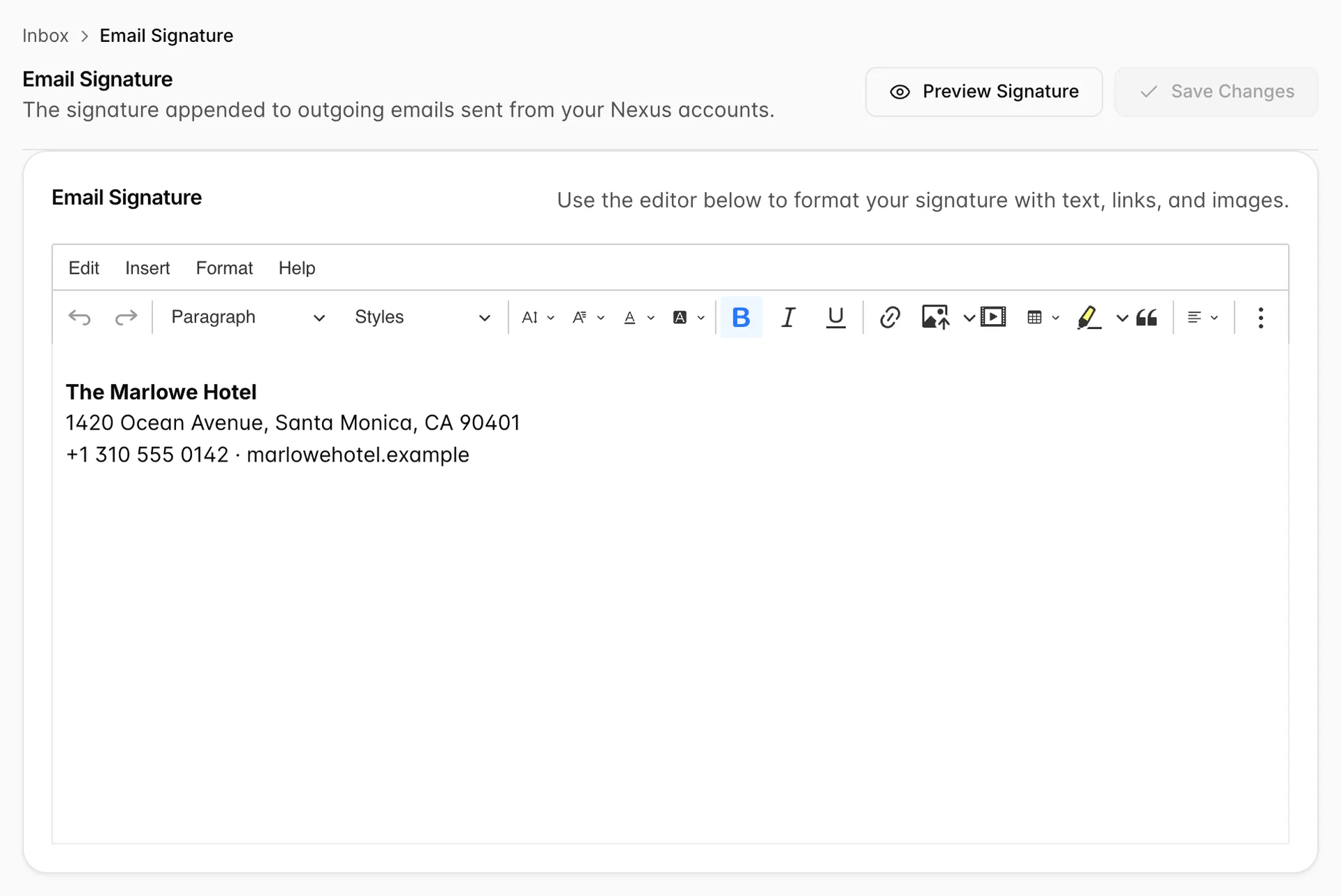
This is one signature for the whole property, not one per person. Whatever you put here is appended to every email leaving the inbox, whoever sent it, so write it as the hotel rather than as yourself. A personal name in here goes out under a colleague's reply.
The editor takes formatting, links and images. Keep it to the things a guest needs when they reach the bottom of a reply: the hotel's name, an address, a phone number and a website. Preview Signature shows it as the guest will see it, which is worth using, because an image that renders here can still fail to render in somebody's mail client.
Save Changes stays greyed out until you have actually changed something, so a page you have only looked at cannot be saved by accident. There is no switch to turn the signature off, and it does not need one: empty the editor and nothing is appended.
It reaches email only. A WhatsApp, Booking.com or Expedia reply carries no signature, whatever is in this editor, because those channels do not send through a mail server. That is usually what you want, since a full postal address at the bottom of a WhatsApp message reads badly, but it does mean the hotel's phone number is not automatically on every reply your guests get.
Once a channel is connected, its messages arrive in the unified inbox. The mailbox that sends your automatic guest email is configured elsewhere, on Connect an email account.