The Channel Manager is the part of Prostay that talks to the sites you sell through: Booking.com, Expedia, Airbnb and the rest. Its job is to keep one set of numbers, the ones in your property, and make every channel agree with them, so that a room sold on one site stops being sellable on the others. Everything in this module is either a connection to a channel or a rule about what that connection is allowed to sell.
Five screens do that, and two of them have names close enough to be mixed up daily. This article is the map. The four articles after it are the instructions.
What the module is responsible for
Prostay holds one truth about your property: how many of each accommodation type exist, which nights are already sold, and what each night costs. A channel holds its own copy of that, because it has to show a price and an availability count to a guest browsing at two in the morning. The Channel Manager is the machinery that keeps the channel's copy in step with yours.
Everything you do in this module is one of four things:
- Connecting a channel, so the two systems know about each other.
- Telling the channel which of your rooms and prices are which, so the numbers land in the right place.
- Limiting how much of your inventory the channels are collectively allowed to sell.
- Shutting particular dates off on particular channels.
Notice what is not on that list. You do not price rooms here, you do not take bookings here, and you do not decide cancellation terms here. Those all live in the Property Management System, and the Channel Manager forwards them.
The five screens
The Channel Manager sidebar is a narrow rail of icons that widens when you move the pointer into it. From top to bottom it holds five destinations.
| Screen | What it is for |
|---|---|
| Channels | The catalogue of channels you could connect to, and where a new connection is started. This is a partner-operated screen; see the section below. |
| Active Channels | The channels this property is already connected to. Room mapping, rate plan mapping and the on/off switch all live behind a row here. This is the screen you will use. |
| Closeouts | Date ranges where named channels stop selling named accommodation types. A dated, targeted shut-off. |
| Allotment | How much of each accommodation type the channels are allowed to sell at all. Undated, and applies to every channel at once. |
| Currency | Which currency each connected channel sells in, and the conversion rates behind that. Only relevant if you sell in more than one currency. |
Channels and Active Channels are not the same screen
Channels is a shop window. It lists every channel Prostay can connect to, with a filter for region and connection type, and its job is to start a connection you do not have yet. Each channel has its own signup and its own approval process on the channel's side, which is why the connection flow is run by our distribution partner rather than by Prostay directly, and why the screen looks different from the rest of the product.
Active Channels is the result. Once a connection exists, the channel appears in this list and everything you can change about it is reached from its row.
The connected list is where the work happens
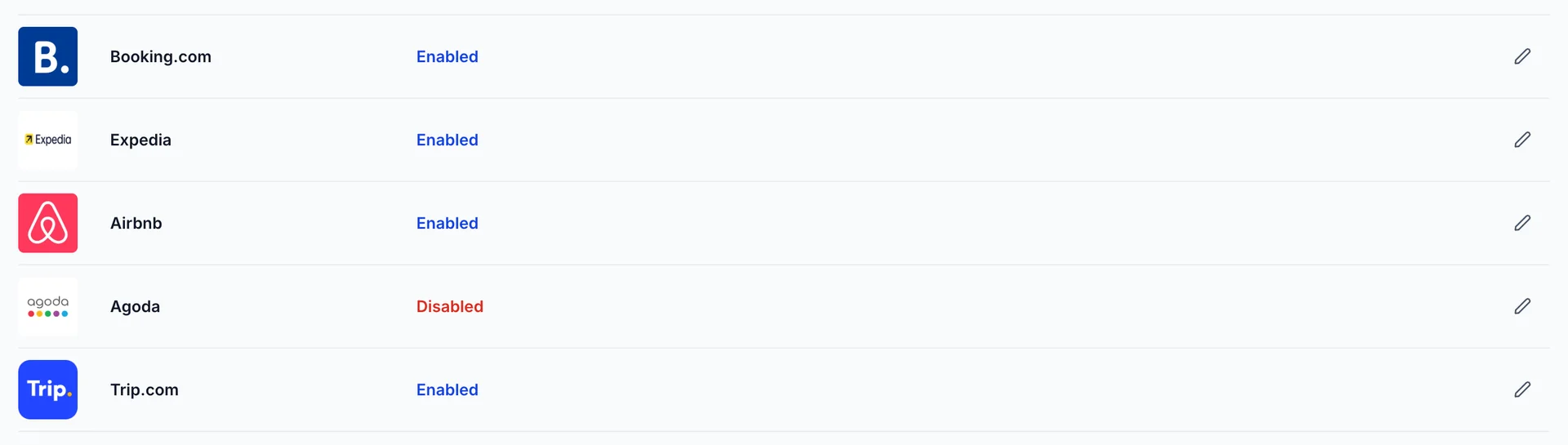
One row per connected channel: the channel's logo, its name, whether it is currently enabled, and an edit button. That edit button opens a panel with four tabs, and those four tabs are most of the Channel Manager. They cover what the channel will accept from you, the credentials the connection runs on, which of your rooms correspond to which of theirs, and which of your rate plans correspond to which of theirs.
A channel is either Enabled or Disabled, and that is the whole state machine. A disabled channel keeps everything you have set up on it and simply stops trading. That matters, because it means turning a channel off for a bad season is cheap and turning it back on costs you nothing but a click.
Two different ways to hold inventory back
This is the distinction that causes the most trouble, so it is worth being precise. Allotment and Closeouts both stop channels selling something, and they are not interchangeable.
| Allotment | Closeouts | |
|---|---|---|
| Answers | How many can the channels sell? | Can the channels sell on these dates? |
| Dates | None. It applies always, until you change it. | A start date and an end date, always. |
| Channels | All of them, together. There is no per-channel setting. | Whichever ones you tick. |
| Accommodation types | A separate number for each type. | Whichever ones you switch on. |
| Typical use | Keep two suites back for direct and repeat guests, permanently. | Shut the OTAs off over a weekend you know will fill direct. |
In practice most properties set an allotment once and rarely touch it, then create closeouts a handful of times a year. If you find yourself editing allotment numbers seasonally, what you actually wanted was a closeout.
What the Channel Manager does not decide
Several things people expect to find here are set elsewhere and only forwarded by the connection:
- Prices. Rates come from your base rates and rate plans in the Property Management System. The Channel Manager can add or subtract a fixed amount or a percentage on the way out, but the number it is adjusting is still the one the calendar holds.
- Which rooms exist. Accommodation types and their unit counts are property settings. Mapping only tells a channel which of its rooms corresponds to which of yours.
- Restrictions the channel will not accept. Minimum stay, closed to arrival and closed to departure only reach a channel that supports them, and every channel supports a different subset. The General tab of a channel says which.
- Cancellation policy. Some channels, Airbnb among them, apply their own cancellation grid regardless of what Prostay holds.
- Cancelling a booking the channel sold. Availability, rates and restrictions travel out to a channel, and reservations travel in. A cancellation you make in Prostay travels neither way. Cancel a channel booking here and the channel still holds it: the guest keeps their confirmation and may arrive, and the commission is not stopped. Cancel it in the channel's extranet instead, or have the guest cancel, and the cancellation arrives in Prostay the way the booking did.
Where to go next
The four remaining articles in this module are written to be read in this order, and each assumes the ones before it:
- Managing a connected channel. The connected list, the four tabs, and turning a channel off without losing its setup.
- Mapping rooms and rate plans to a channel. The part that decides whether a booking arrives in the right room at the right price.
- Limiting what channels can sell: allotment. One setting, applied to every channel, that caps how much of the house the OTAs can move.
- Closing out dates on channels. Dated, per-channel, per-room-type shut-offs.
All five assume the rooms and prices already exist, because this module publishes what the PMS holds rather than holding any of its own. If the accommodation types and rate plans are not set up yet, start with accommodation types, rooms and amenities. If a word here is new, it is defined in the words Prostay uses.