A closeout is three things at once: a date range, a set of channels and a set of accommodation types. Inside that range, those channels stop selling those types. Everything else carries on, including your own front desk and your own booking engine, which is the difference between a closeout and simply having no rooms left.
What a closeout does
It sends a close instruction to the channel for the dates you name and holds it there until you remove it. The availability stays in Prostay, untouched, so those nights are still sellable everywhere the closeout does not reach. Three situations it is built for:
- A period you know will fill direct, where OTA commission would be money given away for bookings you were going to get anyway.
- A refurbishment or a maintenance window affecting one accommodation type, where the rooms still exist but should not be sold to strangers.
- A group or conference block that has taken most of a type, where the remainder should be held for the organiser rather than sold on.
Reading the list

Four columns. Date Range is the period, in your property's date format. Channel lists the channels it applies to. Room Types lists the accommodation types it covers. Actions holds the three-dot menu with Edit and Delete.
Closeouts are not grouped, sorted by relevance or filtered by date, and an expired one keeps sitting in the list looking exactly like a live one. On a property that uses closeouts regularly, read the dates first and tidy up the ones that have passed, because a list of thirty rows is unreadable otherwise.
Creating a closeout
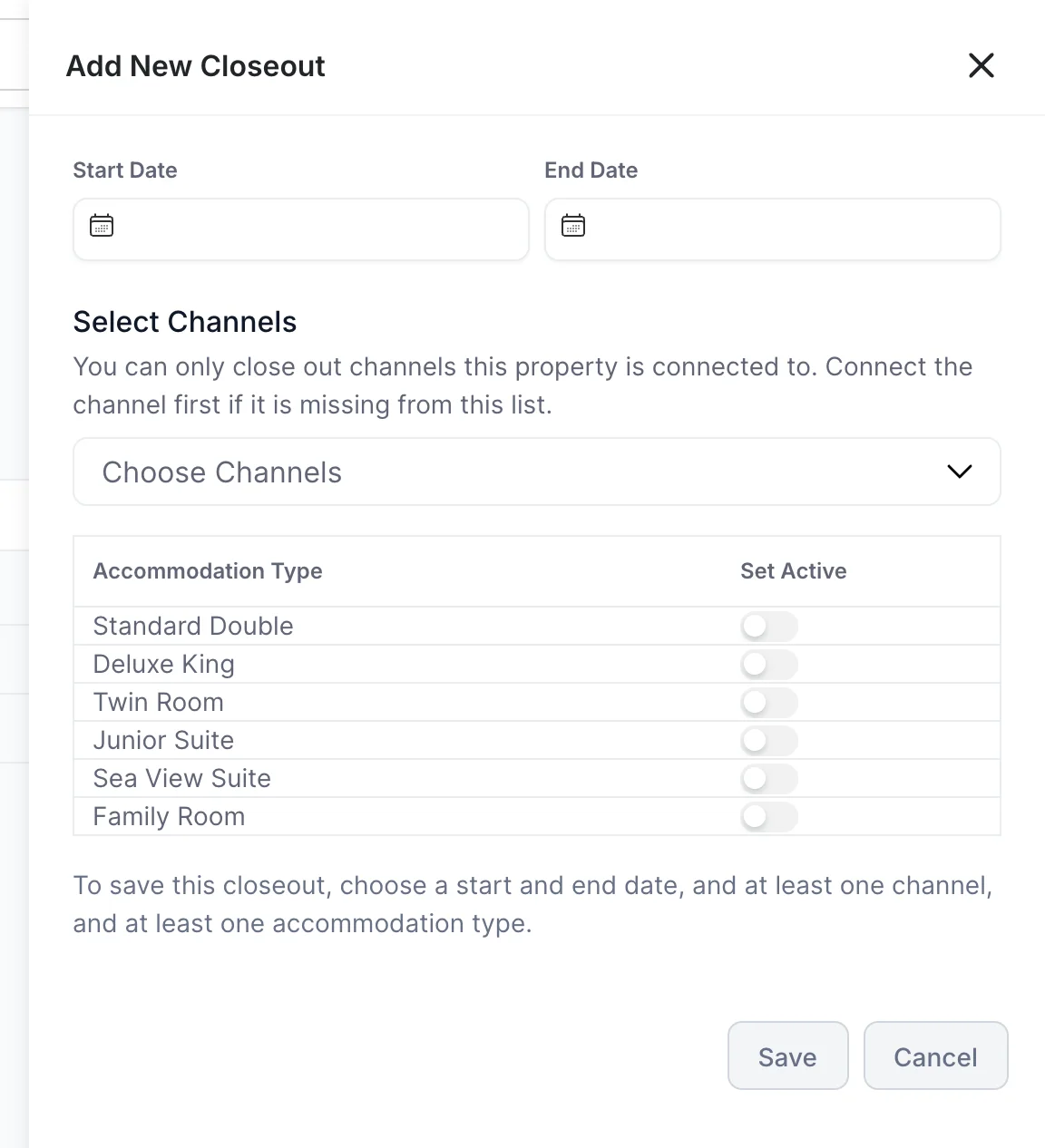
- Press New Date Range at the top of the Closeouts screen.
- Pick a Start Date. Both pickers carry month and year dropdowns, so a date two years out takes two clicks rather than twenty. Past dates are selectable and nothing warns you, so check the year before you move on.
- Pick an End Date. Nothing before the start date is selectable, and the same date is allowed, which closes a single date.
- Open Choose Channels and tick the channels this applies to.
- Switch on Set Active for each accommodation type it covers.
- Press Save.
Save stays grey until the panel has a start date, an end date and at least one channel. Switching on the accommodation types is not enforced the same way, and it matters just as much: a closeout saved with every type left off closes nothing at all, on any channel. Check the switches before you save rather than relying on the button to stop you.
Choosing the channels
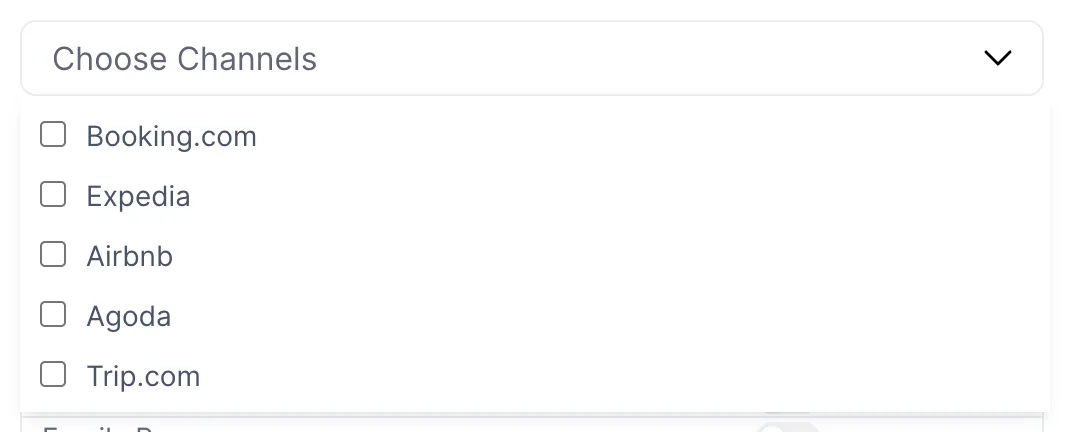
The list holds the channels this property is connected to and nothing else. A channel you have not connected cannot be closed out, because there is nothing to send the instruction to. Ticked channels are summarised back into the box as a comma-separated list, so you can see what a closeout covers without reopening the menu.
Disabled channels appear here too. Ticking one is harmless and does nothing while it stays disabled, but it does mean the closeout takes effect the moment somebody re-enables the channel, which is usually what you want.
Choosing the accommodation types
Every accommodation type the property has appears with a Set Active switch, all off to begin with. Switching one on puts it in the closeout. There is no select-all, so a property-wide closeout means six switches on a six-type property.
Being specific here is worth the clicks. A refurbishment of the family rooms is a closeout on the Family Room and nothing else, and closing the whole property for it would cost you every other booking in that fortnight. The third row of the demo list above is exactly that: fourteen days, Airbnb only, Family Room only.
Editing one later
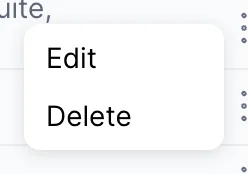
Edit opens the same set of controls with the closeout's current dates, channels and types filled in. Two things are worth knowing before you use it.
- It needs a date at both ends and at least one channel. Empty either and Save greys out. The accommodation types are not treated the same way: a closeout with every type switched off can be saved, and it closes nothing.
- Nothing stops you saving a closeout you only opened to look at. There is no check for whether you changed anything, so the safe way to read one is to leave by Cancel.
Deleting one
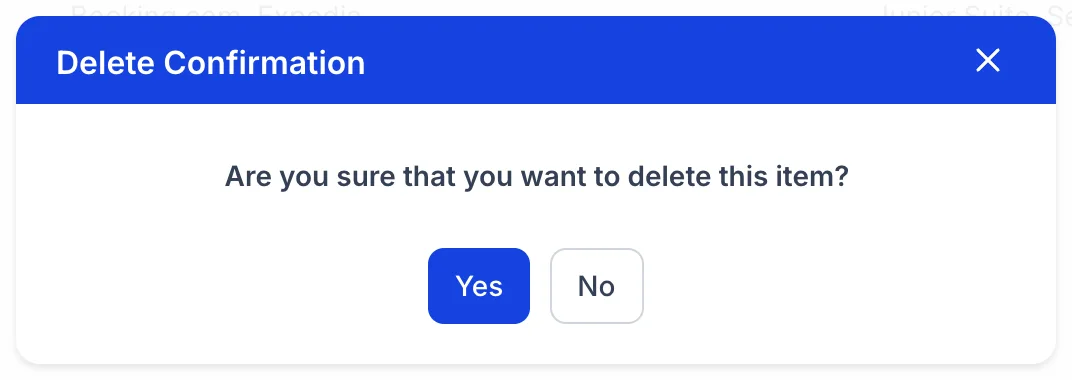
Choose Delete from the row menu and confirm with Yes. The row disappears and the list reloads. There is no undo and no record of what was deleted, so a closeout removed by mistake has to be rebuilt from memory.
What a closeout will not do
- It does not stop direct bookings. Your front desk and your booking engine are not channels, and neither is affected. To take rooms off sale everywhere, block them in the availability matrix instead.
- It does not cancel bookings already taken. Reservations a channel sold before the closeout existed stand, and have to be handled one by one.
- It does not expire from the list. A closeout whose dates have passed stays on the screen until somebody deletes it.
- It does not change prices. A closeout is a yes or no on selling, not a rate. If the aim is to discourage bookings rather than prevent them, raise the rate for those dates instead.