Allotment answers one question: of the rooms you have, how many are the channels allowed to sell? It is a single setting for the whole property, applied to every connected channel at once, with no dates on it. Set it once, revisit it when the shape of your business changes, and use a closeout for anything that has a start and an end.
What the screen shows

- Active allotment type. Which of the two options is in force right now.
- Availability Updated For. How far into the future availability is sent, in whole years.
- Edit. Opens the panel where both of those and the per-type quantities are changed.
There is one row and there will only ever be one row. If you are looking for a way to give Booking.com twenty rooms and Expedia fifteen, it is not here and it is not anywhere else in the product. The allotment is what the channels share.
The two allotment types
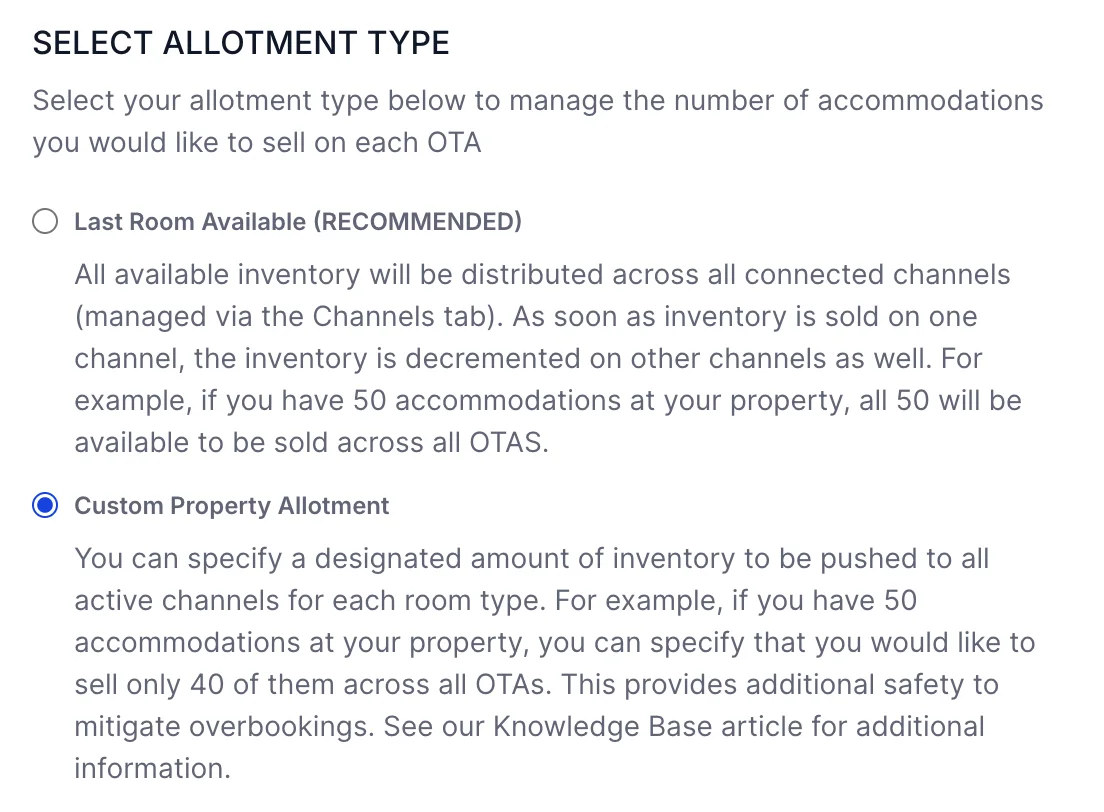
| Option | What the channels get |
|---|---|
| Last Room Available | Everything. All of your unsold inventory is offered on every connected channel, and a sale on one decrements the count on the others. The last room of a type is on sale on all of them until somebody takes it. |
| Custom Property Allotment | A number you set for each accommodation type. The channels between them may sell up to that many, and no more, however many you actually have free. |
Picking Custom Property Allotment reveals a grid of your accommodation types below the radio buttons. Picking Last Room Available hides it again. Any numbers you had typed are kept, so switching back and forth to compare does not cost you the values.
Which one to choose
Last Room Available sells the most rooms and carries the most risk. Two guests on two different channels can start booking your last Sea View Suite at the same moment, and only one of them can have it. How often that happens depends on how fast your channels poll and how much of your business is last-minute. For most properties it is rare, and the empty nights avoided are worth more than the occasional apologetic upgrade.
Custom Property Allotment buys certainty and pays for it in occupancy. Every room you hold back is a room the channels cannot sell, whether or not anybody books it directly. It earns its place when:
- You have a reliable direct or repeat-guest demand for particular types and want them kept free.
- You have been burned by overbookings on a type with very few units, where one clash is the difference between a happy guest and a walk.
- A type is partly committed elsewhere, to a long stay contract or a corporate block, and the count in Prostay is higher than what is genuinely sellable.
Setting a quantity per accommodation type
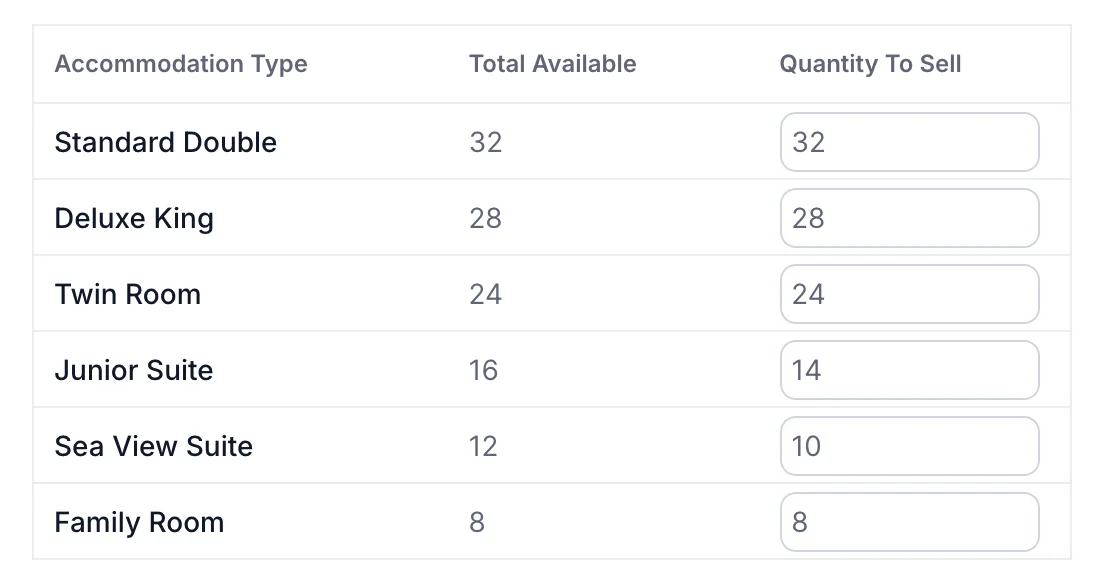
| Column | What it means |
|---|---|
| Accommodation Type | Your types, exactly as the property holds them. Add or remove one in property settings and this list follows. |
| Total Available | How many units of that type exist. Read only, and the ceiling for the next column. |
| Quantity To Sell | The most the channels may sell between them. Anything above the total is pulled back down to the total as you type, and negative numbers are refused. |
The property above sells 116 of its 120 rooms through channels: everything except two Junior Suites and two Sea View Suites, which are kept for direct and repeat guests. A guest booking the last available Junior Suite on an OTA is booking the fourteenth of sixteen, and the remaining two stay bookable by phone, by email and through your own booking engine.
How far ahead availability is sent
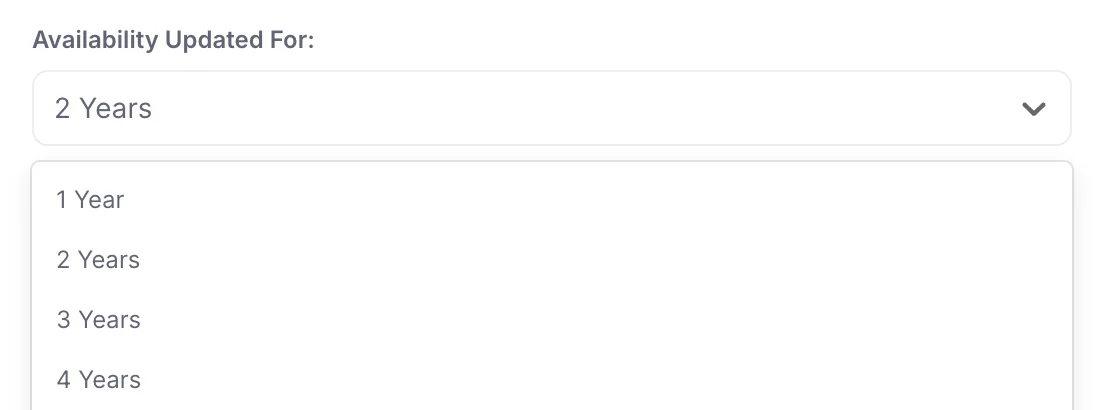
Availability Updated For is the size of the window Prostay keeps the channels updated across, from today forward. The choices are one, two, three and four years, and the practical effect is on how far ahead a guest can book you on a channel.
A one year window means a guest looking fourteen months out finds nothing on the OTA, even though your rates for those dates exist in Prostay. That matters for wedding, conference and festival business, which is booked eighteen months to two years ahead. A four year window covers everything and costs you nothing except that the far-out dates are sold at whatever rate your base rates say, which may be last year's price if nobody has extended them. Two years suits most properties.
Saving
- Press Edit on the single row of the Allotment screen.
- Set the year window, pick the allotment type, and fill in the quantities if you picked Custom Property Allotment.
- Press Save.
If Edit is not on your screen, your role does not include the permission for it. An administrator can add it from Users in System Settings, under Channel Manager › Allotment.
A green Success! notice appears and the panel closes a couple of seconds later, with the summary row updated behind it. A failure shows a red Allotment not saved notice saying nothing was changed, and leaves the panel open with your numbers still in it. Cancel discards everything and changes nothing.
What allotment cannot do
- It cannot vary by channel. Every connected channel gets the same numbers. Giving one channel less than another is not possible here.
- It cannot vary by date. There is no calendar on this screen. A quantity set today applies to every night in the window until you change it, which is why a seasonal hold-back belongs in a closeout instead.
- It does not reserve the rooms it holds back. The held-back units are ordinary free rooms. They stay sellable by your front desk, your booking engine and anyone taking a phone call, and if nobody sells them they go out empty.
- It does not change prices. Rates come from your rate plans, and per-channel differences are set as adjustments in rate plan mapping.