This is your bill, not your guests
Every other module in Prostay is about money moving between your hotel and the people staying in it. This one is the other direction: what your hotel pays Prostay, and what it gets for it. Nothing you do here touches a reservation, a folio or a guest payment.
It is worth being explicit about that, because two things sound alike and are not. Prostay Pay is the service that takes card payments from your guests, and it appears here as a line you are subscribed to, in the same way the Channel Manager does. Money your guests pay you has nothing to do with this screen.
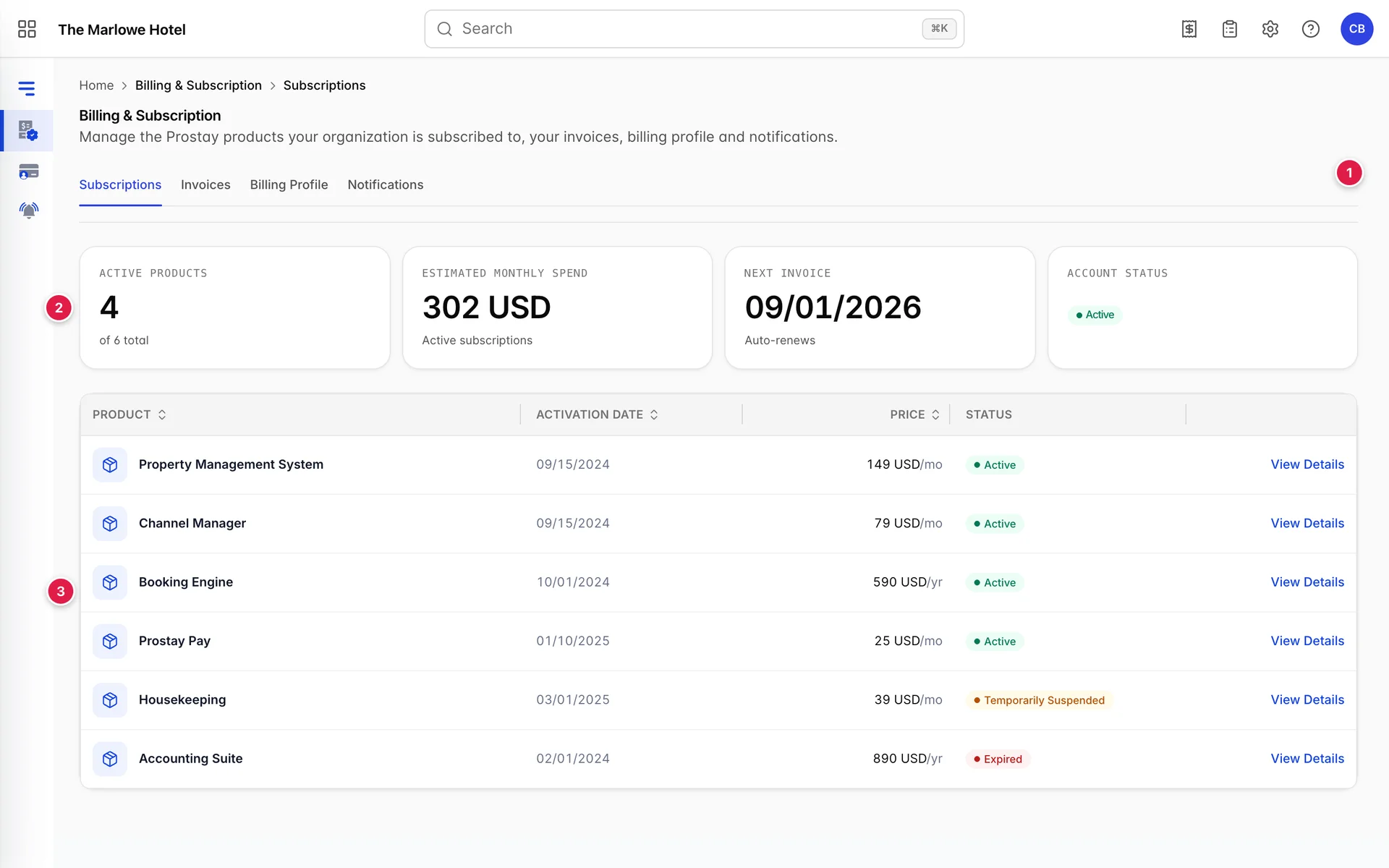
Four tabs run across the top and they are the whole module. Subscriptions is this screen. Invoices is what Prostay has billed you. Billing Profile is who Prostay bills and what it charges. Notifications is who gets told.
The four tiles at the top

Active products counts the products currently switched on, against the total number on the account. When those two numbers differ, the gap is made up of suspended and expired products, and the table below tells you which.
Estimated monthly spend is what your active subscriptions come to per month. The word estimated is doing real work. Annual products are spread across twelve months to produce a comparable figure, so this number is not what will be charged in any particular month, and it is not the amount on your next invoice. Treat it as a budgeting figure and take the actual amount from the Invoices tab.
Next invoice is the date the next charge is raised, and it is the most useful thing on the screen. The line under it says either Auto-renews or Manual renewal. Auto-renews means the card on file is charged on that date and you do not need to do anything. Manual renewal means somebody has to act, and if nobody does, the subscription lapses on that date.
Account status is the account as a whole rather than any one product. A hotel can have an active account while one of its products is suspended, so a green badge here does not mean everything below it is running.
The product table
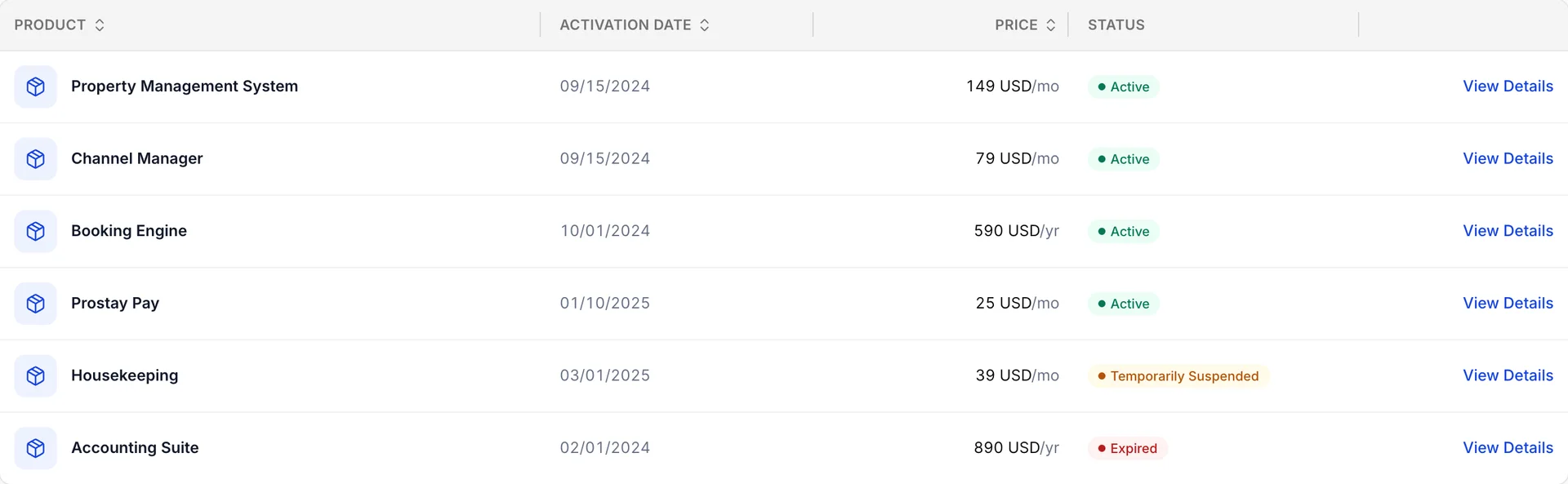
One row per product. A product is a whole module you have bought, such as the Property Management System or the Channel Manager, not an individual feature inside one. Turning a setting off inside a module does not change anything here, and nothing here is a way to stop paying for part of a module.
Product is the name Prostay sells it under.
Activation date is the day that product was switched on for your property. It is not your renewal date and it is not the start of the current billing period. It is useful for one thing: settling an argument about how long you have had something.
Price is the unit price with its billing period attached, ending in either per month or per year. That suffix is the important half. Two rows showing similar figures can be a monthly cost and an annual one, which is a twelve-fold difference, and it is the single easiest thing to misread on this screen.
Status is a coloured badge, covered next. View Details opens that one product.
You can sort by any column with the arrows in the header. On an account with a dozen products, sorting by status brings anything that is not Active to the top, which is the fastest way to find what needs attention.
What each status means

Six statuses exist. Four of them are worth acting on.
- Active, in green. Running and being billed. Nothing to do.
- Pending, in blue. Bought but not yet switched on, usually because setup is still in progress at Prostay's end. It becomes Active by itself.
- Temporarily Suspended, in amber. Paused. Your data is still there and the product can be switched back on, but nobody at the hotel can use it while it sits like this. This is the status to chase, because it is usually the result of something recoverable such as a failed payment.
- Expired, in grey. The subscription ran to its renewal date without renewing, and lapsed. Unlike suspended, this is a finished state rather than a paused one.
- Deactivated, in grey. Switched off deliberately, which is where a product lands after you cancel it.
- Cancelled, in red. A cancellation has been submitted and the product is running out its paid period. See changing or ending your subscription for what happens on the date it reaches.
Suspended and expired both mean the product is not usable, and the difference matters when you ring Prostay: a suspended product is generally restored the moment the reason for the suspension is cleared, while an expired one is a new subscription conversation.
Opening one product
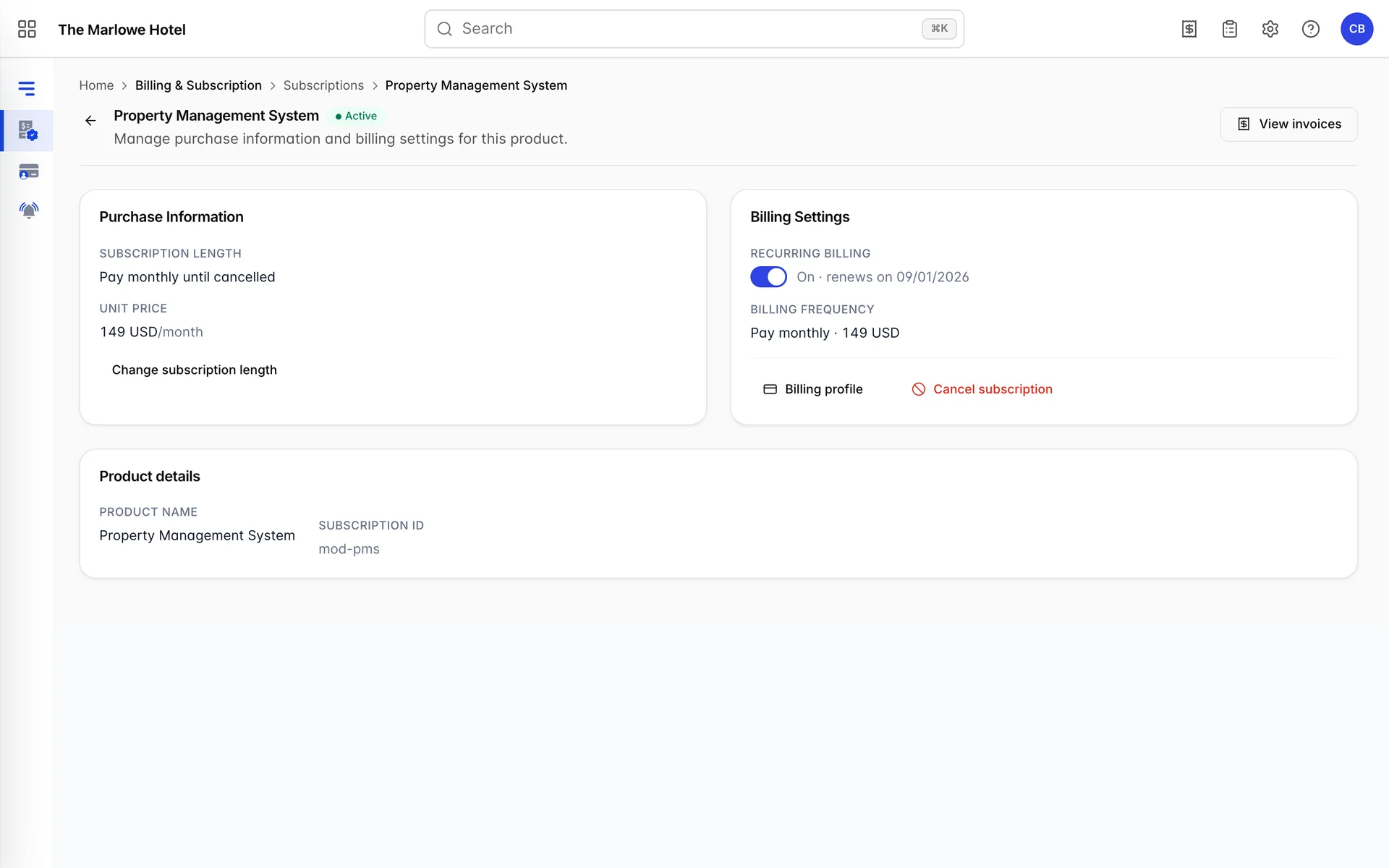
View Details on any row opens that product on its own page. Four things are worth reading here.
Subscription length says whether the product renews monthly or yearly, and until when. Unit price is the same figure as the table's price column, with its period spelled out rather than abbreviated.
Recurring billing is a switch, and it reads On followed by the date the product next renews. This date is the same one the Next invoice tile shows for a monthly product, and it is the date to write down if you are planning anything around this subscription.
Billing frequency repeats the term and the price together. Below these sit a link through to your billing profile and, in red, the action that ends the subscription. All three of the controls that change what you pay live on this page and nowhere else, and each of them is covered in changing or ending your subscription.
Subscription ID at the foot is the reference Prostay support will ask for. Quoting it saves a round of questions.
Who can see and change this
Access to this module is governed by the Billing portal subscription permission, and the actions inside it by a group of four more, under Billing & Subscription in a role's permissions: the billing profile and payment methods, the notification recipients, changing the billing terms, and cancelling the subscription.
Grant them narrowly. Somebody who needs to download an invoice for the accountant needs only View on the base permission. The right to cancel ends the hotel's subscription and, in time, deletes its data, so it belongs to whoever would sign the contract and to nobody else.
A monthly two-minute check
This screen rewards a habit rather than a visit. Once a month, ideally just before the next invoice date:
- Check Account status is Active and that no row in the table carries an amber or red badge.
- Check Next invoice is the date you expect, and that the line under it says Auto-renews if you intend it to.
- Check Active products matches what your team is actually using. Paying for a module nobody has opened in a year is the most common thing this screen reveals.
- Then look at the Invoices tab for anything unpaid, which is covered in your invoices, and paying one.
If a product name on this screen does not tell you what it does, what Prostay is, and which part you are in maps each one to the part of the app it switches on.