Three things on two tabs
This article covers two tabs, because between them they answer one question: who does Prostay bill, how, and who hears about it.
Billing Profile holds the legal name and address that appear on the invoice, and the cards Prostay charges. Notifications holds the list of people emailed when something happens to your bill. They are separate on purpose: the person the invoice is addressed to and the people who need to read it are rarely the same, especially in a group.
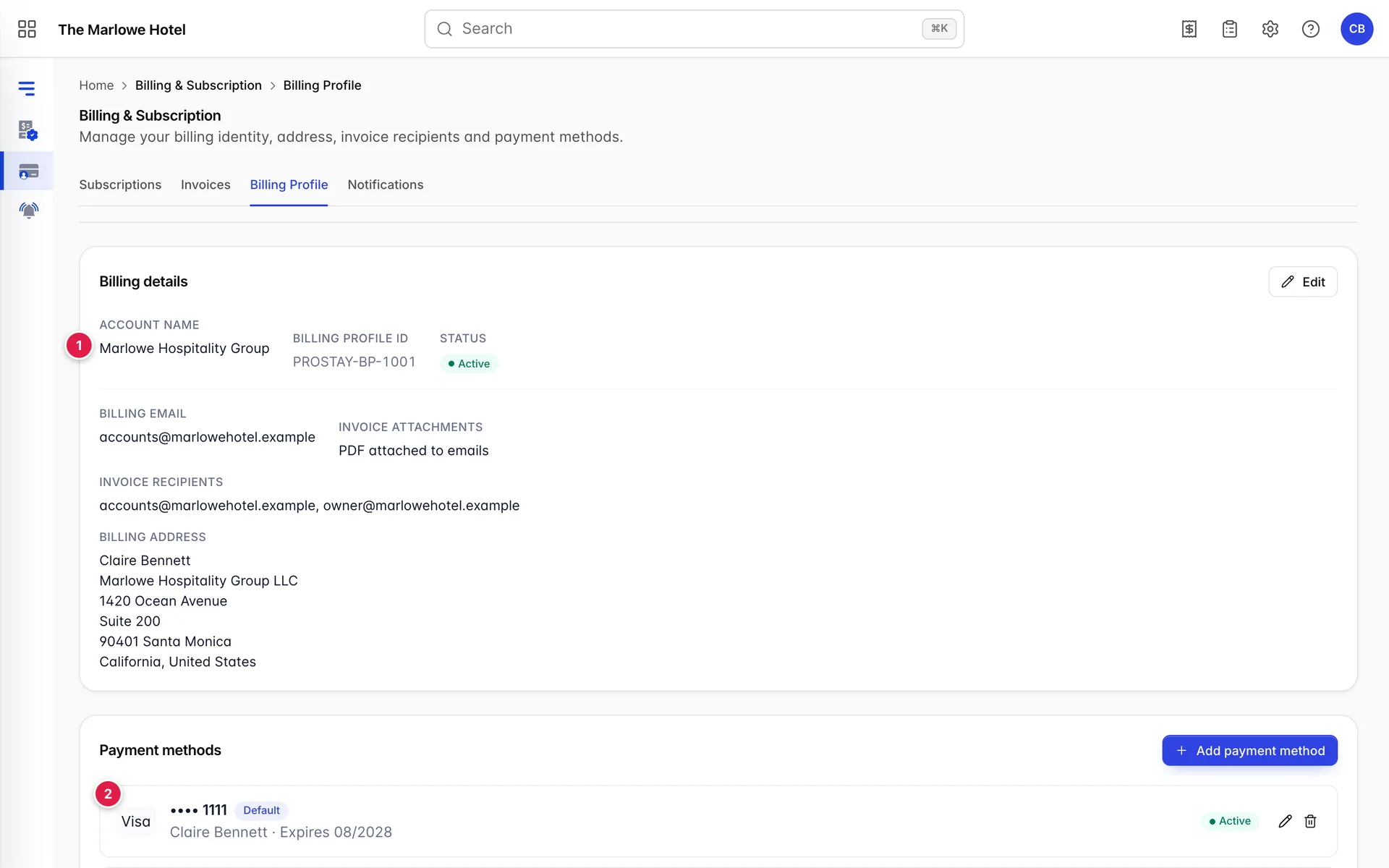
Your billing details
The top card is what gets printed on the invoice. It is worth being fussy about, because an invoice with the wrong company name on it is one your finance team may not be able to reclaim tax against.
Account name is the name Prostay knows your organisation by, and is what appears at the top of the invoice. For a group this is usually the operating company rather than the individual hotel.
Billing profile ID is Prostay's reference for this profile. You cannot change it. Quote it when you contact support about anything on your bill.
Status says whether the profile is active. An inactive profile is not the same as a cancelled subscription; it means this particular billing identity is not currently in use, which normally only happens when a group is being restructured. If yours reads inactive and you did not expect it to, contact Prostay before your renewal date.
Billing email is the single address on the invoice itself, as the contact for the account. It is not the list of people who get emailed; that is Invoice recipients, below it, which is a comma-separated list, and the Notifications tab is where the same idea is managed properly with a name and a language against each person.
Invoice attachments says whether a PDF copy of the invoice is attached to those emails. With it on, the invoice arrives in the inbox rather than needing somebody to sign in and download it, which is usually what an external bookkeeper wants.
Billing address is the postal address on the invoice, built from a contact name, a company name, two address lines, a city, a state or region, a country and a postcode. If your finance team needs a tax registration number on the invoice, that is not set here; ask Prostay support to add it to the account.
Editing them
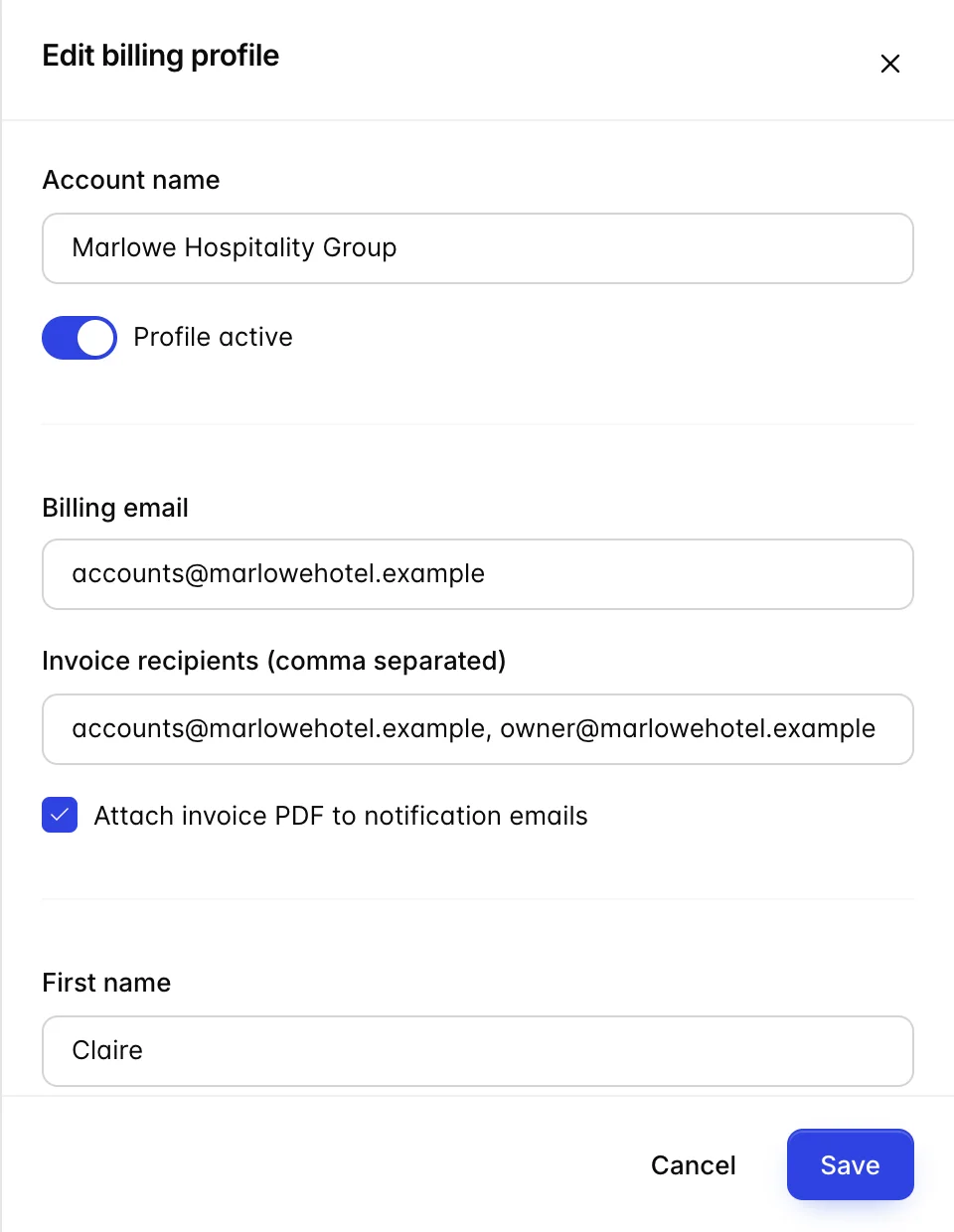
Edit opens the details in a drawer. Two fields are worth a second of thought.
First name and Last name are the person the invoice is addressed to, not the person editing it. Put whoever handles the money there, so that an invoice landing in a shared inbox reaches the right desk.
Invoice recipients takes several addresses separated by commas. Take care with the commas: an address that is run into the one before it will not receive anything and nothing will tell you so. Where you can, use the Notifications tab instead, which validates one address at a time.
Changes take effect on the next invoice raised, not retrospectively. An invoice already issued keeps the details it was issued with, which is correct accounting practice and occasionally surprising.
Payment methods

Each saved card shows its brand, its last four digits, the cardholder name and the expiry date. Prostay never shows the full number back to you, which is why you cannot check a card by reading it here; check it by its last four digits and its expiry.
The Default badge marks the card Prostay charges on your renewal date. Exactly one card carries it. Adding a card and ticking the default box moves the badge rather than adding a second one.
The status badge on the right is worked out from the expiry date. Active means usable. Expiring soon means the card expires within the next couple of months, and is your cue to add the replacement before a payment is declined. Expired means it will not be charged successfully at all, and if it is also the default card, your next renewal will fail.
A card expiring is the most common reason a healthy account suddenly shows an overdue invoice, and it is entirely avoidable: banks reissue cards on a schedule you know in advance.
Adding a card
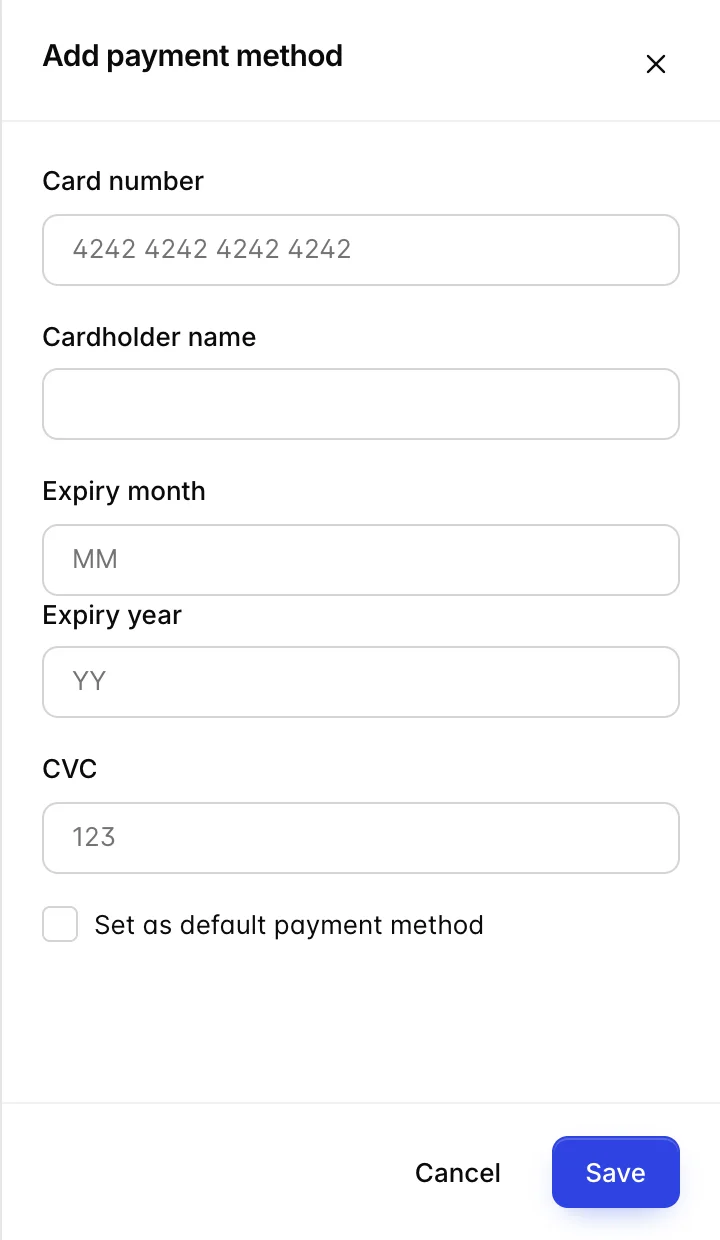
Add payment method opens a drawer with five fields.
- Cardholder name as printed on the card. On a company card this is often the company name rather than a person's, and it should match the card rather than match your billing profile.
- Card number, the long number on the front.
- Expiry month and Expiry year, the date on the front of the card. Prostay uses these to work out the status badge, so getting the year wrong will make a good card look expired.
- CVC, the short security code, three digits on most cards and four on American Express.
Set as default payment method makes this the card Prostay charges from now on. Leave it unticked to keep a card on file as a fallback without changing what is charged today.
The sensible order when replacing a card is add, then set as default, then remove the old one. Doing it the other way round leaves a window where there is nothing to charge.
Removing one, and the last one
The bin icon on a card removes it, and asks first. Removing a spare card changes nothing about what you pay: the default card is charged as before.
Removing the only card on the account is a different action wearing the same button. With no card on file there is nothing for Prostay to charge, so your subscription will not renew and your invoices will go unpaid until you add another one. The confirmation says so when that is the situation you are in. If you are changing cards rather than stopping payment, add the new one first.
Who gets the billing email
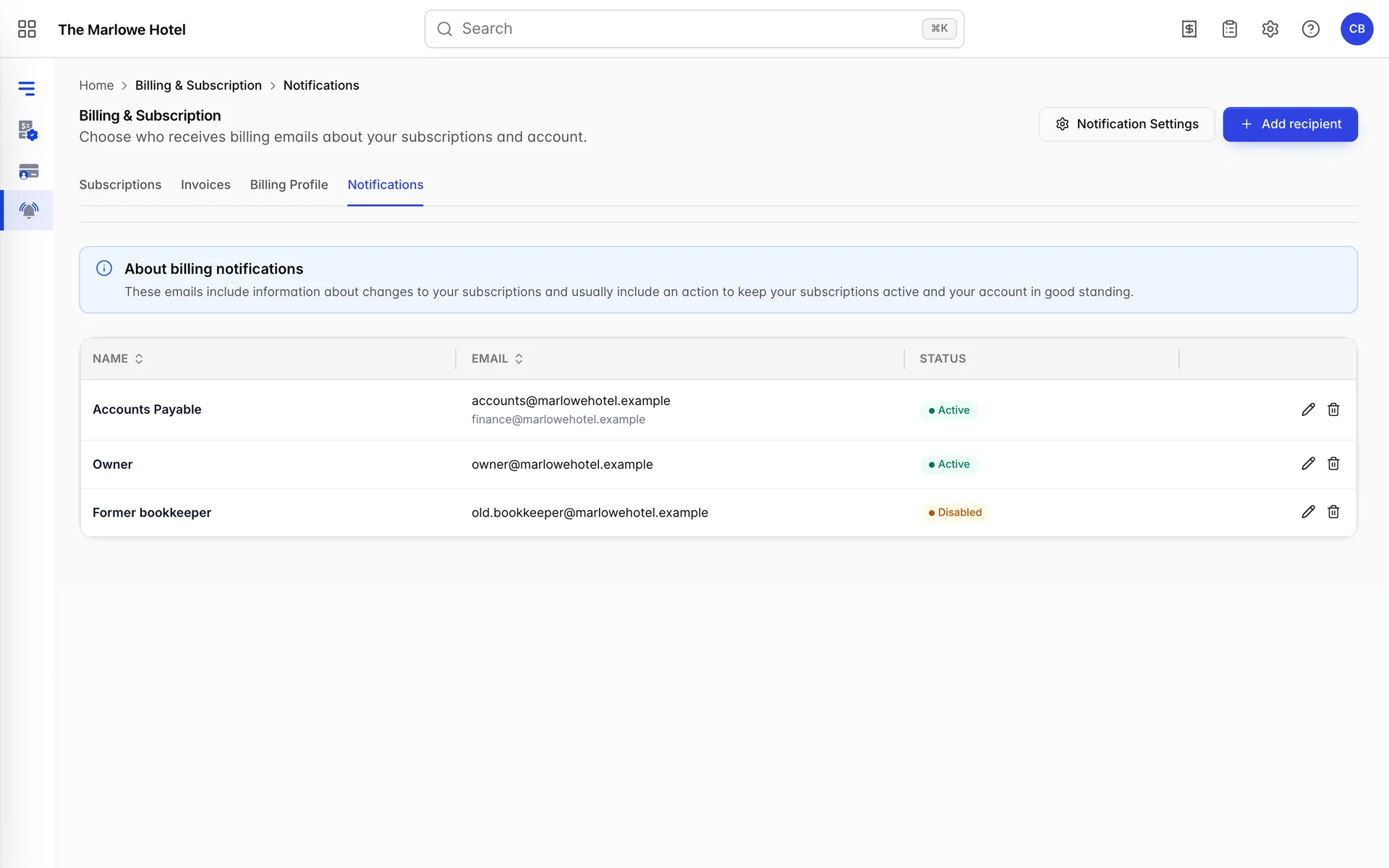
These are the people Prostay emails about your bill: invoices raised, payments taken, payments that failed, and anything that needs you to act to keep a subscription running.
This list is worth keeping honest, because the emails it sends are the early warning for everything in your invoices, and paying one. A property whose only billing recipient is a manager who left last year finds out about a declined card when a module suspends itself.
Add at least two people, and make one of them a role address such as an accounts inbox rather than an individual, so the list survives somebody changing jobs.
The recipient fields
Add recipient opens a drawer with five fields.
- Name is a label for your own benefit, so the list reads as people and roles rather than as addresses. Something like Accounts Payable is more useful here than a person's name.
- Email address is where the billing email goes.
- Alternate email address is an optional second address for the same recipient, copied on the same emails. Use it for a personal address alongside a shared inbox, rather than for a different person, who should be their own row.
- Preferred language sets the language the billing emails are written in for this recipient. It is per person, so a French-speaking owner and an English-speaking bookkeeper can each be emailed in their own language about the same invoice.
- Status switches this recipient on or off. Turning somebody off keeps the row so you can turn them back on, which is what you want for a seasonal accountant. Removing them deletes the row.
Notification settings
Notification Settings holds settings that apply to every recipient at once rather than to one of them.
Attach invoice PDF includes a copy of the invoice in the billing emails. With it off, recipients get a notification and have to sign in to download the invoice, which is fine for staff and awkward for an external bookkeeper who has no Prostay login at all. If anybody on your recipient list is outside the hotel, turn it on.
Removing a recipient asks first and takes effect immediately: they receive nothing from the next email onwards. It does not affect the Invoice recipients field on the billing profile, which is a separate list, so if you are removing somebody who has left, check both.