Whose invoices these are
These are invoices Prostay has raised against your hotel for the software. They are not invoices your hotel has raised against a guest or a travel agent. If you are looking for a guest's bill, that is a folio and it lives on the reservation.
Everything here is a record rather than something you edit. There are exactly two things you can do on this screen: download an invoice, and pay one.
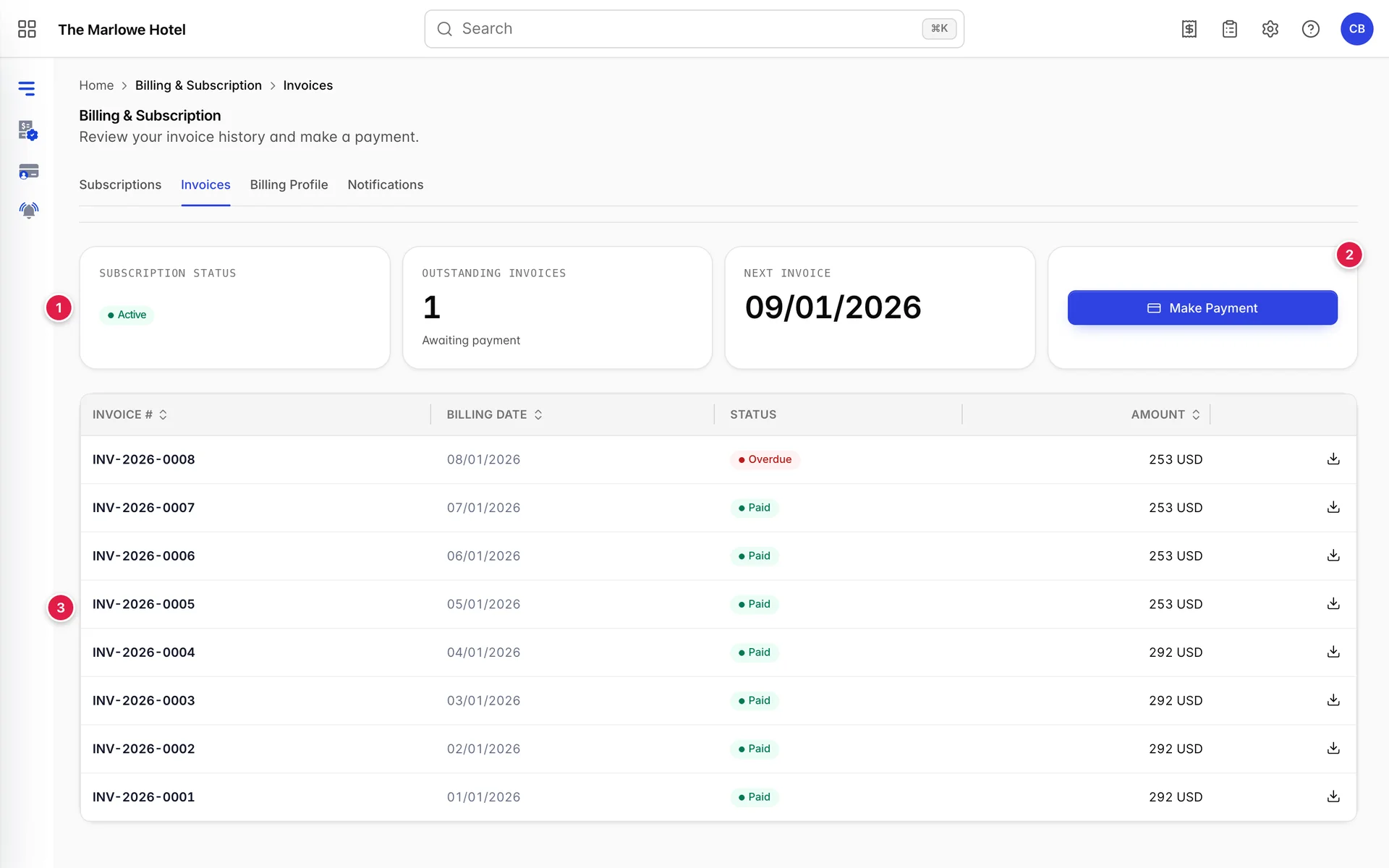
The three tiles

Subscription status repeats the account status from the Subscriptions tab, so you can see at a glance whether an unpaid invoice has started to affect your service.
Outstanding invoices is the number of invoices that are not paid, subtitled Awaiting payment. When it reads zero the subtitle changes to No outstanding and there is nothing for you to do. This is the one number on the screen worth glancing at monthly.
Next invoice is the date the next charge is raised, the same date the Subscriptions tab shows. The Make Payment button sits in this tile.
The invoice table
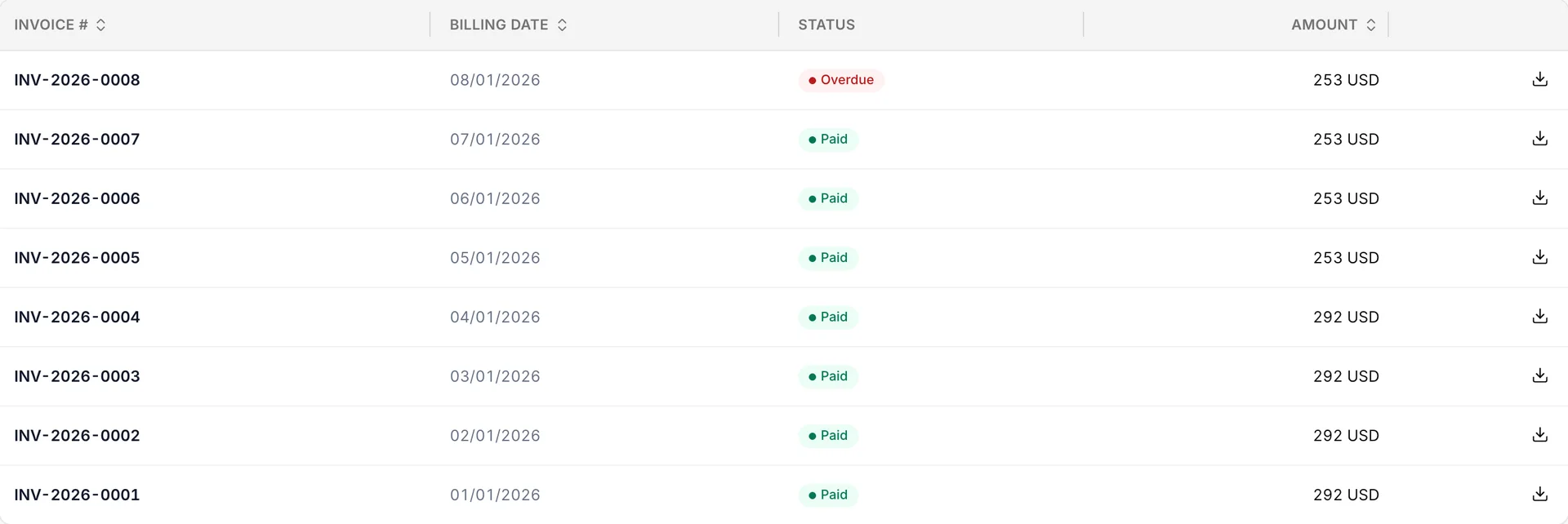
Newest first, one row per invoice, and four columns.
Invoice # is Prostay's reference for that invoice. Quote it in full when you query anything, and give it to your accountant rather than the date, because two invoices can share a date and none share a number.
Billing date is the day the invoice was raised. It is not the day payment is due; the due date is on the invoice itself, and is what the Overdue badge is measured against.
Status is covered next. Amount is the total for that invoice including anything charged on it beyond your recurring products. A month where you added a module partway through will not match the month before it, and the invoice itself breaks the difference down line by line.
The download icon at the end of each row is the only action on the row.
Paid, Due and Overdue
Three states, and the difference between the last two is only the calendar.
- Paid, in green. Settled. The invoice carries the date it was paid.
- Due, in amber. Raised, not yet paid, and not yet past its due date. This is a normal state for a few days each cycle and does not need you to act unless you pay by transfer rather than by card.
- Overdue, in red. Raised, not paid, and past its due date. Prostay works this out from the due date on the invoice against today, so a badge can turn from Due to Overdue overnight without anything else changing.
If a card is on file and set to auto-renew, an invoice normally moves to Paid by itself within a day or two of being raised. An invoice sitting at Overdue with a card on file usually means the charge was declined, and the place to check is billing details, your card and who gets the invoice: an expired card is the most common cause.
Downloading an invoice
The icon at the right-hand end of a row opens that invoice as a document in a new tab, which you can then save or forward. This is what to send your accountant or your head office, and it works on any invoice regardless of its status.
If nothing happens when you press it, that invoice has no document attached yet. That is normal for the first hours after an invoice is raised and it resolves by itself. If it is still empty a day later, quote the invoice number to Prostay support.
Paying an outstanding invoice
Make Payment in the Next invoice tile opens a secure payment page in a new tab. You pay there and come back; you are not typing card details into this screen.
Three things follow from that, and each has caught somebody out.
- A pop-up blocker will stop it. The page opens in a new tab, so if pressing the button appears to do nothing, look for a blocked pop-up notice in your browser's address bar and allow it.
- Finish on that page, not this one. The payment completes in the new tab. Closing it partway leaves the invoice unpaid even though you started.
- The status here does not change instantly. It takes a moment for a completed payment to register against the invoice. Reload this screen after a minute rather than paying a second time. If the badge is still not Paid after an hour, contact support with the invoice number instead of retrying.
You can also pay by bank transfer if that is what you have agreed with Prostay. Nothing on this screen arranges that, and an invoice settled by transfer moves to Paid when Prostay reconciles it rather than immediately.
What happens if you leave one unpaid
An unpaid invoice does not stop your hotel working the same day. What it eventually does is move a product to Temporarily Suspended, which you would see on the Subscriptions tab, and a suspended module cannot be used by anyone at the property until it is restored.
That is a recoverable state rather than a lost one: clearing the payment restores the product with its data intact. The point of the Outstanding invoices tile is to let you catch it before it gets that far, which is why it is worth a glance each month even when you expect it to read zero.