Prostay does not ask staff for a password any more. There is no password field on the sign in screen, no password to forget, and nothing for an administrator to reset. What replaces it is a passkey, which is the same Face ID, Touch ID, Windows Hello or fingerprint reader that already unlocks the device in front of you.
If you have used the passkey button before, the change is smaller than it sounds. That button has been on the sign in screen for a while as an alternative to typing your password. What has gone is the password behind it.
What changed
| Before | Now |
|---|---|
| Email, then a password, then a verification code | Email, then your passkey. Nothing else on a device you have used before. |
| Forgot password emailed you a reset link | Email me a sign-in link emails you a link that signs you in. There is nothing to reset. |
| An administrator could set or reset your password | Nobody can set your passkey for you. An administrator can only clear your sign in and let you start again. |
| A password worked on any machine in the world | A passkey works on the device it was created on. Adding a second device is a deliberate step. |
Signing in on a day to day basis
Go to your property address and type your email. Then use Sign in with a passkey, and approve the prompt your device raises. On a laptop that is usually a fingerprint or a face; on a desktop it may be a PIN you set with the operating system, or a security key you plug in.
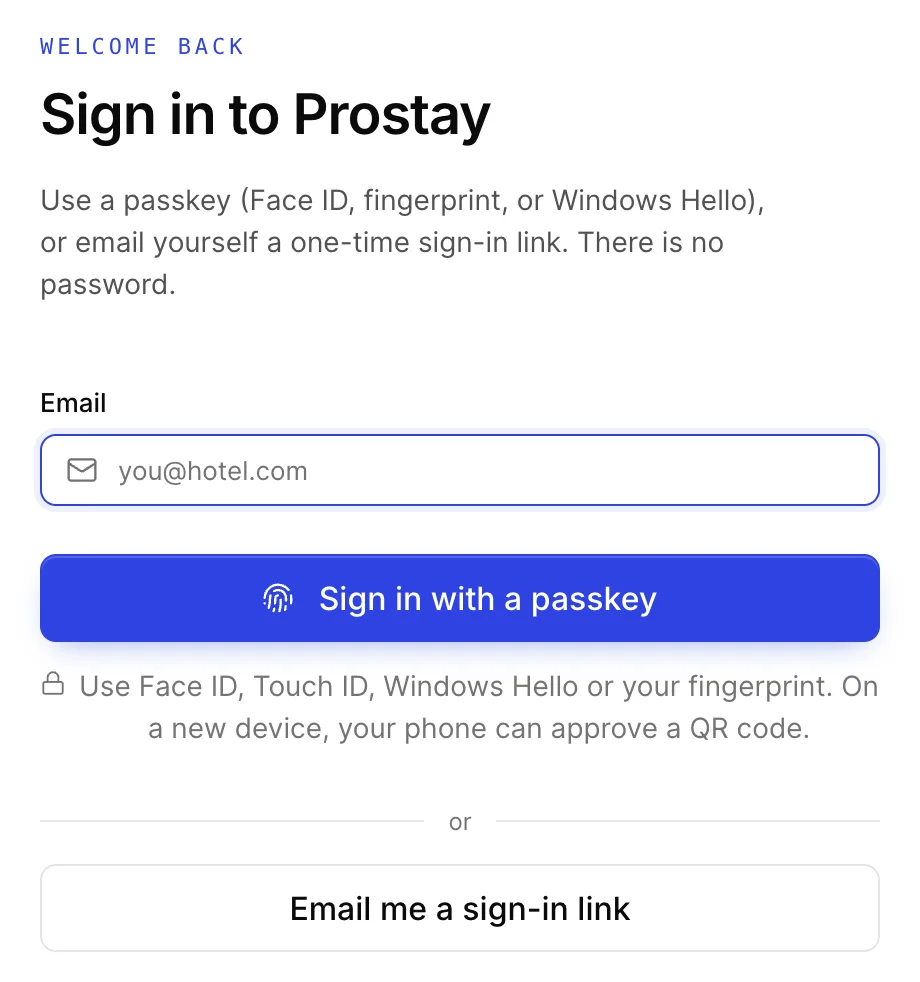
The prompt comes from your browser and your operating system rather than from Prostay, so it looks like the rest of your machine and not like the rest of this application. Prostay never sees your fingerprint or your face. It receives an answer from the device saying that whoever is sitting there unlocked it.
If your passkey lives in an iCloud, Google or Windows account, it follows you to the other devices signed in to that same account, and you will not have to do anything on a new laptop beyond approving the prompt. If it does not, the new device needs its own passkey, which is covered in setting up your sign in.
When the passkey will not work
Email me a sign-in link is the way in whenever the passkey is not available: a borrowed machine, a browser that is too old, a laptop being repaired, or a prompt that simply refuses. Prostay emails a link to your registered address and the link signs you in.
Two things about that link are worth knowing before you need it. It expires after twenty minutes, so ask for it when you are ready to use it rather than in advance. And it can be used once, so if you open it, get distracted, and come back to the same email an hour later, ask for a fresh one with Send another link.
Prostay always says a link is on its way, whether or not that address has an account. That is deliberate. If it said "no such user" it would let anyone outside your hotel find out who works there by typing addresses into the sign in screen.
| What the screen says | What it means |
|---|---|
| Passkey sign-in was cancelled, or no passkey is available on this device. | You dismissed the prompt, or this device has no passkey for you. Try again, or use the sign in link. |
| This account does not have a passkey yet. Email yourself a sign-in link to finish first-time setup. | The account is real but has never been set up. The link is the start of that, and Prostay walks you through the rest. |
| Passkeys are not supported on this device. Use a current browser, or email a sign-in link. | Usually an old browser. The sign in link works everywhere, so use that and update the browser when you have a moment. |
| We couldn’t verify your passkey. Email yourself a sign-in link instead. | The device answered and Prostay did not accept the answer. Use the link, and if it keeps happening, add a fresh passkey from your profile. |
The email about a new device
Prostay remembers the browser, the operating system and the rough location of the sign ins on your account. The first time it sees a combination it does not recognise, it emails you to say so. The message reports the time, how you signed in, the browser and system, the address it came from and the city it was resolved to.
Getting one after you buy a laptop or travel to another city is expected and needs nothing from you. Getting one you cannot account for is worth acting on immediately, because it means a sign in succeeded. Ask an administrator at your property to reset your sign in, which throws away every passkey and every remembered device on the account and starts you again.
When you cannot get in
| What is happening | What to do |
|---|---|
| You are new and have never signed in | Your welcome email deliberately carries no link, because it would have expired long before you read it. Go to the sign in screen and use Email me a sign-in link. See setting up your sign in. |
| The sign in link never arrives | It goes to the address the account was created with, which may not be the one you are typing. An administrator can see and correct that address. |
| The link says it is invalid or has expired | Twenty minutes, one use. Ask for another. This is the single most common thing people hit, and it is not a fault with your account. |
| You are asked for a code and cannot reach your authenticator app | Use one of the backup codes you saved during setup. If those are gone too, an administrator has to reset your sign in. |
| Your account has been deactivated | The account exists but is switched off. Only an administrator at your property can switch it back on. |
| This is a shared front desk machine and you were expecting a keypad | That is a separate feature a property turns on, and the machine has to be enrolled first. See shared front desk computers and PINs. |
Where to go next
- Setting up your sign in, for a first sign in, a new laptop, or a lost phone.
- Shared front desk computers and PINs, if your hotel does not let front desk staff carry phones.
- Finding your way around, for the controls in the top bar once you are in.
- Users, roles and permissions, for adding a colleague or working out why a screen is missing.